
File Upload and Multimodal Q&A
File Upload and Multimodal Q&A lets you temporarily add images or files to an Analytics Agent conversation so that Agent can answer the current question using those materials. It is useful when screenshots, charts, reports, or reference documents are difficult to describe with text alone.
Upload an image, spreadsheet, or document in a conversation, then ask your question directly. Analytics Agent can use the attachment to understand the question, generate an answer, or adjust how a chart is displayed.
What Problems This Feature Helps You Solve
| Scenario | Example | Value |
|---|---|---|
| Image understanding | Upload a screenshot of a chart style you like, then ask Agent to generate a similar chart. | You do not need to describe the color palette, layout, or chart style in words. |
| Report analysis | Upload an Excel or CSV file and ask about trends, anomalies, or summaries. | You do not need to manually copy file content into the conversation first. |
| Document interpretation | Upload a PDF, Word document, or TXT file and ask for the key conclusions. | Agent can summarize and answer questions using the document content. |
| Temporary supporting material | Upload a screenshot, reference document, or data extract in the current conversation. | The file supports only the current analysis task and does not affect other conversations. |
Uploading an Image or File
- Open the Analytics Agent conversation page.
- Click the "+" button to the left of the input box and select Add Attachment.
- For images, you may also take a screenshot and paste it directly into the input box using keyboard shortcuts.
- Select local images or files.
- Wait for the upload to complete.
- Describe in the input box how you want the Agent to use the attachment.
- Send your question.
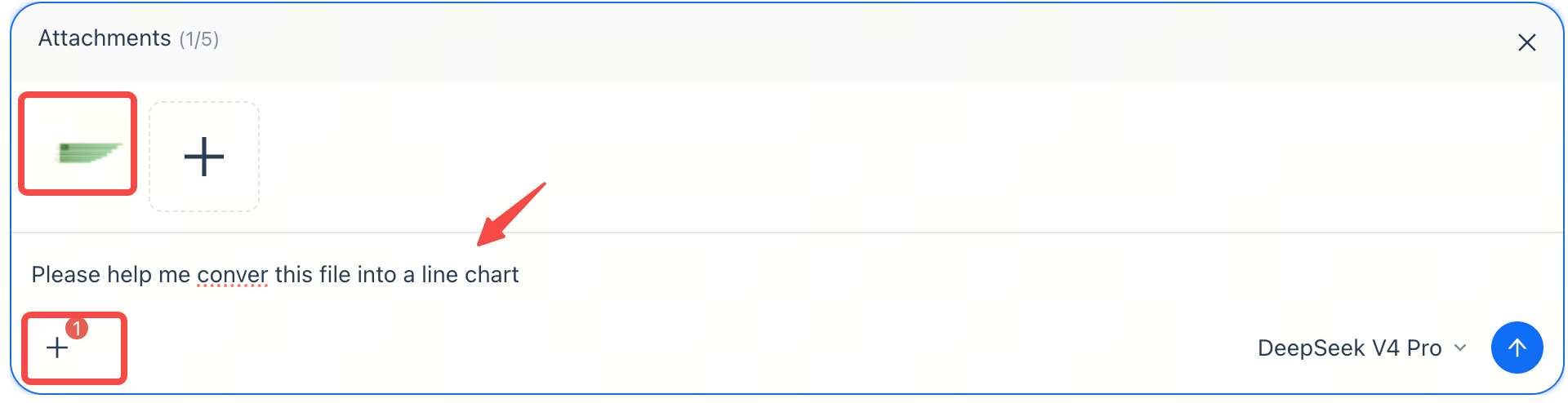
The input area displays the number of attachments currently added, for example, Attachments (1/5).
Viewing Conversation Files
Uploaded files appear in the current conversation's file list. You can view the file name, size, and upload time, as well as preview or delete a file. The list shows the number of currently valid files, for example, Valid Files (1/10).
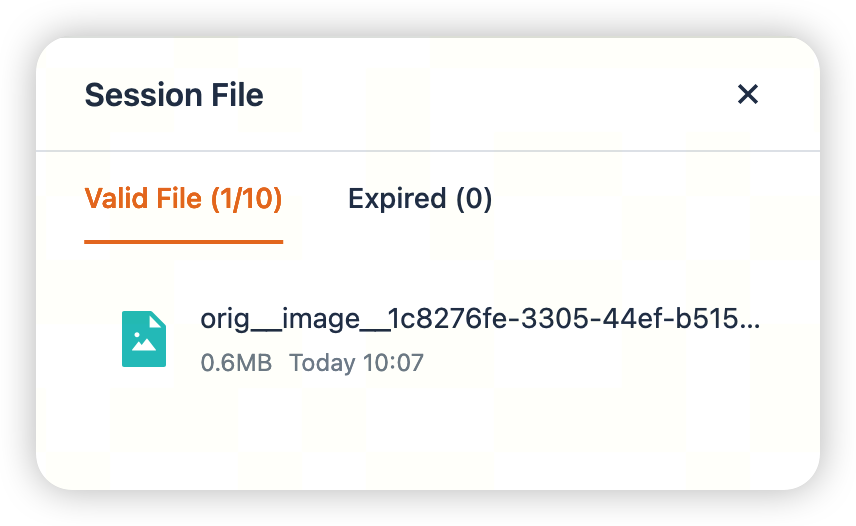
The file list distinguishes between valid and expired files. Valid files can continue to be used in the current conversation; expired files can no longer be used as context for Q&A.
Asking Agent to Use an Attachment
After uploading an attachment, clearly state what you want Agent to do. For example:
Based on this screenshot, change the bar chart to a line chart.Analyze the sales trends for each region in this Excel file.Summarize the key conclusions of this PDF report.Using this image, explain which stores have ratings above average.
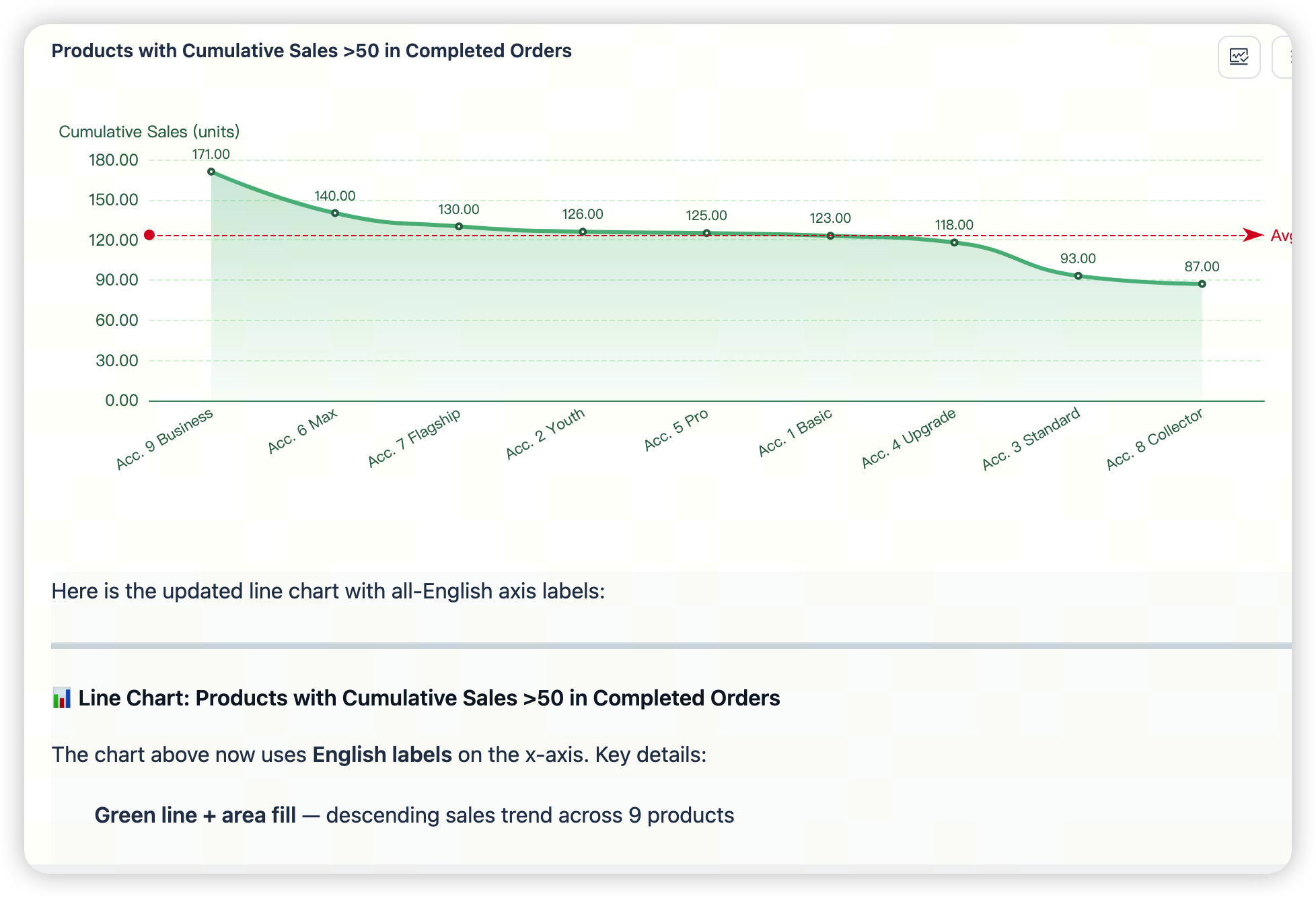
If the attachment contains a chart or table, state the goal precisely, for example: “Convert it to a line chart,” “Find anomalies,” “Summarize by region,” or “Compare this month with last month.” This makes it easier for Agent to produce the result you expect.
Usage Tips
- Before uploading, confirm that the file is clear, field names are complete, and screenshots are not obstructed.
- For spreadsheets, retain the header row and avoid excessive merged cells.
- For image screenshots, capture the complete chart or table area whenever possible.
- If your question concerns only part of the current file, specify the scope in your question.
- If a file is no longer needed in the current conversation, delete it from the conversation file list.
FAQ
Are uploaded files added to the Knowledge Base?
No. Files uploaded in a conversation are temporary attachments for the current conversation and are not automatically added to the Knowledge Base.
Can I use files uploaded in a previous conversation after starting a new one?
No. Conversation files are available only in the current conversation. Upload the relevant files again after starting a new conversation.
Can I upload an image and ask Agent to change a chart?
Yes. Upload a chart screenshot, then explain how you want it changed, for example, “Change the bar chart to a line chart.”
Can I continue asking questions after a file expires?
An expired file can no longer be used as Q&A context. Upload it again if you still need to use it.
Related Documentation
- Knowledge Base Guide — Manage and reuse business materials over the long term.
- Model Selection and Configuration — Configure model capabilities that support images or OCR.
- Reading Analysis Results — Assess whether an Agent response can support business analysis.
- Sharing and Collaboration — Share analysis results with others.