
Sharing and Collaboration
Sharing and Collaboration lets you turn valuable Q&A results in Analytics Agent into read-only links that you can send to colleagues or business stakeholders. It addresses the need to forward analysis results without losing context or formatting, while making them easy for recipients to review.
In a conversation, select one or more messages, confirm that they are appropriate to share externally, and generate a share link. When recipients open the link, they can view the selected content in its original conversation order without entering the source conversation or editing its content.
What Sharing Helps You Solve
| Scenario | Example | Value of sharing |
|---|---|---|
| Sharing analysis conclusions | Send the results of a sales analysis to the business owner. | The recipient can open a read-only page and review the complete conclusion directly. |
| Preserving Q&A context | A conclusion depends on several earlier follow-up questions. | Select multiple messages together so the recipient does not lose context when viewing only the final answer. |
| Cross-team review | Send an Agent execution process, charts, and conclusions to the analytics team. | Recipients can view the original presentation structure, reducing the need for screenshots and manual copying. |
| Mobile viewing | A business stakeholder opens a share link on a phone. | The share page adapts to mobile devices for quick review. |
Sharing is suitable for distributing analysis results. It is not a replacement for access authorization, data-export approval, or formal report-publishing processes.
What Is Included in Shared Content
The share page displays only the messages you select. Unselected context does not appear on the page.
Shareable content typically includes:
- User questions.
- Agent responses.
- Analysis conclusions.
- Charts and tables.
- Agent execution processes.
- Visible text in the selected messages.
When a recipient opens a share link, they can view the sharer, sharing time, source conversation title, expiration time, and selected content.
Starting a Share
- Open the target conversation in Analytics Agent.
- Find the Agent response you want to share.
- Click Share below the response.
- The page enters share-selection mode.
- The current response is selected by default.
- Select additional user questions or Agent responses as needed.
In selection mode, each user message and Agent response has a checkbox on its left. A floating action bar at the bottom shows the selected-message count and provides Cancel and Generate Share Link buttons.
Selecting Content to Share
Before sharing, select only content that truly needs to be sent externally. Use these guidelines:
- If you only need to share a conclusion, select the final response.
- If the conclusion depends on earlier questions, also select the relevant user questions and Agent responses.
- To explain the analysis process, select the response that includes the Agent execution process.
- Do not select content containing sensitive fields, internal judgments, or unconfirmed business definitions.
Generating a Share Link
- Confirm that all required content is selected.
- Click Generate Share Link in the bottom action bar.
- The system generates a read-only share link.
- In the dialog, click Copy Link.
- Send the link to the people who need to view it.
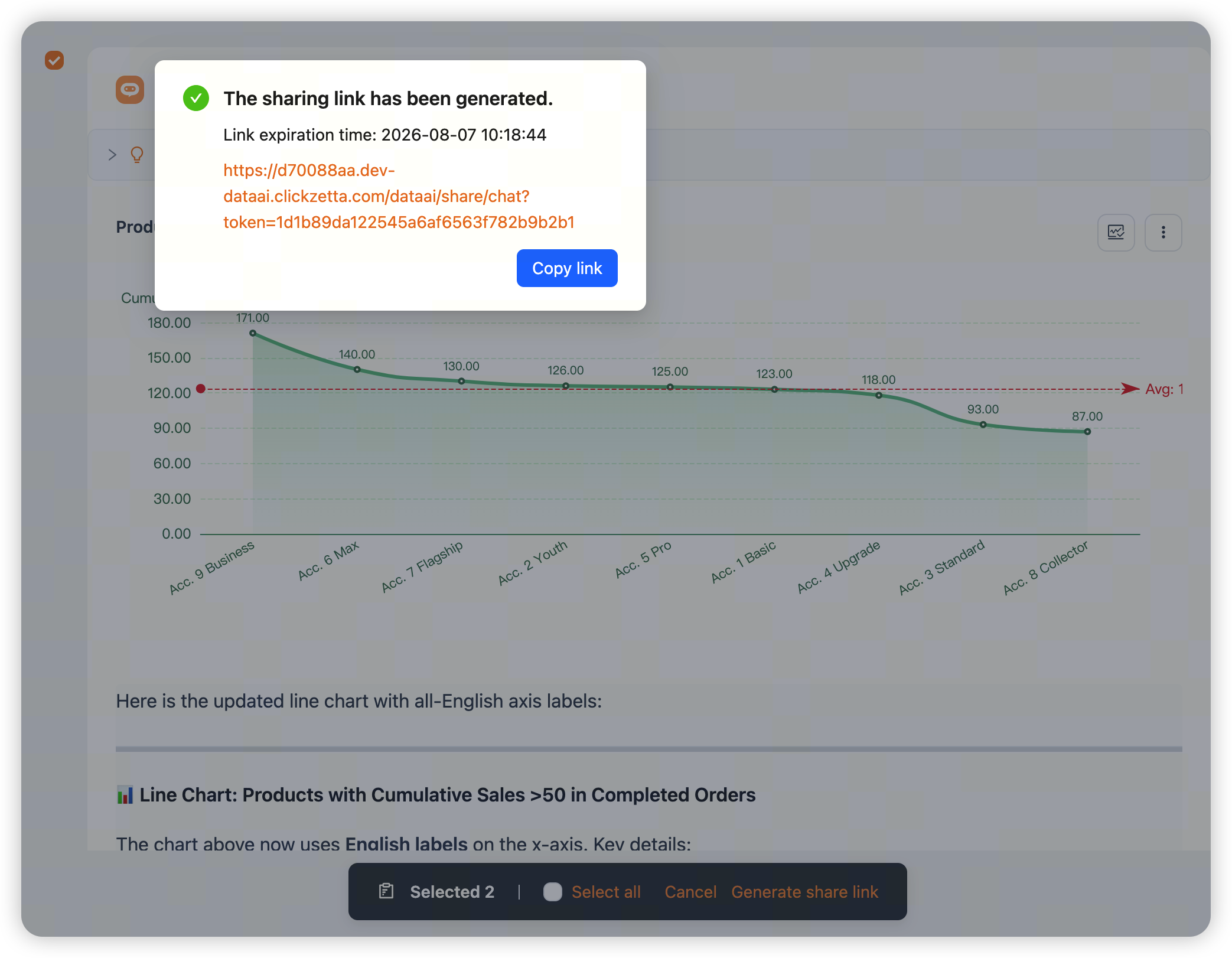
The dialog shows the link's expiration time. After it expires, recipients can no longer view the shared content through that link.
Viewing Shared Content as a Recipient
When recipients open a share link, they enter a read-only share page. The page displays the selected content in the original conversation order and retains its original structure and primary presentation.
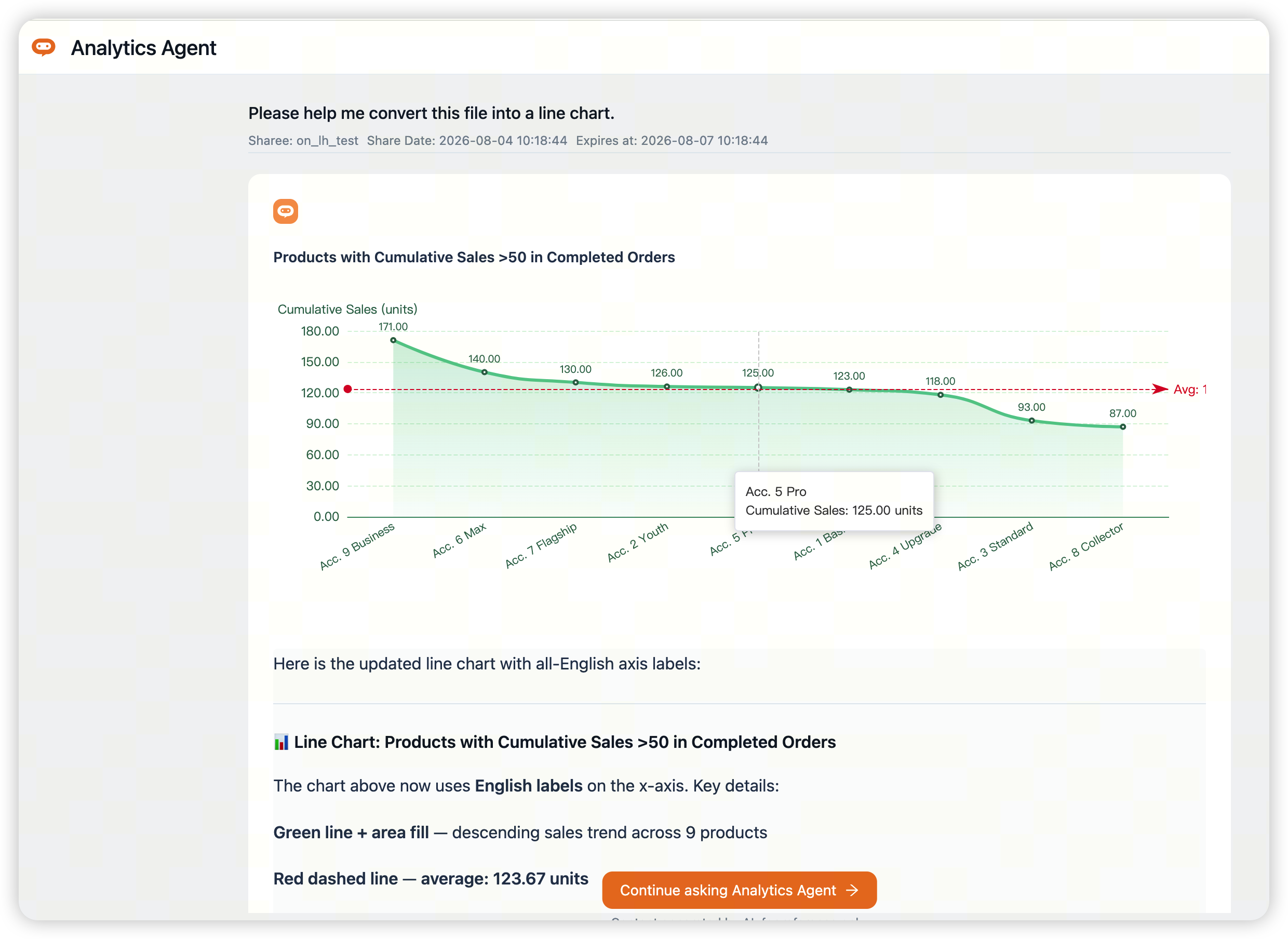
On the share page, recipients can:
- View the source conversation title.
- View the sharer, sharing time, and expiration time.
- Read the selected questions and answers in their original order.
- View charts, tables, and Agent execution processes.
- Copy text from an individual item.
- Continue asking Analytics Agent questions.
Recipients cannot edit the source conversation or view unselected context.
Copying Shared Content
Each question and answer on the share page can be copied. Recipients can copy an individual question, an individual answer, or selected text for later organization, reporting, or review.
If a response contains a chart or table, recipients should first review the original presentation on the share page, then copy text as needed.
FAQ
Is a share link read-only?
Yes. Recipients can only view the selected content. They cannot edit the source conversation or modify the shared content.
Can recipients view the complete conversation?
No. Recipients can view only the messages you selected. Unselected questions and answers are not displayed.
Is approval required before sharing?
Recipients do not need additional approval when opening the link. Before generating the link, the sharer must confirm that the content is appropriate to share externally.
Does a share link expire?
Yes. The expiration time is shown in the generation dialog and on the share page. After expiration, the link can no longer be used to view the content.
Can I share multiple messages at once?
Yes. In share-selection mode, you can select multiple user questions and Agent responses, then generate one share link for all selected content.
Related Documentation
- Reading Analysis Results — Assess whether answer content is appropriate to share.
- Handling Feedback — Report and follow up on issues found after sharing.
- DataGPT Dashboard User Guide — Turn stable analysis results into dashboards.
- Permission Management — Manage the analytics domains and data scopes that people can access.