
Evaluation Guide
Evaluation helps you verify how well Analytics Agent answers business questions in an analytics domain. It answers questions such as: Can the domain reliably answer critical questions before it goes live? Did a configuration change improve or degrade results? Which questions should be addressed first?
Save frequently asked, critical, or previously incorrect questions in an evaluation set, then start an evaluation with evaluation rules, a Q&A model, and a judge model. After the evaluation completes, the system provides the pass rate, result distribution, issue reasons, and rule-level details. Use these results to identify bad cases and continuously run regression checks after improving the analytics domain.
What Evaluation Helps You Solve
| Scenario | Example | Value of evaluation |
|---|---|---|
| Pre-launch acceptance | After creating a Sales Analytics Domain, you want to confirm that it can consistently answer common sales questions. | Verify with a representative question set whether the analytics domain is ready for business use. |
| Regression after configuration changes | After changing metric definitions, field semantics, knowledge, or the Answer Builder, you want to confirm that historical questions still work as expected. | Create another evaluation task with the same evaluation set, then use experiment comparison to review the difference before and after the change. |
| Accuracy troubleshooting | A response uses the wrong metric, omits a filter, provides an incomplete explanation, or reaches an unreliable conclusion. | Review the issue reasons, rule details, and recommended actions for failed and needs-review cases. |
| Capturing historical issues | A real conversation produces a response that does not meet expectations. | Add the question to an evaluation set so it can be rechecked after every improvement. |
Evaluation sets are particularly useful for these types of questions:
- Frequently asked questions that business teams raise daily or weekly.
- Critical questions that affect operating decisions, report definitions, or management decisions.
- Ambiguous questions involving multiple metrics, time ranges, organizational scopes, or business terms.
- Historical issues that were answered incorrectly, required manual verification, or received negative feedback.
Core Concepts
| Concept | Description |
|---|---|
| Evaluation set | A set of questions used to verify the performance of an analytics domain. Each item includes a question and, optionally, an expected output. |
| Evaluation rule | A standard for judging whether a response meets expectations. You can use system-provided rules or create custom rules. |
| Evaluation task | One evaluation run for an analytics domain using a selected evaluation set, evaluation rules, and models. |
| Q&A model | The model selected when creating an evaluation task. It runs the evaluation questions and generates Agent responses. |
| Judge model | The model selected when creating an evaluation task. It applies the evaluation rules and returns a result and explanation. |
| Evaluation result | The outcome for an individual evaluation item: Pass, Needs Review, or Fail. |
| Experiment comparison | A comparison of the responses and results from two completed evaluation tasks for the same analytics domain and evaluation set. |
A complete evaluation workflow typically looks like this:
Preparing an Evaluation Set
An evaluation set is a stable collection of questions. Start by preparing a set for one analytics domain, then reuse it to repeatedly validate the domain's performance.
On the Evaluation Set List page, you can search evaluation sets, view record counts and import status, and create, view, or delete evaluation sets.
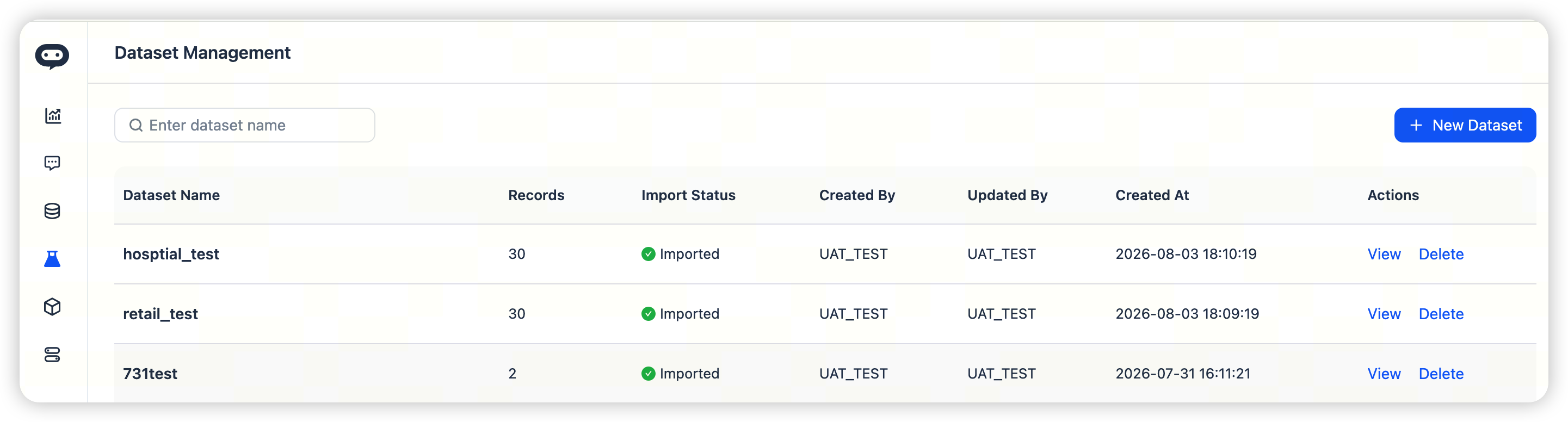
Creating an Evaluation Set
- Go to Analytics Agent.
- Open Evaluation in the left navigation.
- Go to the Evaluation Set List page.
- Click New Evaluation Set.
- Enter a name and description for the evaluation set.
- Upload an Excel or CSV file containing the evaluation questions.
- Confirm that the import status is successful.
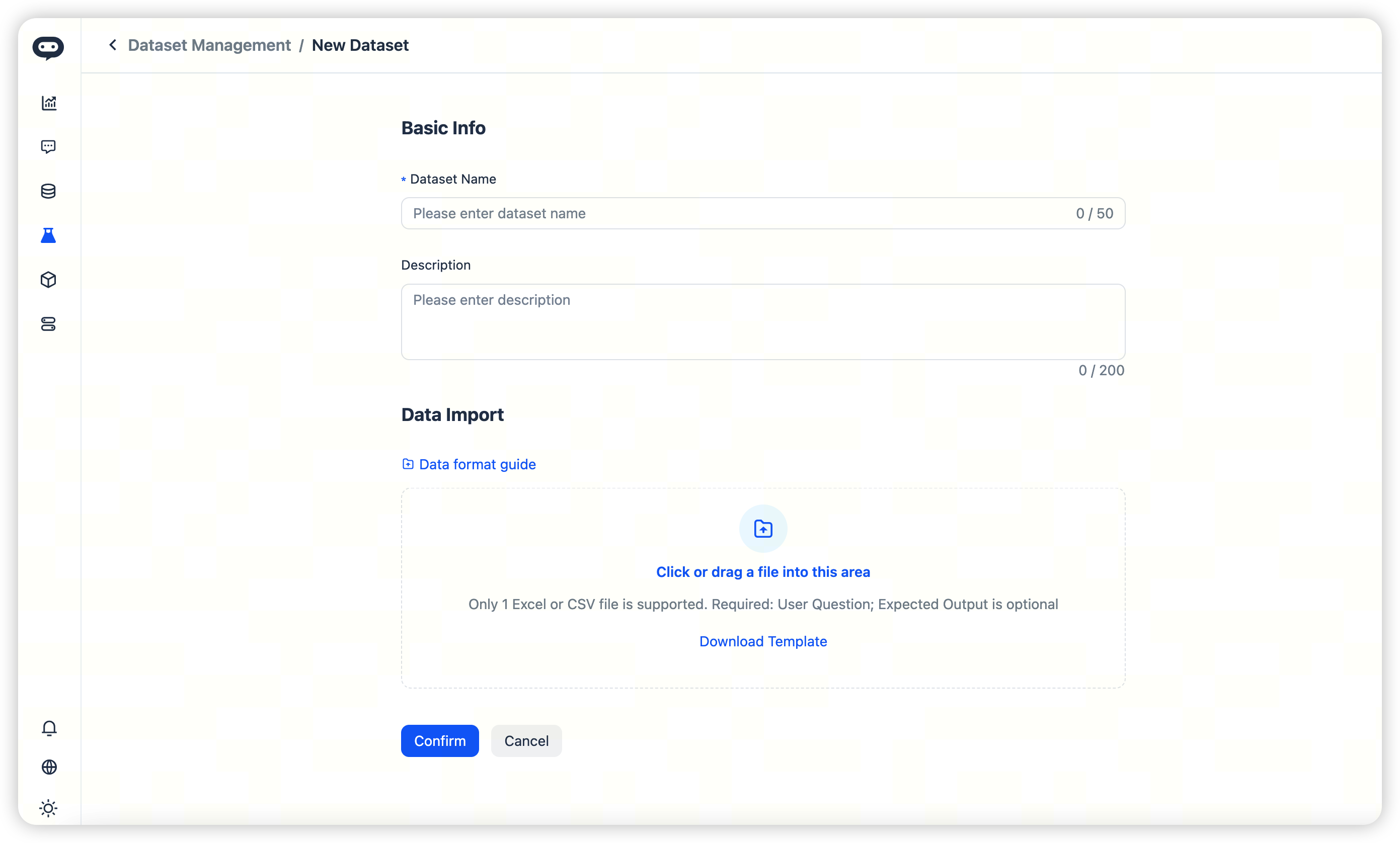
The uploaded file must include a Question column. An Expected Output column is optional but recommended.
| Question | Example expected output |
|---|---|
| What were sales in East China in June 2026? | Provide the sales amount and state the reporting period, region, and definition of sales. |
| Which channel has the highest conversion rate? | Provide the channel name, conversion rate, and comparison scope. |
| How did valid order volume change this month compared with last month? | Provide valid order volumes for both months, the change or change rate, and the definition of a valid order. |
The expected output does not need to be a complete answer. It should specify the key facts, business definitions, time range, filters, and boundary conditions that the response should cover.
Maintaining Evaluation Set Data
After opening an evaluation set, you can continue maintaining its questions:
- Add manually: suitable for adding a small number of important questions.
- Import in bulk: upload another Excel or CSV file to append multiple questions.
- Export data: download existing questions, maintain them locally, and import them again.
Avoid frequently changing core questions that are already used for regression checks. A stable evaluation set makes it easier to attribute result changes to analytics-domain configuration rather than to changes in the test questions.
Adding Questions from Historical Conversations
When a real conversation produces a representative question, you can add it to an evaluation set directly from below the Agent response. This is useful for capturing good cases and bad cases while reducing the initial effort of building an evaluation set.
- Complete a conversation in an analytics domain.
- Below the Agent response, click Add to Evaluation Set.
- Select the sample type.
- Select a target evaluation set, or create one.
- Review the question and expected output.
- Click Save.
| Sample type | When to use it | Default expected output |
|---|---|---|
| Good Case | The current response meets expectations and is worth retaining as a standard example. | The current response summary is populated by default and can be edited. |
| Bad Case | The current response does not meet expectations and needs to be fixed and revalidated later. | Empty by default; add the expected direction of the correct response. |
A bad case is more than one piece of feedback. Once it is added to an evaluation set, you can validate the same question after every analytics-domain improvement and avoid repeating the same type of issue.
Configuring Evaluation Rules
Evaluation rules determine how the judge model assesses whether a response meets expectations. You can use system-provided rules or create custom rules for specific business scenarios.
System-provided rules are suitable for general quality checks, such as:
- Whether the response is correct.
- Whether metric definitions are consistent.
- Whether the explanation is credible and sufficient to support a business decision.
If your scenario has explicit requirements, create a custom rule. For example, a rule for a sales analytics domain might be:
A well-defined evaluation rule should clearly specify the criteria for these three outcomes:
| Result | Meaning |
|---|---|
| Pass | The response matches the question and expected output and can be used for a business decision. |
| Needs Review | The response is broadly correct, but its definitions, boundary conditions, or explanation are incomplete and require human confirmation. |
| Fail | A key metric, analysis subject, time range, conclusion, or fact is clearly incorrect and cannot be used for a business decision. |
Creating and Running an Evaluation Task
An evaluation task runs all questions in an evaluation set in batch and generates results according to the rules you select.
- Go to Evaluation > Evaluation Tasks.
- Click Create Evaluation Task.
- Enter a task name.
- Set the concurrency.
- Select a Q&A model.
- Select a judge model.
- Select the analytics domain to evaluate.
- Select the evaluation data.
- Select one or more evaluation rules.
- Click Create Evaluation Task.
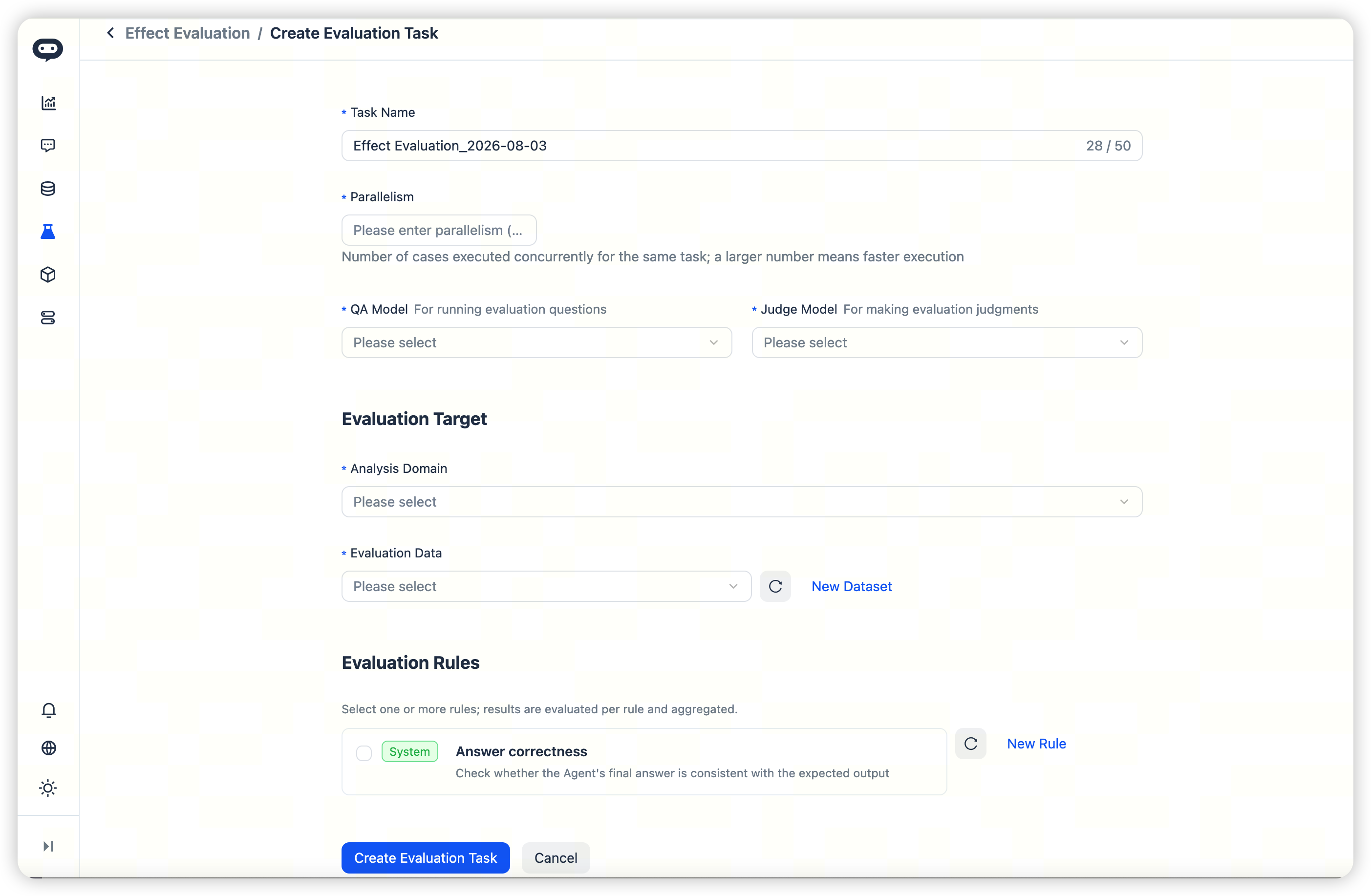
Include the analytics domain, purpose, and date in the task name, for example, Sales Analytics Domain_Launch Acceptance_2026-07.
Concurrency is the number of cases that run at the same time in a task. It currently supports values from 1 to 8. Higher values usually complete sooner; use a lower value when you want to reduce model-call pressure.
When you create a task, the Q&A model generates Agent responses, while the judge model evaluates them against the evaluation rules. Keep the models, evaluation set, and rules consistent within the same regression cycle so you can more easily identify the impact of analytics-domain configuration changes.
After creation, the task appears in the Evaluation Tasks list. From the list, you can view its status, progress, pass rate, analytics domain, evaluation set, Q&A model, and judge model.
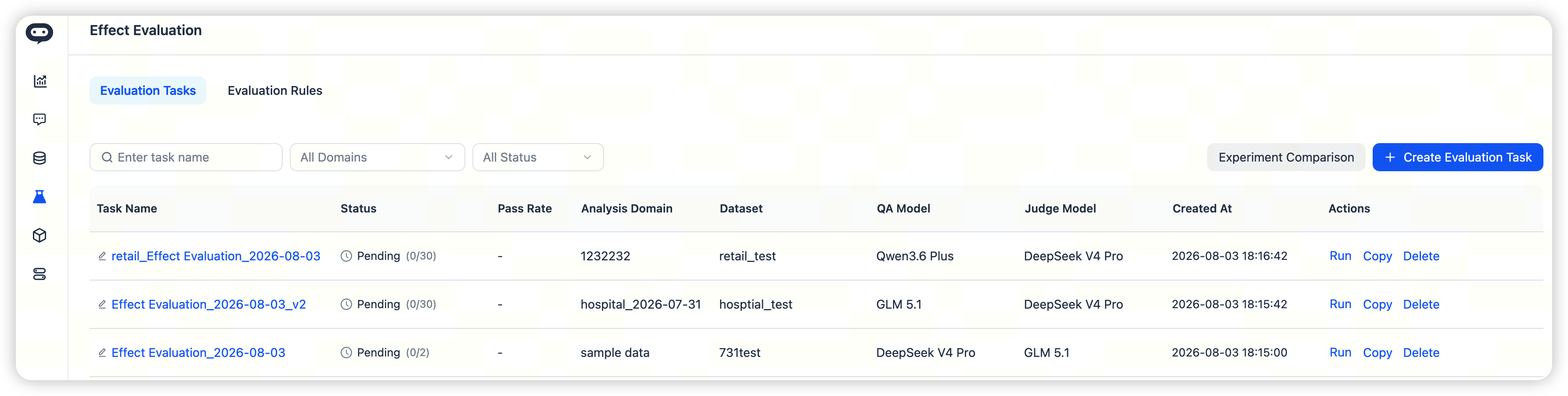
Reviewing Evaluation Results
After an evaluation finishes, click the task name to open its results page. The page typically includes task information, a result overview, and item details.
Review the Overall Results First
Use the result overview to understand the overall outcome. Focus on:
- Pass rate: the proportion of completed cases whose final result is Pass.
- Evaluation size: the number of questions run in this evaluation.
- Result distribution: the number of Pass, Needs Review, and Fail cases.
When a question uses multiple evaluation rules, the system determines the final case result by aggregating the rule results:
| Combination of rule results | Final case result |
|---|---|
| Any rule is Fail | Fail |
| No rule is Fail, but at least one rule is Needs Review | Needs Review |
| All rules are Pass | Pass |
Review Bad-Case Details
In the item details, first filter for Fail and Needs Review cases. For each case, you can review:
- The question and expected output.
- The Agent output.
- The final result.
- The issue reason.
- Rule-level results.
- Recommended remediation.
| Common issue | Areas to investigate first |
|---|---|
| Incorrect value or metric | Metric definitions, underlying data, and calculation logic. |
| Incorrect interpretation of time, region, or subject | Field semantics, synonyms, and question wording. |
| Inconsistent business definition | Metric configuration, knowledge, and the Answer Builder. |
| Missing explanation or boundary conditions | Knowledge configuration, rule criteria, prompts, and examples. |
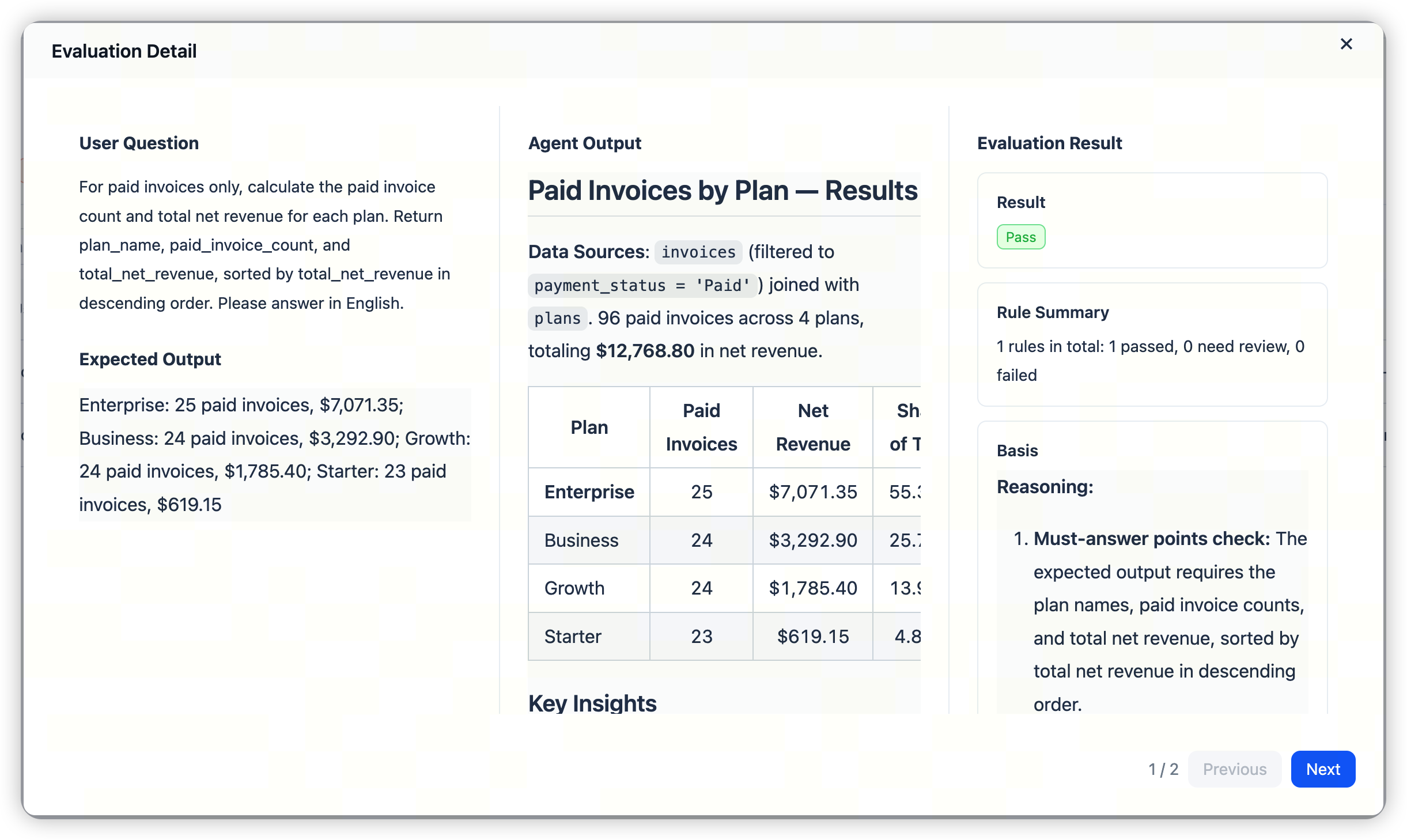
If you determine that the automated result does not match your business understanding, you can manually change the result and record the reason. The system retains the original result for later audit and traceability.
Creating Another Evaluation Task After Improvements
After addressing bad cases by improving the analytics domain—for example, correcting metric definitions, adding field semantics, improving knowledge content, or adjusting the Answer Builder—create another evaluation task with the same analytics domain, evaluation set, evaluation rules, and models.
- Return to Evaluation > Evaluation Tasks.
- Click Create Evaluation Task.
- Select the same analytics domain, evaluation set, evaluation rules, Q&A model, and judge model as the previous task.
- Click Create Evaluation Task.
- Wait for the new task to finish, then review the results.
This creates a new task record and does not overwrite the original result. You can then use Experiment Comparison to review differences in pass rate, result distribution, and case details between the two tasks.
Comparing Two Evaluations
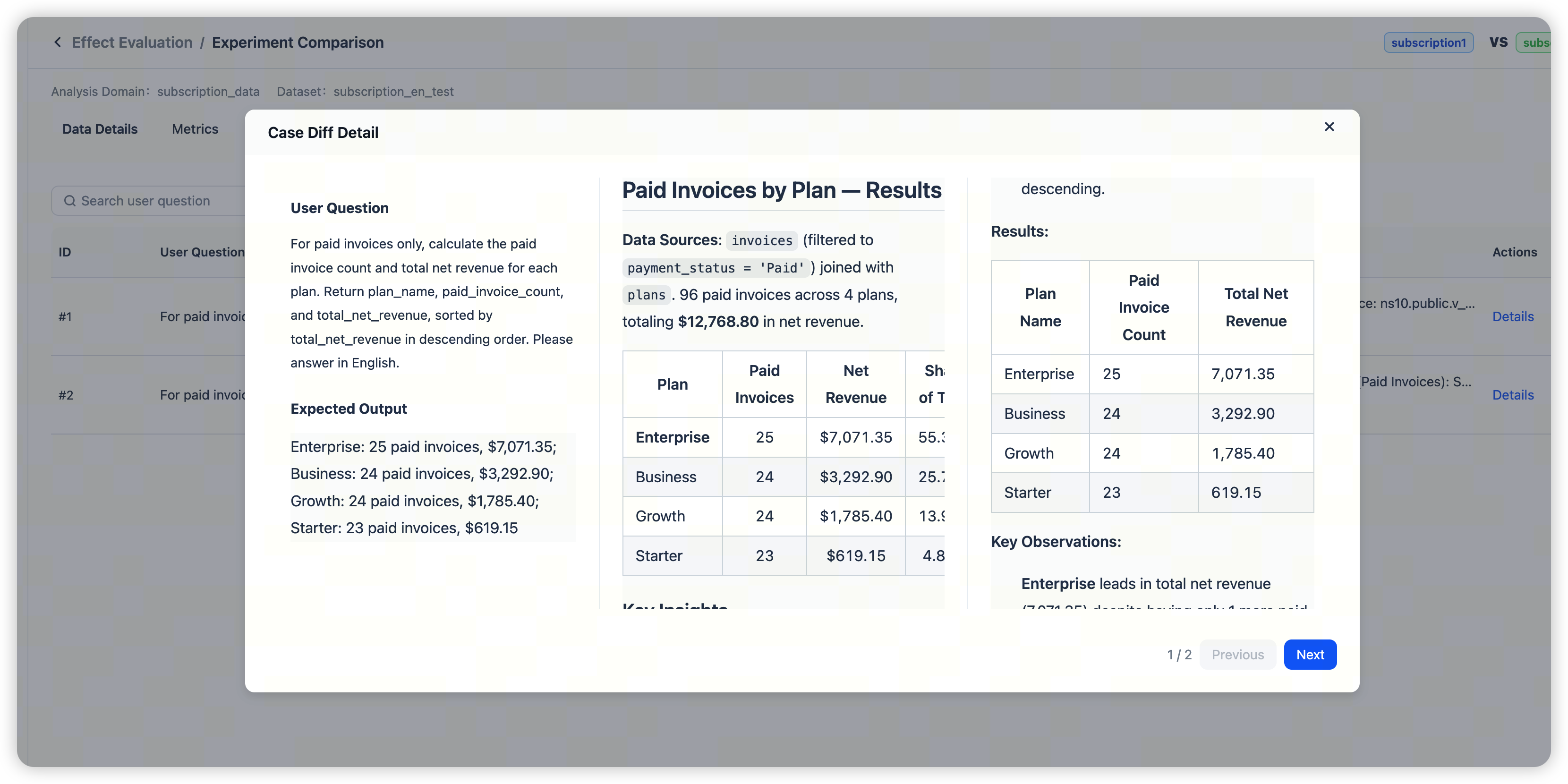
Use Experiment Comparison to determine whether an improvement changed the results. It compares the responses and outcomes of two completed evaluation tasks.
The two tasks must meet all of these conditions:
- They use the same analytics domain.
- They use the same evaluation set.
- Both have completed.
- Go to Evaluation > Evaluation Tasks.
- Click Experiment Comparison.
- Select two completed tasks.
- Confirm to open the comparison page.
- In Item Details, view the two responses and result assessments for each case.
- In Metrics, view the overall pass rate, the number of cases with matching or differing results, and pass rates by rule.
Start by filtering for Show only different results to focus on questions whose evaluation outcomes changed.
FAQ
Can one question use multiple evaluation rules?
Yes. Each rule evaluates the question independently. If any rule returns Fail, the case's final result is Fail.
Can evaluation results be changed manually?
Yes. You can change a result to Pass, Needs Review, or Fail and record the reason. The system retains the original assessment for audit and traceability.
Why should I provide an expected output?
An expected output helps the judge model understand what a response must include to meet business expectations. Provide one whenever possible for critical metrics, core business definitions, and questions that are easy to interpret ambiguously.
Why can tasks from different evaluation sets not be compared?
Different evaluation sets contain different test questions, so their results cannot be compared item by item. For a meaningful experiment comparison, use completed tasks under the same analytics domain and evaluation set.
What concurrency value should I use?
Concurrency currently supports values from 1 to 8. Use a higher value within that range when you want the task to finish sooner, or a lower value when you prioritize stability or want to reduce model-call pressure. Start with a small evaluation set, then adjust based on task size.
Related Documentation
- How Administrators Validate That Analytics Agent Configuration Is Production-Ready — Use fixed questions to verify whether an analytics domain is ready to go live.
- Troubleshooting Q&A Accuracy Issues — Systematically identify causes based on bad cases.
- Configure Field Semantics — Correct field interpretation and business-term mapping.
- Configure Knowledge — Add business terms, metric definitions, and rule descriptions.
- Answer Builder Best Practices — Improve complex responses, explanations, and presentation definitions.
- Handling Feedback — Incorporate business feedback into a continuous-governance loop.