
Model Selection and Configuration
Analytics Agent supports multiple large language models. Administrators can select which large language models are used for conversational analysis on behalf of the team. Once configured, users can choose from these models on the conversation page.
The list of available large model capabilities and product integrations updates frequently. The model names, screenshots, and entry points in this article are intended to help you understand how to select and configure models — they do not represent a fixed, complete model list. The actual available models depend on what is displayed on the current tenant page, the models that have been integrated and enabled in AI Gateway, and the current user's permissions.
Switching Models in a Conversation
Click the model icon on the left side of the input box to open a dropdown list of available models. Click to switch. Models marked as Suggest are system-recommended models.
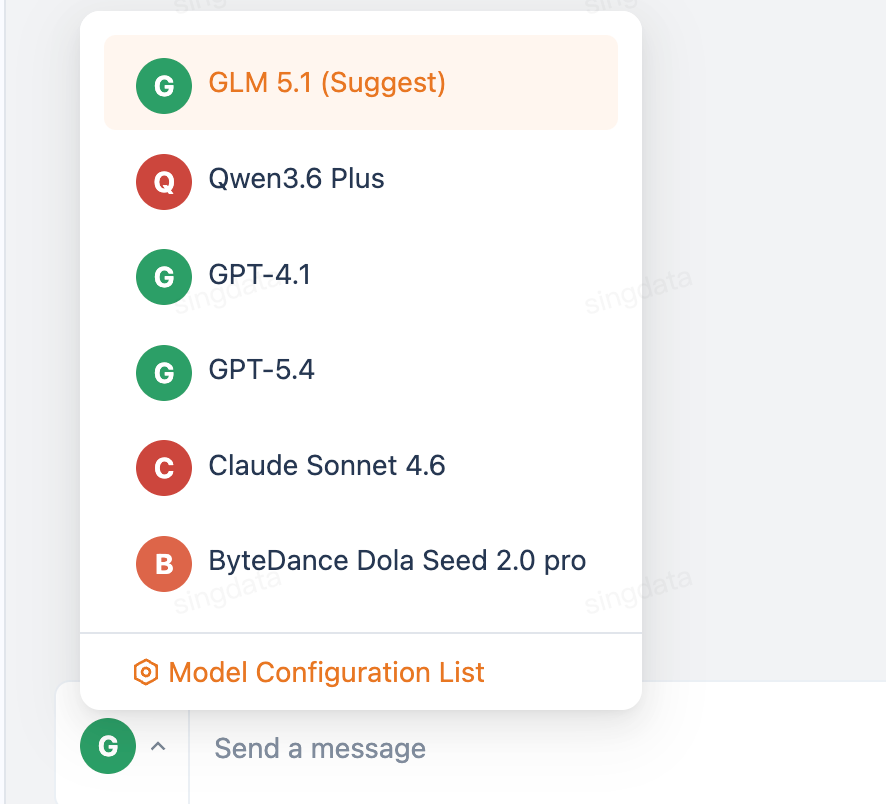
If the model list you see differs from the documentation screenshots, this is usually not a configuration issue. Common reasons include: the product has added or removed models, the administrator has adjusted available models, the corresponding model has not yet been integrated in AI Gateway, or the current account does not have permission to use that model.
Configuring Available Models (Admin)
Controls which models appear in the conversation dropdown list.
Entry point: Left navigation bar → Admin → Model Configuration
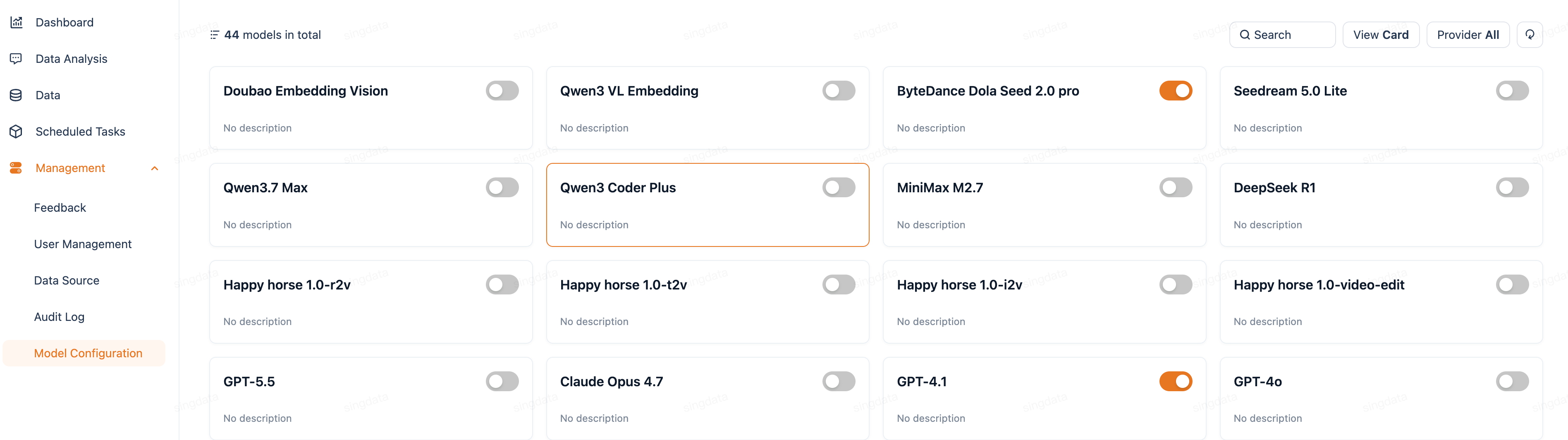
Toggle the switch on a model card to add that model to the available models for Analytics Agent; turning it off hides it from the list. Supports filtering by provider and searching by name. If a model does not appear in the list, or calling fails after selecting it, first confirm that the corresponding model has been created and configured as available in AI Gateway, and that the current tenant or user has the required permissions.
If the model you need is not in the list (such as an enterprise self-built model), click "Go to AI Gateway to create a new model" at the bottom of the page. After configuring it in AI Gateway, return to the model configuration page and enable the model card switch.

Related Documentation
- AI Gateway — Connect self-built or third-party models
- Data Source Management — Configure the data sources for your analytics domain
- Improving Q&A Accuracy — After completing model configuration, use the semantic layer to further improve answer quality
- Conversational Data Analysis (Analytics Agent) — Return to the feature overview