Connecting Tableau to Singdata Lakehouse

Connecting Tableau to Singdata Lakehouse lets you use all your data. You need SQL endpoints and the Azure SQL connector for this. When you make this connection, you get many good things:
You can reach your data easily.
Your work gets faster.
You get better analytics tools.
This guide gives easy steps to help you begin now.
Key Takeaways
Make sure you have the right accounts and permissions before you connect Tableau to Singdata Lakehouse. This stops problems with getting access.
Use the Azure SQL Database connector in Tableau to connect to your Lakehouse. This step is important for getting your data.
Always test your connection after you enter the SQL endpoint details. This helps you find problems early and makes things go smoothly.
Pick the best way to import data for your project needs. Some ways work better for small files, and others are good for big datasets.
Follow best ways to build dashboards in Tableau. Simple and clear designs help people understand data fast.
Prerequisites
You need to get ready before you start Connecting Tableau to Singdata Lakehouse. This makes things easier and helps you not run into trouble.
Accounts and Permissions
You must have certain accounts and permissions to connect. The table below tells you what you need:
Account/Role | Required Permissions |
|---|---|
AD FS Role | Access to Lake Formation, Athena, AWS Glue, and Amazon S3 |
Data Analyst Persona | Permissions to run queries in Lake Formation |
Managed Policy | AmazonAthenaFullAccess managed policy |
Inline Policy | Specific permissions as defined for the |
Tip: Check if your account has all the permissions above. If you do not, ask your admin to help you.
Supported Versions
You should use a supported version of Tableau Desktop or Tableau Server. Most new versions work well. The newest release gives you the best results. Make sure your version supports the Azure SQL Database connector. Old versions might not work right or may not have all features.
Required Drivers
You need drivers to help Tableau connect to your data. Drivers let Tableau talk to the Lakehouse. Here is what you need:
Get the correct driver from the Driver Download page.
JDBC drivers work with different connectors.
Most database vendors give ODBC drivers.
Note: Always use the newest driver version. This helps you avoid problems and makes things run better.
When you have the right accounts, permissions, software, and drivers, you can go to the next step.
Connecting Tableau
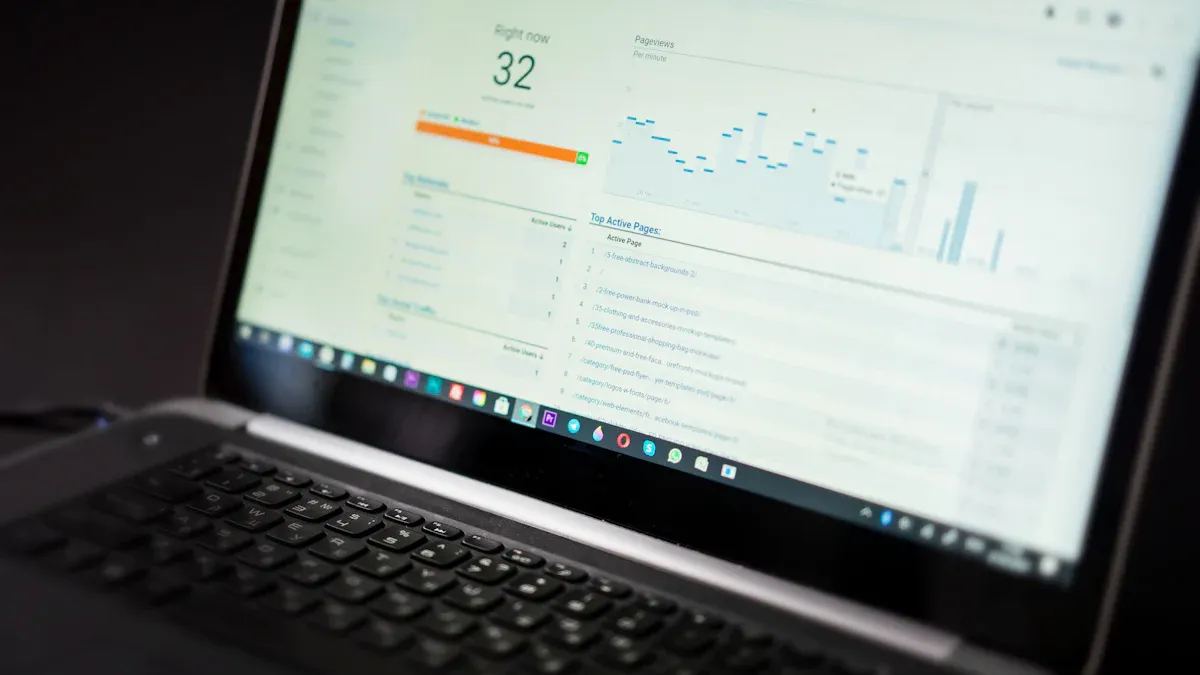
Open Connect to Data
You start Connecting Tableau by opening Tableau Desktop. When you launch the program, you see the Start page. This is where you begin your journey to connect to your data. Follow these steps to get to the Connect to Data page:
Open Tableau Desktop.
Look at the Start page that appears.
Find the Connect pane on the left side.
Choose the connector you want to use.
Tip: If you do not see the connector right away, scroll through the list or use the search bar to find it.
Choose Azure SQL Connector
After you reach the Connect pane, you need to pick the right connector. For Connecting Tableau to Singdata Lakehouse, select the Azure SQL Database connector. This connector helps Tableau talk to your Lakehouse using SQL endpoints. You find this option under the "To a Server" section. Click on "Azure SQL Database" to move to the next step.
Enter SQL Endpoint Details
Now, you must enter the details for your Singdata Lakehouse SQL endpoint. This step is important for Connecting Tableau to your data. You need to fill in several fields:
Enter the name of the server you want to connect to. This is usually the SQL endpoint address for your Lakehouse.
(Optional) Type in the database name if you want to connect to a specific database.
Choose how you want to sign in. You can use Windows Authentication or enter a user name and password.
Decide if you want to read uncommitted data. This setting controls what data you can see.
(Optional) Use the Initial SQL option if you want Tableau to run a special command every time you connect.
Note: Make sure you have the correct server name, port, and credentials. If you are not sure, ask your admin for help.
Test Connection
Before you start working with your data, you should always test the connection. Testing helps you find problems early. When you click "Test Connection," Tableau tries to connect to your Singdata Lakehouse. If everything works, you see a success message. If there is a problem, you might see an error.
Here are some common errors and what they mean:
Error Message | What It Means |
|---|---|
Unrecognized Rserve signature. | The Rserve header signature must be "Rsrv". |
Authentication failure when connecting to R. | Check your password. Make sure it is correct. |
The External Service Configuration is set for a secure connection but missing a certificate. | You need to upload the right certificate. |
External service connection failed to create SSL/TLS context | Check the host and port. Make sure the certificate is valid. |
Tip: If you see an error, read the message carefully. Most problems happen because of wrong passwords, missing certificates, or incorrect server details.
Connecting Tableau to Singdata Lakehouse becomes much easier when you follow these steps. You can now move on to importing your data and building your first visualizations.
Import Data

Load Data
You can bring data into Tableau from Singdata Lakehouse in several ways. Each method fits different needs. Some methods work best for small files, while others help you handle large or real-time data. Here is a table that shows the main options:
Method | Description |
|---|---|
File upload from local computer | Upload data directly from your local machine into the Lakehouse explorer. |
Copy tool in pipelines | Connect to many data sources and load data, either in the original format or as a Delta table. |
Dataflows | Use Power BI dataflows to load data, with access to over 200 connectors in the Lakehouse explorer. |
Notebook code | Use Spark libraries to connect to a data source, load data into a data frame, and save it in the lakehouse. |
Stream real-time events | Stream real-time events using Eventstream to load data into the lakehouse. |
You should pick the method that matches your project. For example, if you want to upload a small file, use the file upload option. If you need to move large amounts of data or use automation, try the copy tool in pipelines. Notebook code works well for advanced users who want to write code. Streaming real-time events helps when you need live data.
After you load your data into the Lakehouse, you can see it in Tableau. You can now start building your visualizations.
Build Visualizations
When you build dashboards in Tableau, you want them to be clear and helpful. Good dashboards help people understand data quickly. Here are some best practices you can follow:
Know your purpose and audience. Think about what you want to show and who will use the dashboard.
Place the most important view in the upper-left corner. People look there first.
Design your dashboard for the size it will be viewed at. Make sure it looks good on all devices.
Limit the number of views to two or three. Too many views can make things confusing and slow.
Add interactivity. Use filters and highlights so users can explore the data themselves.
Tip: Simple dashboards often work better than complex ones. Focus on what matters most to your audience.
You can now use your imported data to create charts, maps, and tables. Try different visualizations to find the best way to share your insights.
Troubleshooting
When you use Tableau with Singdata Lakehouse, you might have problems. This part helps you fix the most common ones so you can keep working.
Connection Errors
Connection errors happen if Tableau cannot reach the Lakehouse. These problems often come from network issues, wrong server names, or blocked ports. Here are some things you can do:
Check your internet. Make sure your device can reach the Lakehouse server.
Make sure the server name and port are right. Even a small mistake can stop the connection.
Ask your network team if firewalls or security settings block the connection.
Restart Tableau and try again.
If you still get errors, write down the exact message. This helps your admin or support team find the problem faster.
Authentication Issues
Authentication problems can stop you from logging in or seeing data. You might use Kerberos, OAuth, or single sign-on to log in. Each way has its own setup steps. Common problems include:
Wrong username or password.
Issues with Kerberos, OAuth, or single sign-on settings.
Proxy servers or load balancers set up wrong, which can block trusted authentication.
To fix these problems:
Double-check your login details.
Look at your authentication method settings.
If you use a proxy or load balancer, check the guides for these tools.
Turn on debug logging in Tableau to get more details about the error.
Tip: If you cannot fix the problem, share the debug logs with your IT team. This makes it easier to find and fix the issue.
Performance Tips
Sometimes, dashboards or queries run slow. Slow speed can happen for many reasons, like bad queries or big data sets. Try these tips to make things faster:
Use Tableau extracts to cut down on live queries.
Pause automatic updates while building dashboards. This saves time and lets you make changes without waiting.
Use the Apply button for filters. Tableau only runs queries when you finish setting all filters.
Design your tables well. Make data marts and group tables by important columns.
Use result caching. Tableau can reuse results from earlier queries.
If pagination is not supported, Tableau must load all results before you see them. This can slow things down.
Good design and smart settings help your dashboards run better and save money.
Best Practices
Security
It is important to keep your data safe when using Tableau with Singdata Lakehouse. Good security helps protect your information and makes sure you follow the rules. The table below lists key steps for better security:
Best Practice | Description |
|---|---|
Data Classification | Put your data into groups by how sensitive it is. Use strong rules for private data. |
Access Control | Only let people see data if they need it. Use roles to control who can view important things. |
Encryption | Lock your data with encryption when it is saved or sent. This stops others from reading it without permission. |
Data Masking and Anonymization | Hide personal details by masking or making them anonymous. This keeps user privacy safe. |
Audit Logging | Keep track of who looks at or changes data. Logs help you find problems quickly. |
Data Lineage | Watch where your data comes from and how it changes. This helps you follow rules and trust your data. |
Data Quality Monitoring | Check your data for mistakes. Good data gives you better results. |
Automated Governance Policies | Use tools to keep your rules in place. This makes security easier to handle. |
Regular Security Audits | Test your system often. Find weak spots and fix them before they cause trouble. |
Employee Training and Awareness | Teach your team about security. People who know more make fewer mistakes. |
Vendor Management | Make sure outside companies follow your security rules. |
Disaster Recovery and Incident Response | Plan for problems. Practice how to fix things fast. |
Regulatory Compliance | Stay up to date with laws. This helps you avoid fines and keeps trust. |
Tip: Check your security settings often. Even small changes can help a lot.
Query Optimization
You want your dashboards to be fast and not waste resources. Query optimization helps you get answers quickly and saves money. Here are some ways to make your queries better:
Technique | Description |
|---|---|
Partitioning | Break your data into smaller parts. Queries only look at what they need, so they run faster. |
Compaction | Put small files together into bigger ones. This makes your system work less and speeds up queries. |
Data Skipping | Skip files that do not have the data you want. Smart filters help you avoid scanning everything. |
Cleaning | Remove old or unused data. Clean data sets run faster and cost less to store. |
You can also watch how your system is doing by using dashboards that show speed and health. Change server settings, like adding more memory or CPU, to help Tableau work better. Make tables easier to read and load by denormalizing them. Look at your queries and change them if they are slow.
Note: Fast queries help everyone get answers quickly. Try different ways to see what works best for your data.
Connection Maintenance
You need to keep your connection working well for smooth work. Regular checks and updates help you avoid problems. Here are some steps you can follow:
Update drivers and software often. New versions fix bugs and make things faster.
Test your connection after you make changes. Make sure everything works before you start.
Watch for error messages. Fix problems early so they do not get worse.
Check how your server is doing. Add more resources if things are slow.
Clean up old connections and data sources you do not use. This keeps your system neat.
Tip: Make a schedule for maintenance. Taking care of things often keeps your data moving and your dashboards working well.
Now you know how to connect Tableau to Singdata Lakehouse. This helps you get your data fast and make good dashboards. You can use analytics to find new things in your data. Always use best practices for safety and speed.
Keep learning and try out new Tableau features. You will get better as you find more ways to use your data.
FAQ
How do you find the SQL endpoint for Singdata Lakehouse?
You can ask your system administrator for the SQL endpoint. You might also find it in your Lakehouse settings or connection details. Always use the exact address you are given. This helps you avoid problems when connecting.
What should you do if Tableau cannot connect to the Lakehouse?
First, check your network and server information. Make sure your username and password are correct. If you still get errors, try restarting Tableau. If that does not work, ask your IT team for help.
Can you use Tableau Server with Singdata Lakehouse?
Yes, you can use Tableau Server. You need to install the right drivers and set up the Azure SQL connector. Test the connection before you share your dashboards.
Which driver works best for connecting Tableau to Singdata Lakehouse?
Driver Type | Works With | Best For |
|---|---|---|
ODBC | Most databases | General connections |
JDBC | Advanced setups | Custom integrations |
You should always use the newest driver version. This helps things run better and gives you fewer problems.
See Also
A Comprehensive Guide to Safely Link Superset with Singdata Lakehouse
Enhancing Dataset Freshness by Linking PowerBI to Singdata Lakehouse
Integrating Fresh Data into Superset for Instant Analytics