Industrial IoT Device Health Monitoring Data Warehouse Best Practices
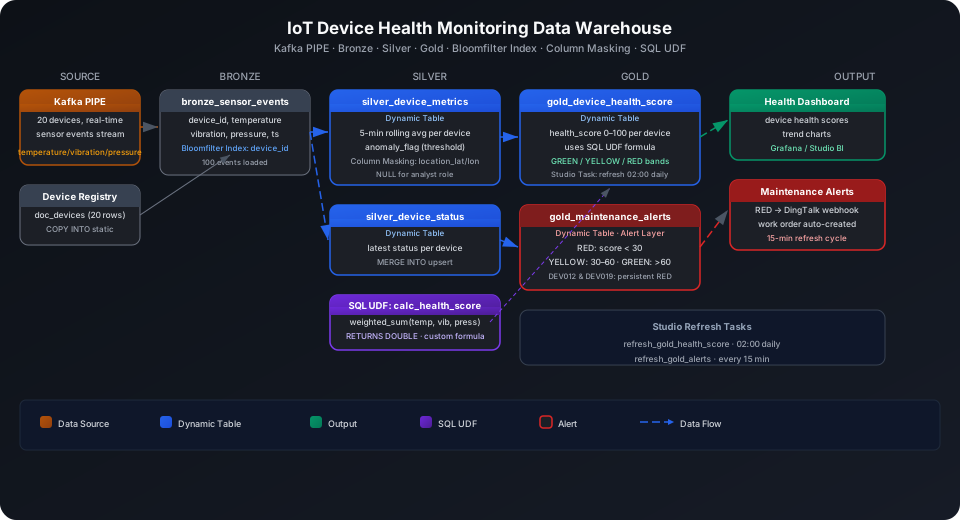
This guide shows how to build a multi-layer data warehouse from production-line sensor real-time data, producing device health scores and predictive maintenance alerts. Using a dataset of 20 industrial devices and 100 sensor events, it demonstrates the full Kafka PIPE → Bronze → Silver → Gold build process end to end, covering three key platform capabilities: Bloomfilter Index, Column Masking, and SQL UDF.
Overview
The typical data pipeline for IoT device health monitoring is: sensor reporting → real-time ingestion → raw storage (Bronze) → cleansing and tagging (Silver) → metric aggregation and alerting (Gold).
Singdata Lakehouse addresses the core challenges with the following combination:
Problem
Solution
Real-time sensor data with millisecond-level high-frequency writes
Kafka PIPE continuous ingestion; no custom consumer code needed
Automatic incremental computation across Bronze → Silver → Gold
Dynamic Table with declarative SQL; the system schedules the dependency chain
Sensitive fields such as device location coordinates need masking
Column Masking bound to columns; transparent to non-privileged users
device_id is a high-cardinality column with frequent point lookups
Bloomfilter Index for fast on-demand filtering
Anomaly detection scoring logic needs to be reusable
SQL UDF encapsulating the weighted health score formula
SQL Commands Used
Command / Function
Purpose
Notes
CREATE TABLE
Create the Bronze layer raw event table and device master table
Regular tables used as upstream sources for Dynamic Tables
CREATE BLOOMFILTER INDEX
Create a Bloomfilter Index on the device_id column
Suited for high-cardinality column point-lookup filtering
CREATE PIPE
Create a Kafka continuous ingestion pipeline
Bound to the Bronze layer target table
CREATE FUNCTION
Create the SQL UDF calc_health_score
Encapsulates the weighted health score formula
ALTER TABLE ... CHANGE COLUMN ... SET MASK
Bind a Column Masking policy
Mask sensitive latitude/longitude columns
CREATE DYNAMIC TABLE
Create incremental computation tables for Silver and Gold layers
System detects upstream changes and refreshes incrementally
REFRESH DYNAMIC TABLE
Trigger a manual refresh
Use during initial build or debugging
Prerequisites
All examples in this guide run under the iot_health Schema.
ingest_time uses DEFAULT CURRENT_TIMESTAMP() and is filled automatically when the Kafka PIPE writes; no need to include it in the message body.
Create Bloomfilter Index
Subsequent Silver and Gold layer queries filter frequently on device_id, which has cardinality on the order of device count (high cardinality). A Bloomfilter Index is well-suited for this.
CREATE BLOOMFILTER INDEX IF NOT EXISTS idx_bf_device_id
ON TABLE bronze_sensor_events (device_id);
⚠️ Note: CREATE BLOOMFILTER INDEX requires the same Schema context as the target table. Run USE SCHEMA iot_health first, or use the -s iot_health parameter, otherwise you will see an "index and table must in the same schema" error.
Configure Kafka PIPE
Kafka PIPE attempts to connect to the Kafka broker during DDL execution to verify the topic subscription. Replace the KAFKA_BROKER address and TOPIC name for production use.
-- Create a raw string receiving table; the PIPE writes JSON strings
CREATE TABLE IF NOT EXISTS iot_health.kafka_raw_events (value STRING);
-- Create the Kafka PIPE
CREATE PIPE IF NOT EXISTS iot_health.pipe_sensor_events
VIRTUAL_CLUSTER = 'DEFAULT'
BATCH_INTERVAL_IN_SECONDS = '60'
AS
COPY INTO iot_health.kafka_raw_events
FROM (
SELECT CAST(value AS STRING) AS value
FROM READ_KAFKA(
'<kafka-broker>:9092', -- replace with actual broker address
'iot_sensor_events', -- topic name
'',
'cz_iot_consumer', -- consumer group ID
'','','','',
'raw', 'raw',
0,
map()
)
);
💡 Tip: In PIPE DDL, positional parameters 5–8 of READ_KAFKA (start/end offsets and timestamps) must be left empty; the PIPE runtime manages them automatically. Only fill them in when using READ_KAFKA standalone for a one-time exploration.
After the PIPE is created it runs by default and batch-consumes at the BATCH_INTERVAL_IN_SECONDS interval.
Load Sample Data
Import from a local CSV file (recommended)
-- Step 1: Upload the local CSV file to User Volume via SQL PUT
PUT '/path/to/your/bronze_sensor_events.csv' TO USER VOLUME FILE 'bronze_sensor_events.csv';
-- Step 2: COPY INTO the table from User Volume
COPY INTO iot_health.bronze_sensor_events
FROM USER VOLUME
USING csv
OPTIONS('header'='true', 'sep'=',', 'nullValue'='')
FILES ('bronze_sensor_events.csv');
You can also insert a small batch of test data inline (no CSV file required).
The following uses direct INSERT to simulate the effect of parsed Kafka messages:
INSERT INTO iot_health.bronze_sensor_events
(event_id, device_id, device_type, temperature, vibration,
pressure, humidity, fault_label, error_code, event_time)
VALUES
('EVT001','DEV001','pump', 72.3,3.2, 98.5,45.2,0,NULL, CAST('2026-06-01 08:00:00' AS TIMESTAMP)),
('EVT003','DEV003','compressor',91.5,4.1,88.3,38.7,1,'E001',CAST('2026-06-01 08:02:00' AS TIMESTAMP)),
('EVT005','DEV005','motor', 55.2,8.9,101.2,50.0,1,'E002', CAST('2026-06-01 08:04:00' AS TIMESTAMP)),
('EVT006','DEV006','valve', 63.4,1.5,130.0,41.5,1,'E003', CAST('2026-06-01 08:05:00' AS TIMESTAMP))
-- ... 100 rows total, truncated here
;
Verify the Bronze layer row count:
SELECT COUNT(*) AS bronze_row_count FROM iot_health.bronze_sensor_events;
bronze_row_count
----------------
100
Device Master Table and Column Masking
Create Tables
CREATE TABLE IF NOT EXISTS iot_health.device_master (
device_id STRING,
device_name STRING,
device_type STRING,
location_lat DOUBLE, -- sensitive field: latitude
location_lon DOUBLE, -- sensitive field: longitude
install_date DATE,
manufacturer STRING,
model STRING,
status STRING
);
Load Device Master Data
Import from a local CSV file (recommended)
-- Step 1: Upload the local CSV file to User Volume via SQL PUT
PUT '/path/to/your/device_master.csv' TO USER VOLUME FILE 'device_master.csv';
-- Step 2: COPY INTO the table from User Volume
COPY INTO iot_health.device_master
FROM USER VOLUME
USING csv
OPTIONS('header'='true', 'sep'=',', 'nullValue'='')
FILES ('device_master.csv');
You can also insert a small batch of test data inline (no CSV file required):
INSERT INTO iot_health.device_master VALUES
('DEV001','Pump-Alpha-01', 'pump', 31.2304,121.4737,CAST('2022-03-15' AS DATE),'SiemensCN','P300','active'),
('DEV002','Motor-Beta-01', 'motor', 31.2310,121.4740,CAST('2022-04-20' AS DATE),'ABB', 'M500','active'),
('DEV003','Compressor-Gamma-01','compressor',31.2315,121.4745,CAST('2021-11-10' AS DATE),'Atlas', 'C200','active')
-- ... 20 rows total, truncated here
;
Create a Masking Function and Bind It to Latitude/Longitude Columns
location_lat and location_lon represent device installation positions and are sensitive data. The approach: privileged users (usernames listed in the masking policy) see full precision; other users see precision reduced to 1 decimal place.
-- Create the masking function
CREATE OR REPLACE FUNCTION iot_health.mask_location_coord(coord DOUBLE)
RETURNS DOUBLE
AS CASE
WHEN current_user() IN ('privileged_user') THEN coord -- replace with actual authorized usernames
ELSE ROUND(coord, 1)
END;
-- Bind to location_lat
ALTER TABLE iot_health.device_master
CHANGE COLUMN location_lat
SET MASK iot_health.mask_location_coord;
-- Bind to location_lon
ALTER TABLE iot_health.device_master
CHANGE COLUMN location_lon
SET MASK iot_health.mask_location_coord;
💡 Tip: Replace 'privileged_user' with the actual usernames that need to see plaintext data. Column Masking matches the current connection's username via the current_user() function; all authorized usernames must be explicitly listed in the IN() list.
⚠️ Note: Column Masking takes effect transparently for all queries (including Dynamic Tables). When the Silver layer JOINs device_master, non-privileged users see latitude/longitude values already masked to low precision.
Verify the masking is applied:
-- Admin account query (sees full precision)
SELECT device_id, location_lat, location_lon FROM iot_health.device_master LIMIT 3;
Encapsulate the anomaly detection scoring logic as a SQL UDF so it can be reused in both the Silver and Gold layers.
Scoring formula: 100 - (temperature/100 × 30 + vibration/10 × 30 + pressure/200 × 20 + fault_label × 20), capped at 100 and floored at 0.
CREATE OR REPLACE FUNCTION iot_health.calc_health_score(
temperature DOUBLE,
vibration DOUBLE,
pressure DOUBLE,
fault_label INT
)
RETURNS DOUBLE
AS GREATEST(0.0, LEAST(100.0,
100.0
- (temperature / 100.0 * 30.0)
- (vibration / 10.0 * 30.0)
- (pressure / 200.0 * 20.0)
- (fault_label * 20.0)
));
Verify the function:
-- Normal device: temperature 75, vibration 3.5, pressure 99, no fault
SELECT iot_health.calc_health_score(75.0, 3.5, 99.0, 0) AS sample_score;
sample_score
------------
57.1
💡 Tip: A health score of 57.1 falls in the YELLOW zone (RED alert triggers below 60). This shows that temperature and vibration have significant weight. Adjust the weight coefficients as needed.
Silver Layer Dynamic Table: Cleansing and Anomaly Tagging
The Silver layer does two things on top of Bronze raw events:
LEFT JOIN device_master to add device name, manufacturer, install date, and other dimension fields to each event
Add an anomaly flag (is_anomaly) and compute a risk score (risk_score) for direct aggregation in the Gold layer
CREATE DYNAMIC TABLE IF NOT EXISTS iot_health.silver_device_events
REFRESH INTERVAL 1 MINUTE VCLUSTER DEFAULT
AS
SELECT
e.event_id,
e.device_id,
e.device_type,
e.temperature,
e.vibration,
e.pressure,
e.humidity,
e.fault_label,
e.error_code,
e.event_time,
e.ingest_time,
d.device_name,
d.manufacturer,
d.model,
d.install_date,
d.status AS device_status,
-- Anomaly flag: temperature > 90, vibration > 8, or pressure > 120
CASE WHEN e.temperature > 90 OR e.vibration > 8 OR e.pressure > 120
THEN 1 ELSE 0 END AS is_anomaly,
-- Weighted risk score (higher = more dangerous)
ROUND(e.temperature / 100.0 + e.vibration / 10.0 + e.pressure / 200.0, 4) AS risk_score
FROM iot_health.bronze_sensor_events e
LEFT JOIN iot_health.device_master d ON e.device_id = d.device_id;
Alert threshold for Class B machines per ISO 10816
pressure
> 120 bar
Typical upper design pressure limit for industrial pipelines
Trigger the initial refresh manually:
REFRESH DYNAMIC TABLE iot_health.silver_device_events;
SELECT COUNT(*) AS silver_count FROM iot_health.silver_device_events;
silver_count
------------
100
Gold Layer Dynamic Table: Device-Level Aggregation and Alerts
The Gold layer aggregates Silver data at device_id + hourly window granularity, calls the calc_health_score UDF to compute health scores, and outputs three-tier alert levels.
CREATE DYNAMIC TABLE IF NOT EXISTS iot_health.gold_device_health
REFRESH INTERVAL 1 MINUTE VCLUSTER DEFAULT
AS
SELECT
device_id,
device_name,
manufacturer,
model,
device_status,
DATE_TRUNC('hour', event_time) AS hour_window,
COUNT(*) AS event_count,
ROUND(AVG(temperature), 2) AS avg_temperature,
ROUND(AVG(vibration), 2) AS avg_vibration,
ROUND(AVG(pressure), 2) AS avg_pressure,
SUM(is_anomaly) AS anomaly_count,
ROUND(iot_health.calc_health_score(
AVG(temperature),
AVG(vibration),
AVG(pressure),
CAST(MAX(fault_label) AS INT)
), 2) AS health_score,
CASE
WHEN iot_health.calc_health_score(
AVG(temperature), AVG(vibration),
AVG(pressure), CAST(MAX(fault_label) AS INT)
) >= 80 THEN 'GREEN'
WHEN iot_health.calc_health_score(
AVG(temperature), AVG(vibration),
AVG(pressure), CAST(MAX(fault_label) AS INT)
) >= 60 THEN 'YELLOW'
ELSE 'RED'
END AS alert_level
FROM iot_health.silver_device_events
GROUP BY
device_id, device_name, manufacturer, model, device_status,
DATE_TRUNC('hour', event_time);
MAX(fault_label) takes the most severe fault state in the window (MAX = 1 if any event has a fault), preventing averages from masking instantaneous failures.
Trigger the initial refresh and view results:
REFRESH DYNAMIC TABLE iot_health.gold_device_health;
SELECT device_id, device_name, hour_window, avg_temperature,
avg_vibration, avg_pressure, anomaly_count, health_score, alert_level
FROM iot_health.gold_device_health
ORDER BY health_score ASC
LIMIT 10;
DEV012 (Motor-Beta-04) remains in RED status across all observed hours. The root cause is elevated temperature (88–91°C) and vibration (6.5–7.5 mm/s) on both metrics. Although neither individual metric exceeds its threshold (temperature threshold is 90), the weighted combination drops the health score to 20–21. Prioritize checking motor cooling and bearing wear.
DEV019 (Motor-Beta-06) has sustained vibration above 8 mm/s (the alert threshold), which directly causes RED status. Combined with fault_label=1 subtracting 20 points, immediate inspection for shaft misalignment is recommended.
In the current dataset, 83 device-hour records are RED and 17 are YELLOW, with no GREEN — this reflects the many high-load scenarios in the simulated dataset.
View the alert level distribution:
SELECT alert_level, COUNT(*) AS device_hour_count
FROM iot_health.gold_device_health
GROUP BY alert_level
ORDER BY alert_level;
alert_level | device_hour_count
------------+------------------
RED | 83
YELLOW | 17
Data Warehouse Object Summary
After the full build, all objects under the iot_health Schema:
Bloomfilter Index does not apply retroactively to existing data: CREATE BLOOMFILTER INDEX only applies to data written after the index is created. For tables with large amounts of pre-existing data, the Bloomfilter filtering speed-up is limited. Note that Bloomfilter indexes do not support BUILD INDEX; to cover existing data you must rebuild the table.
Dynamic Table incremental refresh depends on Bronze layer change tracking: The first REFRESH performs a full snapshot computation. Subsequent incremental refreshes process only rows added or changed in the Bronze layer since the last refresh checkpoint. Using INSERT OVERWRITE to write to the Bronze layer causes the Dynamic Table to degrade to a full refresh.
Semantics of MAX(fault_label) in calc_health_score: The Gold layer uses MAX(fault_label) rather than AVG(fault_label) so that a single fault event pulls the entire hour window into RED status. If the business requires "alert only when more than 50% of events have faults," change this to CASE WHEN AVG(fault_label) > 0.5 THEN 1 ELSE 0 END.
Column Masking applies transparently to Dynamic Tables: When the Silver layer queries device_master, non-privileged users see low-precision masked values for location_lat/location_lon; those are also the values stored in Silver and Gold. If high-precision coordinates are needed for spatial analysis, query device_master directly under a privileged account.
⚠️ Note: Column Masking currently matches authorized usernames via current_user(). Add all usernames that need plaintext access to the masking function allowlist. If your Lakehouse version supports role-based dynamic evaluation (such as HAS_ROLE('role_name')), you can use roles instead of username lists for more flexible maintenance. Contact Singdata technical support to confirm whether your version supports this function.