
Task Development and Scheduling Configuration
Overview
"Development" refers to the big data integrated development environment (IDE), providing developers with an efficient, intelligent online working environment. It supports users in task writing, debugging, scheduling configuration, submission and publishing, completing the key processes of big data processing and analysis.
Click "Development" in the left navigation menu to enter the main interface.
Interface Overview
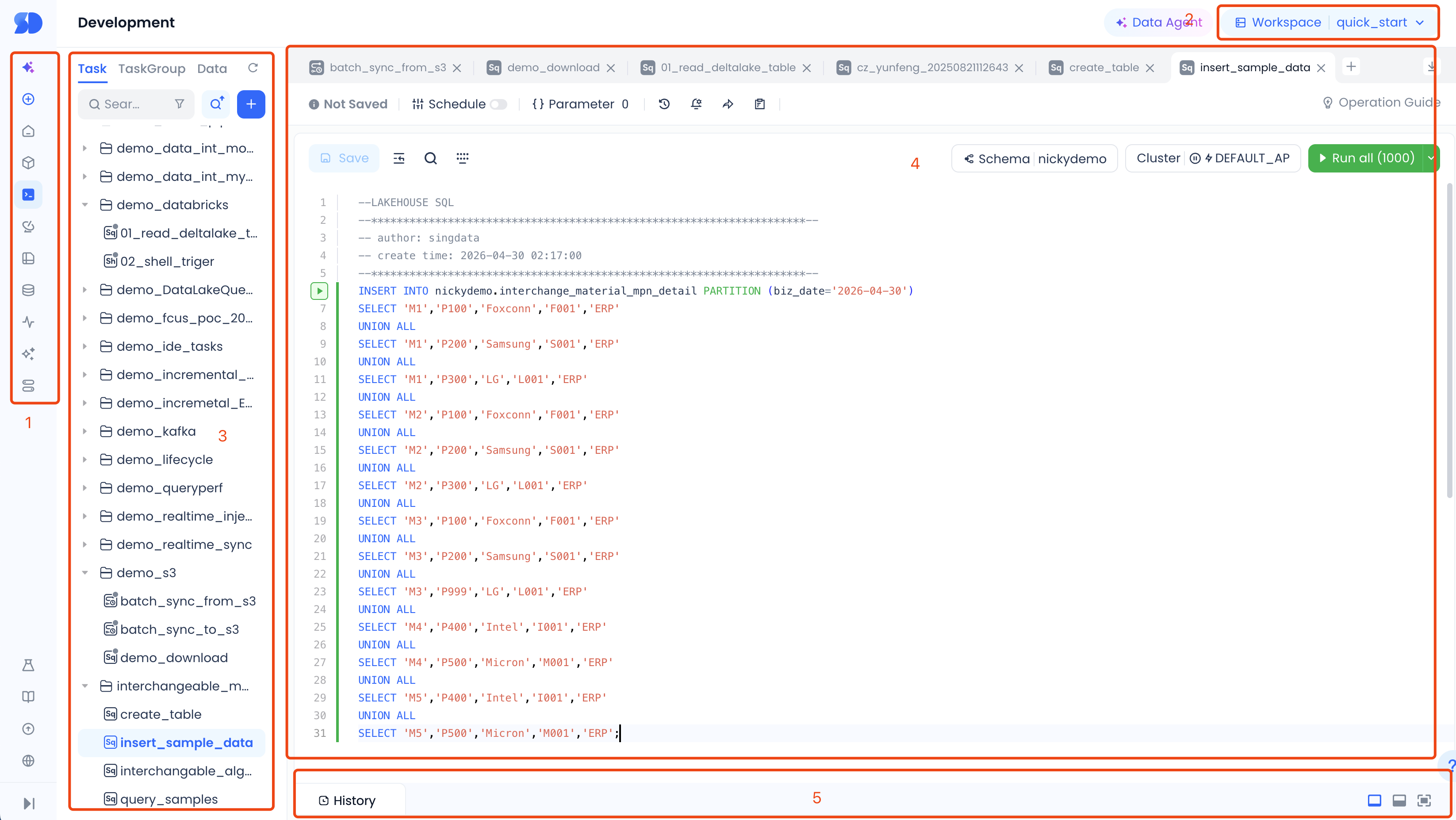
| No. | Function |
|---|---|
| 1 | Function switch |
| 2 | Switch workspace: This section displays the name of the current data development project space and the region you are in. You can click the dropdown icon to switch to other project spaces. |
| 3 | Development directory tree: The directory tree is used to manage task code in an orderly manner. You can create directory trees according to business needs to manage tasks by category and hierarchy. |
| 4 | SQL editing area: The main operation interface for development. Different types of editing areas have different operation interfaces. |
| 5 | Run results: Presents the results after running operations in the SQL editing area. |
Directory Tree
The data development module displays all tasks under the current project in a directory tree format, making it easy to add, delete, modify, and query tasks.
Supported operations on the directory tree:
-
Switch tab: Switch the type of directory tree below by clicking the tab, i.e., task directory tree or data directory tree.
-
Task directory tree: Displays all tasks in the current space.
-
Data directory tree: Displays all data directory trees in the user's region, presented in the workspace-schema-table/view hierarchy.
-
Create: Create folders and various development tasks by clicking the + button on the directory tree.
-
Development task types: Real-time sync, offline sync, SQL script, Python script, shell script
-
Filter tasks: Supports filtering tasks by development task type, submission status, and responsible person.
-
Refresh: Refresh the current directory tree information.
-
Search tasks: Search and locate specific tasks by task name or path.
-
Task name: Fuzzy match keywords with "task name" to return matching file directories or tasks.
-
Path: Fuzzy match keywords with the task's path to return matching file directories or tasks.
-
Create subdirectory & create subtask: When hovering over a subdirectory, more icons appear. Click to perform the following operations:
-
Current directory is a folder: Create any task type, new folder, delete, rename at the current level.
-
Current directory is a task: Open task, create copy, copy name, rename, move, delete at the current level.
Operation notes:
- Create copy: Copy the current task, including its scheduling configuration.
- Copy name: Copy the current directory name.
- Rename: Rename the directory name.
- Move: Move the directory to another directory within the project. If the directory contains subdirectories or tasks, they will be moved together.
- Delete: Delete the directory.
- Task directory tree: Icons distinguish task types, and colors distinguish online status.
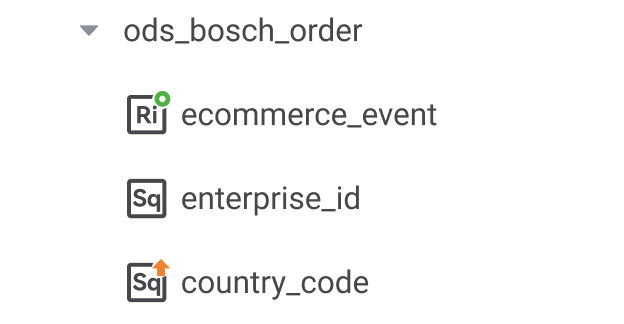
| Status Legend | Description |
|---|---|
 | After task submission, the saved version differs from the submitted version. |
 | After task submission, the server-side saved version matches the submitted version. |
 | After task submission, click the offline operation. |
 | Other status types. |
| Icon Legend | Description |
|---|---|
| Real-time sync |
 | Offline sync |
 | SQL script |
 | Shell script |
 | Python script |
Task Development Process
The data development module leverages Lakehouse's underlying engine capabilities to provide multiple development types. Users can choose the task type for interactive data development work.
Create a New Task
Currently, two types of task nodes are supported: data integration and data development.
Click "New" and select the specific development type. A popup will appear. Enter the task name, select the specific directory level where the task should be saved, and then enter the development interface.
Operation Bar Description
Task Tab

After clicking the task directory tree on the left or creating a new task node, the task tab will open (or be brought into focus). In the task tab bar, users can perform the following operations:
New: Click the "+" button in the tab status bar to quickly create a new task, which is saved by default under the root node of the current space.
Close tab: Hover over a tab, and a downward button will appear, allowing batch closing of task tabs.
Tab color status mapping:
| Status Icon | Description |
|---|---|
| Green | Run successful |
| Red | Run failed |
| Blue | Running |
| Gray | No run |
SQL Function Area

| No. | Function Name | Description |
|---|---|---|
| 1 | Save | Save the task, including the current node code and related configurations. |
| 2 | Format | Format the written code to make the syntax structure look clean and concise. |
| 3 | Parameters | Not yet online. |
| 4 | Versions | Click Versions to view the submitted and saved versions of the current task. Supports code viewing and code rollback between versions. |
| 5 | Scheduling | Click to open a sidebar panel for scheduling configuration. See Scheduling Settings for details. |
| 6 | Submit | The "Submit" function is only needed for tasks that require scheduled dispatch. After "Submit", the task is published to the Operations Center and runs according to the configured schedule. Before submission, scheduling configuration is required. See Scheduling Settings for details. |
| 7 | Operations | Click to enter the "Operations" center. |
| 8 | Task flow tips | Hover over the task flow tips to display the online flowchart for the development task. |
| 9 | Cluster filter | The "default" shown in the figure indicates the Virtual Cluster used for task execution. Click to switch to another Virtual Cluster. To add a new Virtual Cluster, go to "Compute". |
| 10 | Run/Stop | Run/Stop the current node's code. When running SQL code, you can select and run a portion of the code. |
SQL Editing Area
- Schema switching: Click the dropdown to switch schemas in the current workspace. The default is "public".
- Shortcuts: Various capabilities supported in the Studio development editing area. See Others: Common Shortcut Operations for details.
- SQL editing area: The SQL editor in Studio provides the following features to improve data development and analysis efficiency.
| Feature | Description |
|---|---|
| Code folding | Collapse code blocks to reduce reading distractions. |
| Real-time syntax error prompts | Prompt users of syntax errors found during code writing to help avoid mistakes. |
| Syntax highlighting | Use different colors or fonts to highlight keywords and syntax structures in the editor or IDE to enhance readability. |
| Intelligent completion | Automatically complete keywords, function names, variable names, etc., in code based on context and known information to improve coding efficiency and precision. |
| Partial code execution | Run only a portion of the code instead of the entire program for quick testing of small code segments or debugging. |
Scheduling Settings
After the task has been tested and everything works correctly, if you want to run the task on a scheduled basis, you need to configure the task's scheduling properties. Click the "Scheduling" button in the SQL function area.
Basic Information
| Parameter | Description |
|---|---|
| Owner | Required. Only one member allowed, defaults to the task creator. Can be changed to another workspace member as needed. |
| Description | Optional. Provides a detailed description of the task for future reference and management. |
| Run attributes | Required. Normal scheduling: Runs according to the user's scheduling rules. Dry-run scheduling: When a task's logic does not need to run temporarily but you don't want to disrupt the data pipeline, set it to dry-run; the task will be marked as successful. Paused: After setting the task to "Paused" and publishing to the Operations Center, the task status is "Paused" and no task instances are generated, but backfill operations are still possible. |
| Cluster | Required. Defines the scheduling resource group used when the task is published to production. |
| Schema | Required. Defines the prefix schema used when the task runs in production. |
| Task priority | Optional. Sets the scheduling priority for Lakehouse SQL tasks, supporting 10 levels (0-9), where higher numbers mean higher priority. |
| Parameter configuration | Click "Add Parameter" to add a new parameter. Click "Load Parameters in Code" to automatically load parameters already used in the code. In code, parameters are referenced as: '${bizdate}'. Note: more system built-in parameters will be supported in future versions. |
Scheduling Time
| Parameter | Description |
|---|---|
| Scheduling cycle | Daily: Runs every day. Monthly specified day: User selects specific days each month. Weekly specified day: User selects specific days each week. |
| Scheduling frequency | Execute once: Only the start scheduling time needs to be configured. Execute multiple times: Also requires scheduling interval, start time, end time, and exclusion time settings. |
| Scheduling interval | When executing multiple times, users can customize the interval between each execution, from 1 minute to 12 hours. |
| Start scheduling time | The time when daily instances begin executing. |
| End scheduling time | The time when daily instances stop executing. |
| Exclusion time settings | No instances will be generated during the specified exclusion time ranges. |
| Effective time | The date from which the task takes effect. |
| Expiry time | The date from which the task expires. |
| Preview scheduling time | Click to preview the actual run times after configuration. |
Instance Information
Studio supports two instance generation modes: Effective next day and Effective after publishing.
| Parameter | Description |
|---|---|
| Instance generation mode | Effective after publishing: Instances are generated immediately after publishing and run according to the configured schedule. Effective next day: Instances run on the following day. |
| Instance retry on error | Defines whether a task instance can be retried, considering data idempotency. Set as needed. Can retry after success or failure. Cannot retry after success, can retry after failure. Cannot retry after success or failure. |
| Auto retry count | Custom number of retries. |
| Instance timeout duration | Not enabled / Custom. If a task instance runs longer than the set duration, it will be marked as failed. Changes only apply to new instances after the task is submitted. |
| Preview scheduling time | Click to preview the actual run times after configuration. |
| Parameter configuration | Click "Add Parameter" to add a new parameter. Click "Load Parameters in Code" to automatically load parameters already used in the code. In code, parameters are referenced as: '${bizdate}'. Note: More system built-in parameters will be supported in future versions. |
| Scheduling wait duration | If a task instance reaches its scheduled time and waits longer than this setting (still waiting for upstream tasks to finish), the system will mark it as failed to prevent scheduling backlogs. |
| Delayed run skip duration | Based on the difference between the task instance's actual start time and the configured scheduled time. If the difference exceeds this setting, the instance is skipped as a dry run and marked as successful. |
Scheduling Dependencies
Complex production tasks typically have upstream and downstream dependencies. For example, DWD processing tasks depend on ODS layer tasks. In "Scheduling Dependencies", you can add upstream tasks that the current task depends on. Two methods are supported: parent node's file name, and table name produced by the parent node.
Dependency strategy: Currently supports default strategy, forward dependency, and forward nearest dependency. For specific instance generation methods for each strategy, see Task Scheduling Dependencies.

Task Output
There are two ways to configure task output information:
Method 1: Automatically generate output table names through code auto-parsing mentioned above.
Method 2: Manually add by searching table names.
For more information about task scheduling, refer to: Task Scheduling Dependencies, Task Scheduling and Instance Execution.
Submit for Publishing
Click the Submit for Publishing button in the editor's toolbar to submit the task.
Operations View
Click to jump to the "Operations" center to view task operations.
Run Results
Run History
Run history provides up to 20 recent run result records for the current task tab within 7 days.
Run Results
Logs
SQL jobs can be diagnosed based on logs. For details, see JOB PROFILE. After clicking to run the task, you can view detailed log information in the log area at the bottom of the page.
Use the expand and collapse buttons to adjust the log display area.
Use the refresh button to force refresh the logs.
Data
After the task completes, results (such as from SELECT statements) are displayed in the "Data" tab:
Others: Common Shortcut Operations
The following shortcuts are supported in the code editor to improve editing efficiency:
- Save
- MAC: CMD + s
- Windows: Ctrl + s
- Comment/Uncomment the current line or code block
- MAC: CMD + /
- Windows: Ctrl + /
- Cut the current line or code block
- MAC: CMD + x
- Windows: Ctrl + x
- Copy the current line or code block
- MAC: CMD + c
- Windows: Ctrl + c
- Paste
- MAC: CMD + v
- Windows: Ctrl + v
- Batch line operations
- Mac: Shift + Option
- Windows: Hold Shift + Alt
Related Documents
- Task Parameters — Use dynamic parameters (dates, timestamps, etc.) in SQL tasks
- Task Parameter Syntax Reference — Complete syntax for system built-in parameters, time expressions, and time functions
- Task Parameter Scenario Examples — Complete business scenarios such as daily, monthly, and weekly reports
- Workflow (Composite Task) — Orchestrate multiple SQL tasks into a DAG
- Task Groups — Share parameters across tasks and manage them uniformly
- Python Tasks — Use parameters in Python scripts