
Singdata Insight: Visual Data Analytics Platform
Singdata Insight Product Overview
Singdata Insight is a powerful visual data analytics tool designed for data analysis and visualization after data integration and data development. Using Insight, users can easily create data reports and analysis dashboards to understand data more intuitively and support business decisions. The main use cases for Insight are as follows:
- Create daily data reports: Quickly build data reports for daily business needs, reducing the complexity of traditional data portal setup. This allows data developers to focus on underlying data development, while business analysts can build various business analysis reports based on datasets.
- Self-service analysis: Business users can directly use datasets prepared by data developers, performing self-service analysis through simple drag-and-drop operations, improving data analysis efficiency and avoiding delays caused by scheduling issues.
User Operation Guide
Before using Singdata Insight, make sure you already have a Singdata account. The detailed operation steps are as follows:
1 Singdata User Management
- Log in to the System Admin Console: Log in to the system admin console using your Singdata account.
- Enter Insight: Find and click Insight in the admin console to enter the product.
2 Singdata Insight Platform Operations
2.1 Create a Data Connection
-
Create a new data link: On the data connection page, click the "New Data Link" button.

-
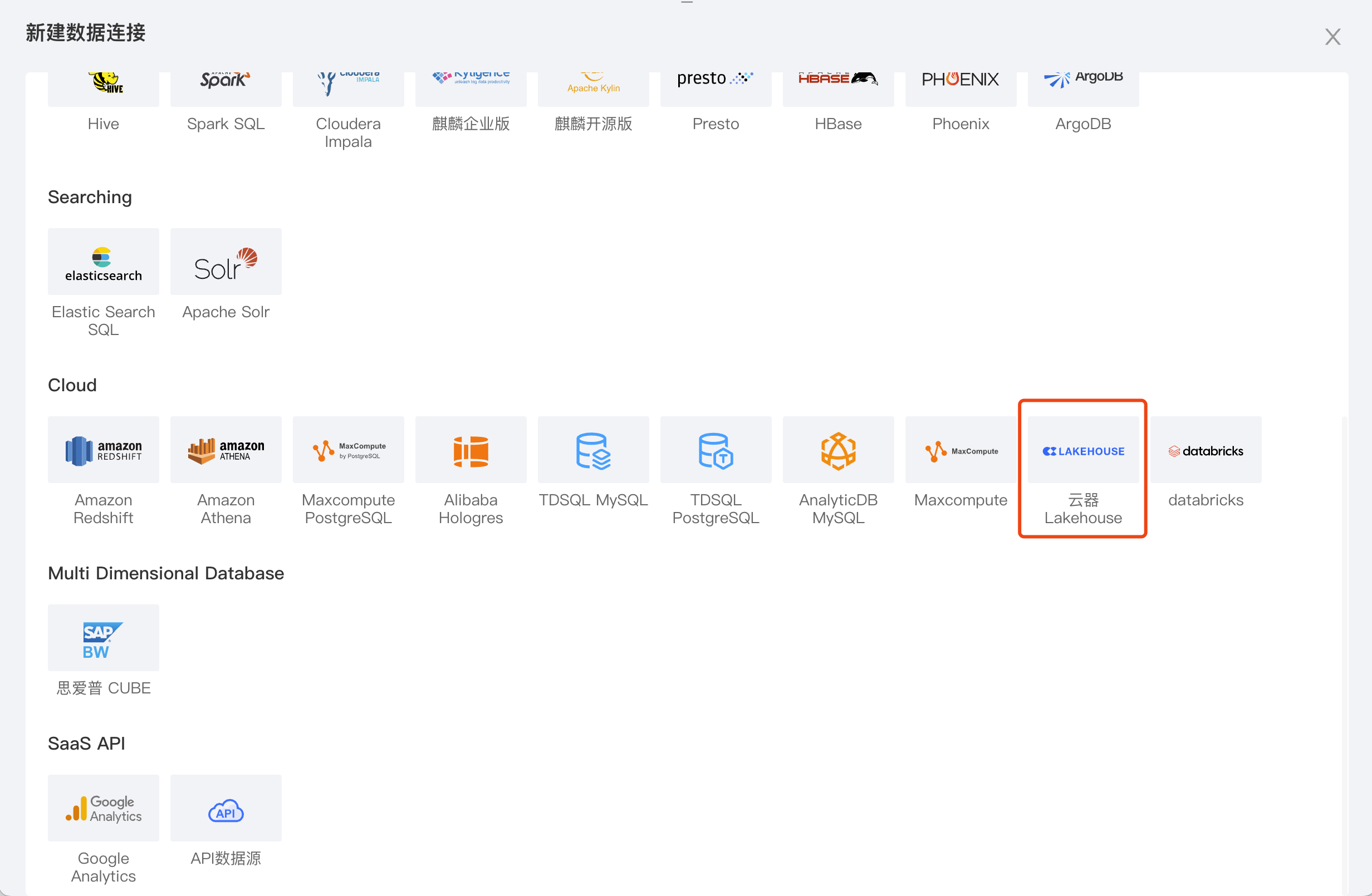
Select the data source type: Select the Singdata Lakehouse data source under Cloud.
-
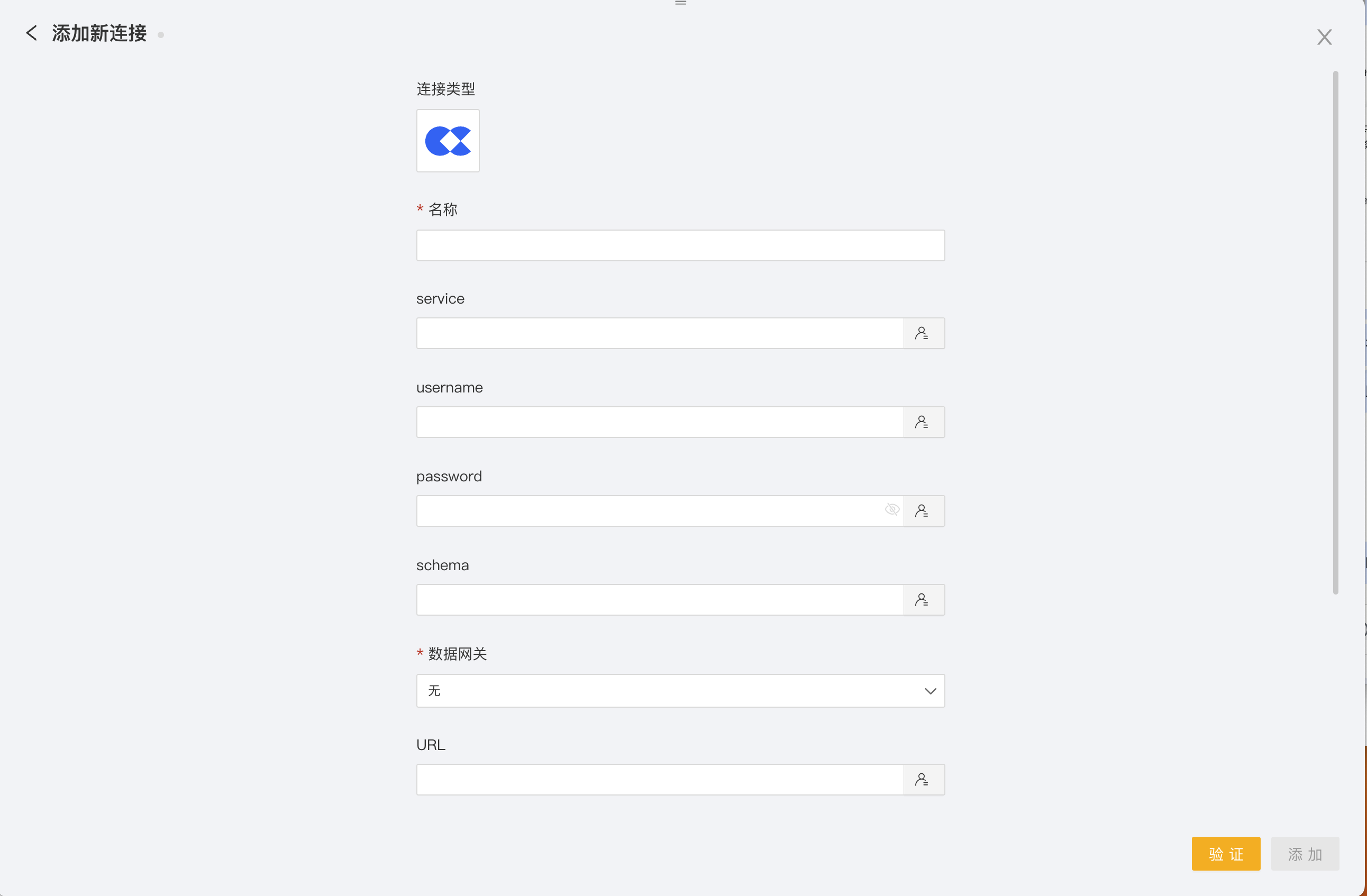
Fill in JDBC information: Enter the required JDBC connection details, such as the database URL, username, and password.
-
Name: Required. Used as the management name for the data connection.
-
service: Leave blank.
-
username: Required. The username for the Singdata platform.
-
password: Required. The password to connect to the Singdata platform.
-
schema: Optional. The specific schema under the designated workspace in the Singdata account. Note that this database must match the schema in the JDBC connection string.
-
Data gateway: None.
-
URL: jdbc:singdata://
instance_name.<region_id>.api.singdata.com/[workspace under this account]?schema=[specific schema]&virtualCluster=[cluster name under current workspace] -
vcluster: Optional.
-
instance: Optional.
-
workspace: The workspace specified in the URL.
2.2 Create a Dataset
-
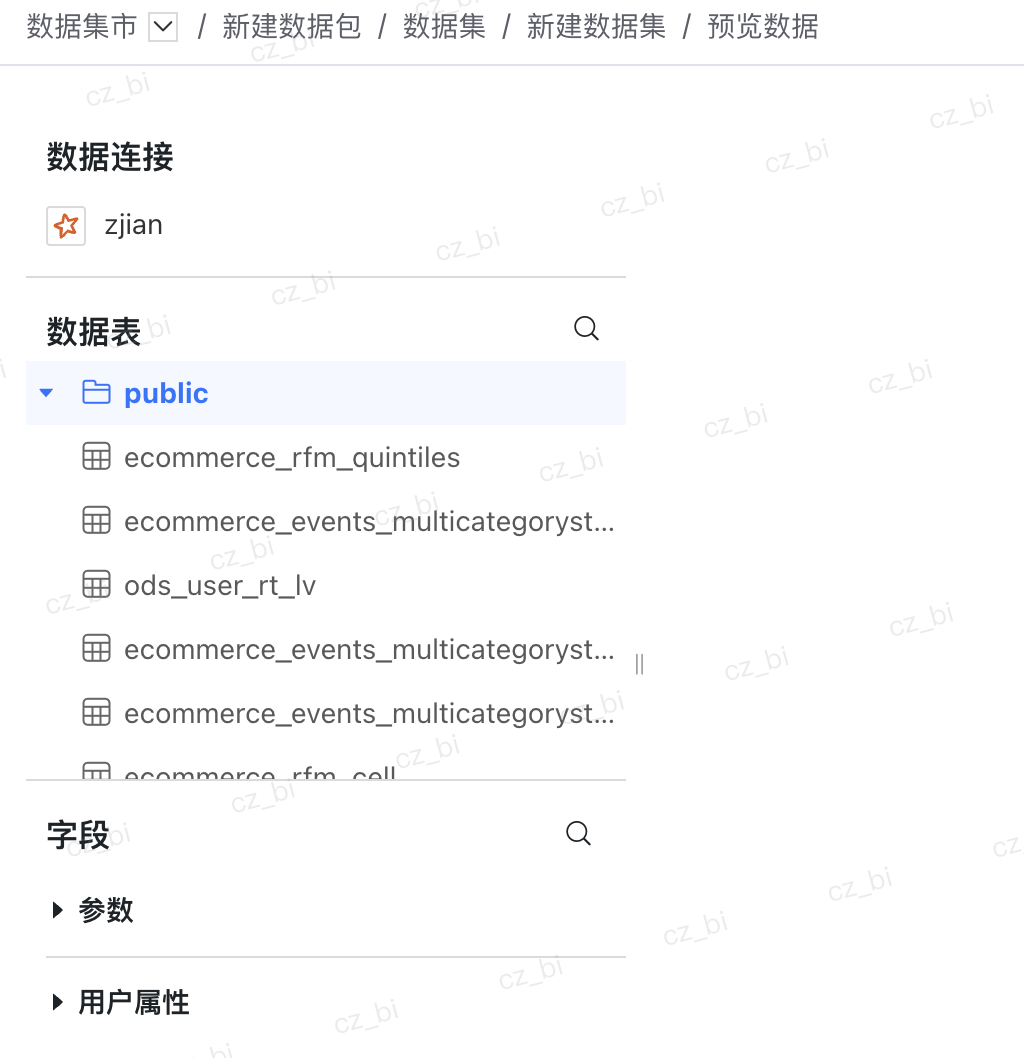
Create a new data package: On the data marketplace page, click "New Data Package" and select "Blank Data Package".
-
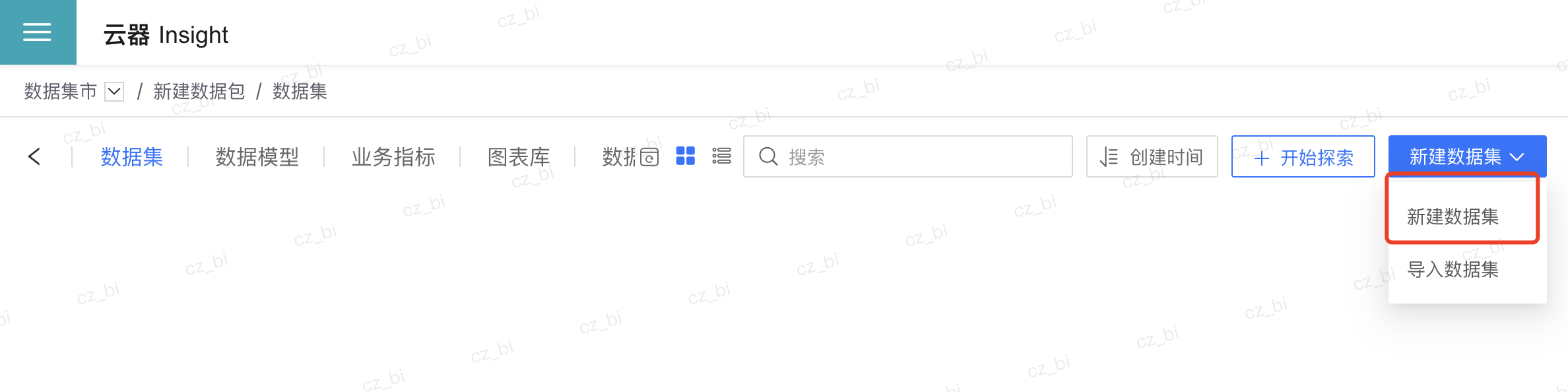
Create a new dataset: Inside the data package, click the "New Dataset" button.
-
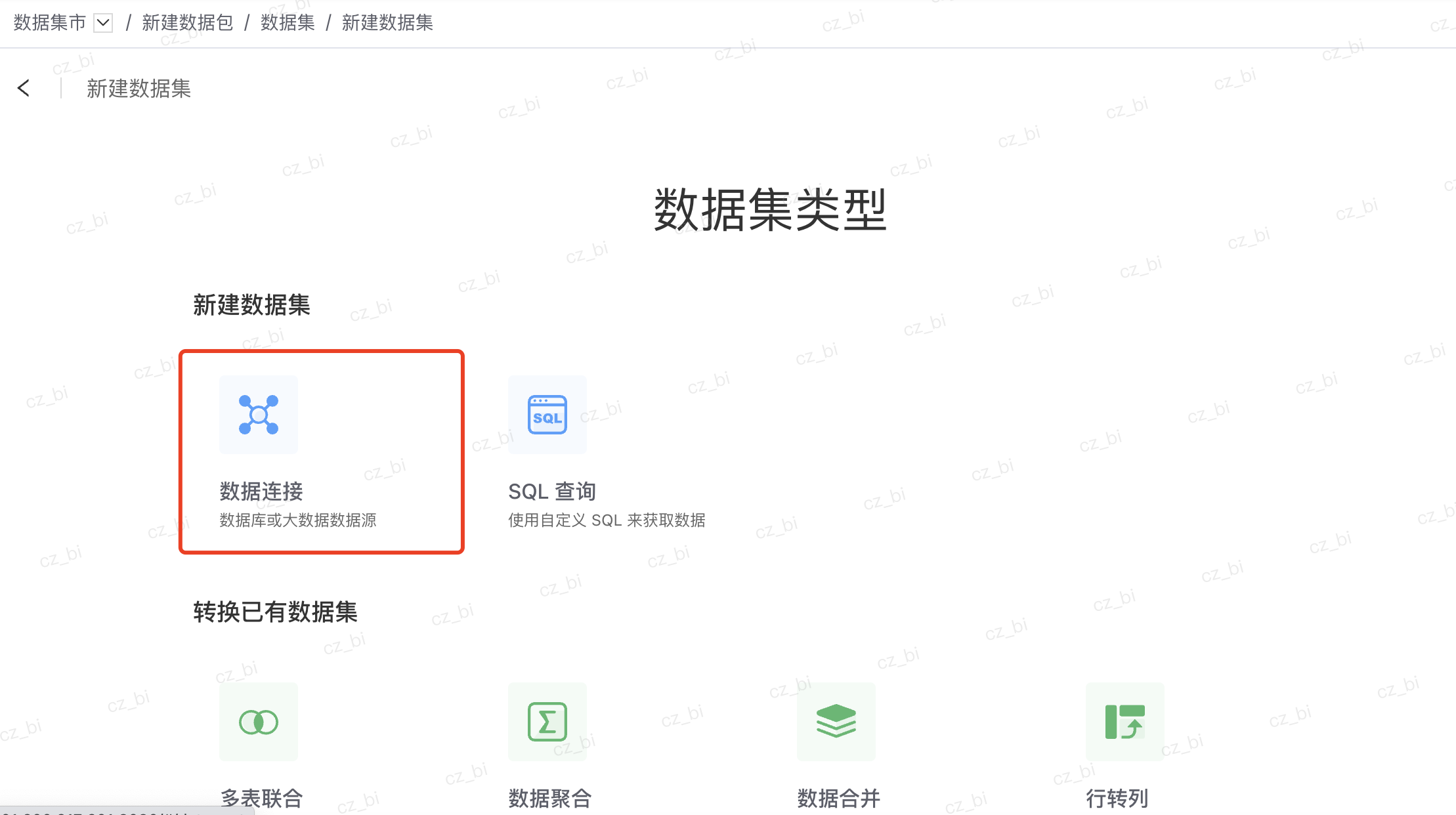
Select the data source: Select the data source type and specific data table you just created.

2.3 Create a BI Report
-
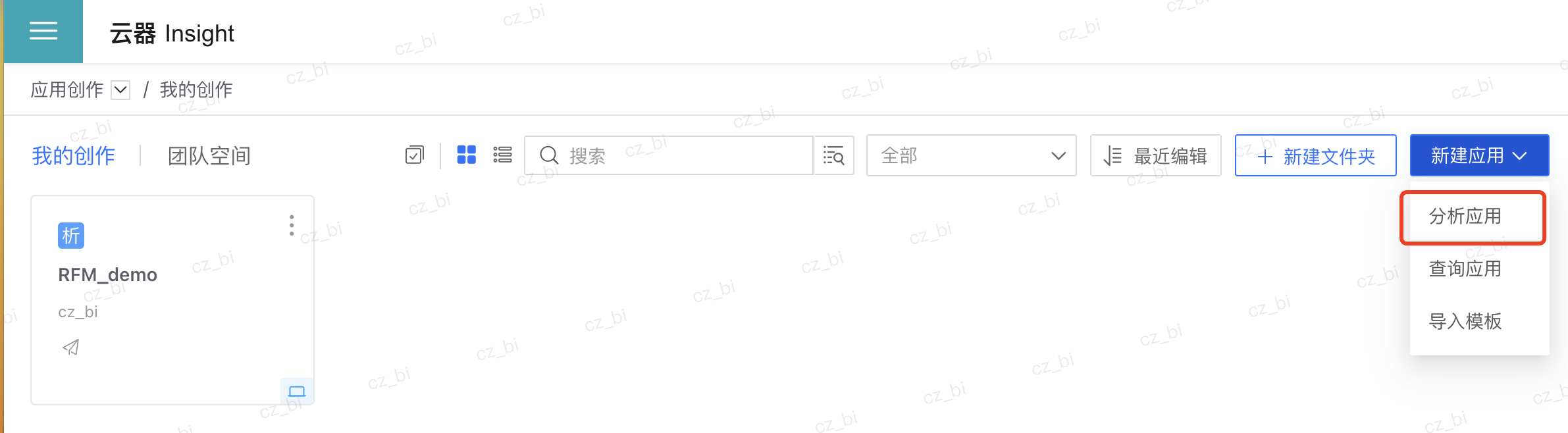
Create a new analysis application: On the application authoring page, click "New Analysis Application".
-
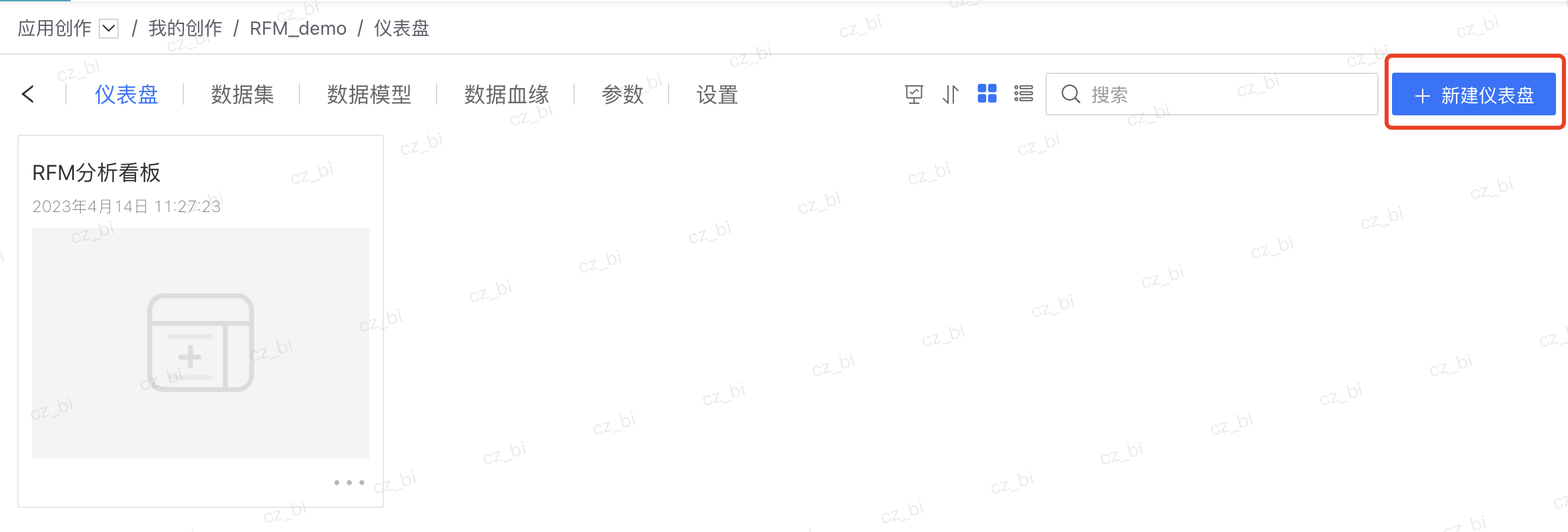
Create a dashboard: Click "New Dashboard" to enter the dashboard building page.
-
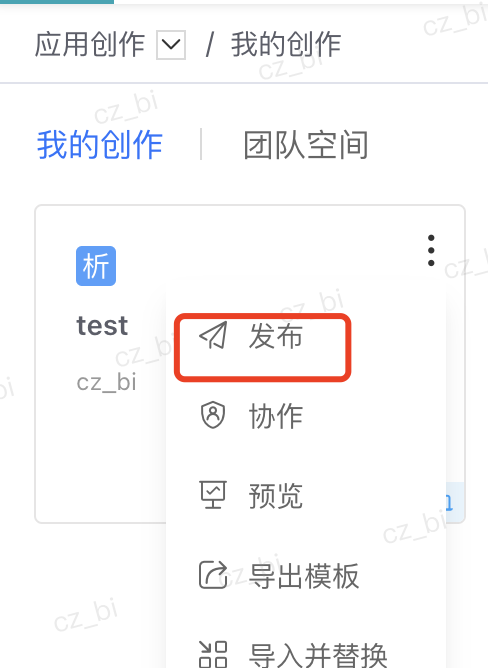
Publish the dashboard: After creation, click "Publish" to publish the dashboard to the application marketplace.
2.4 View Reports
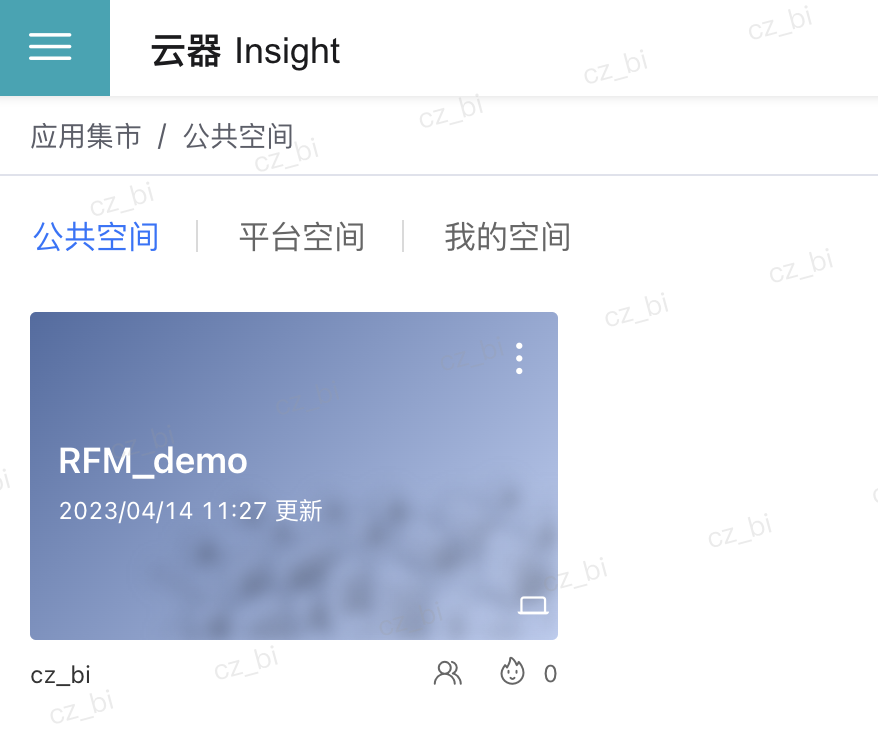
- View data: On the application marketplace page, click the corresponding report to view data.
Usage Examples
The following are some specific examples of using Insight:
- Sales analysis: Create a monthly sales report containing sales revenue, sales volume, and sales growth rate to analyze the sales performance of each product line.
- Customer behavior analysis: Build a dashboard showing customer visit count, dwell time, and conversion rate to analyze the effectiveness of different marketing campaigns.
- Inventory management: Set up a real-time inventory report including inventory quantity, inventory turnover rate, and safety stock levels to help managers stay informed about inventory status.
Frequently Asked Questions (FAQ)
-
Why can't I see features like the data marketplace or application marketplace? If you cannot see features such as the data marketplace or application marketplace, please confirm whether your user role has the corresponding permissions. If needed, contact the system administrator to enable access.
-
Why do I have data analysis permissions but cannot create a dataset? If you have data analysis permissions but cannot create a dataset, make sure you are operating within a data package. Only system administrators have permission to create data packages.
-
How do I add users for the Insight product? To add users for the Insight product, perform the operation in the Singdata admin console. Please note that data synchronization may have a delay.