
Analyze Data in Singdata Lakehouse with FineBI
FineBI is a Business Intelligence (BI) product launched by FanRuan Software Co., Ltd.
FineBI is a new generation of big data analysis BI tool designed to help business personnel fully understand and utilize their data. With a powerful big data engine, users can create a variety of rich data visualizations by simply dragging and dropping, freely analyze and explore data, and unleash more unknown potential from the data.
Preparation
Download and Install FineBI
Please refer to the FineBI official website. If you have already installed it, please skip this step.
Download Singdata Lakehouse JDBC Driver
Please refer to the Singdata Lakehouse JDBC Driver.
Download the latest version of the JDBC driver to your local machine for subsequent use.
Modify SystemConfig.driverUpload to Allow Jar File Upload
Due to the high-security requirements of most users, FineBI by default prohibits uploading drivers through driver management.
Therefore, before using driver management, you need to set the SystemConfig.driverUpload field in the fine_conf_entity table of the FineDB database, which stores FineBI information, to true.
- Change the parameter value to true: Allows uploading drivers through driver management.
- Change the parameter value to false: (The default value is false) Prohibits uploading drivers through driver management. An error will be reported when uploading: uploading driver jar files is not allowed. You can modify the SystemConfig.driverUpload configuration value to enable this feature.
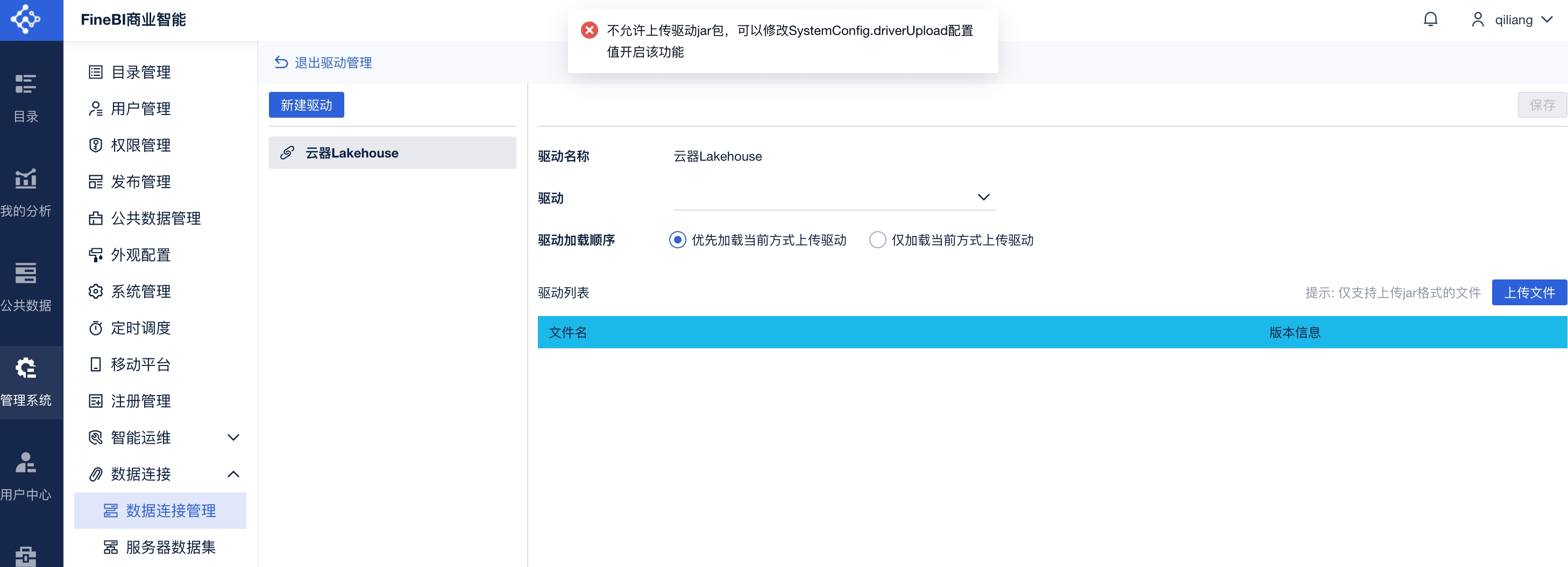
For more details, please refer to here.
After restarting, log in to the FineBI system again, and you can upload the driver through "Driver Management".
Install Singdata Lakehouse JDBC Driver in FineBI
Users can use the "Driver Management" function to upload the corresponding driver. "Driver Management" uses hot loading, so you can use the driver directly without restarting FineReport after uploading the driver.
When encountering some driver-related issues, you can quickly modify the driver loading method to achieve a quick connection.
Navigate to Data Connection -> Data Connection Management:
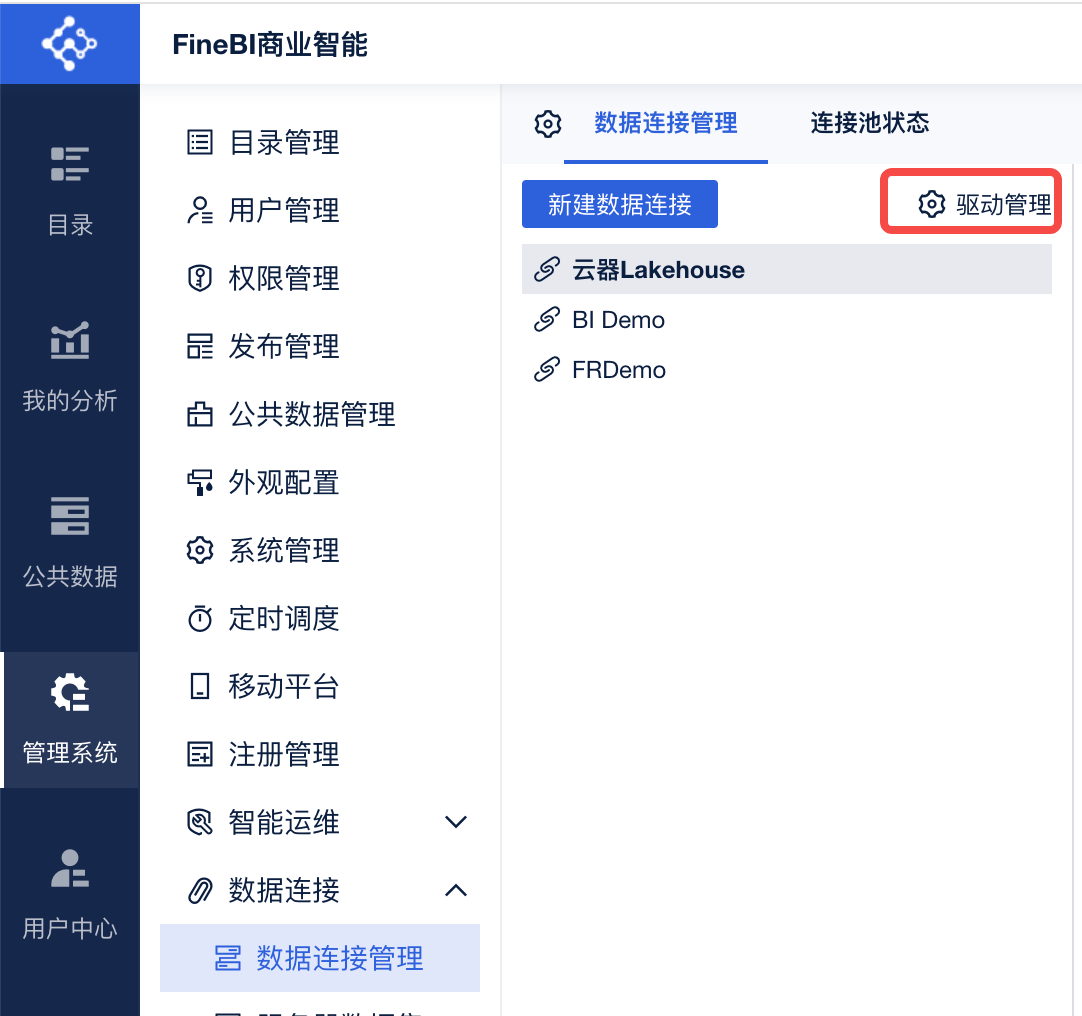
Click Driver Management -> New Driver.
By default, the current uploaded driver is prioritized for loading, as shown below:
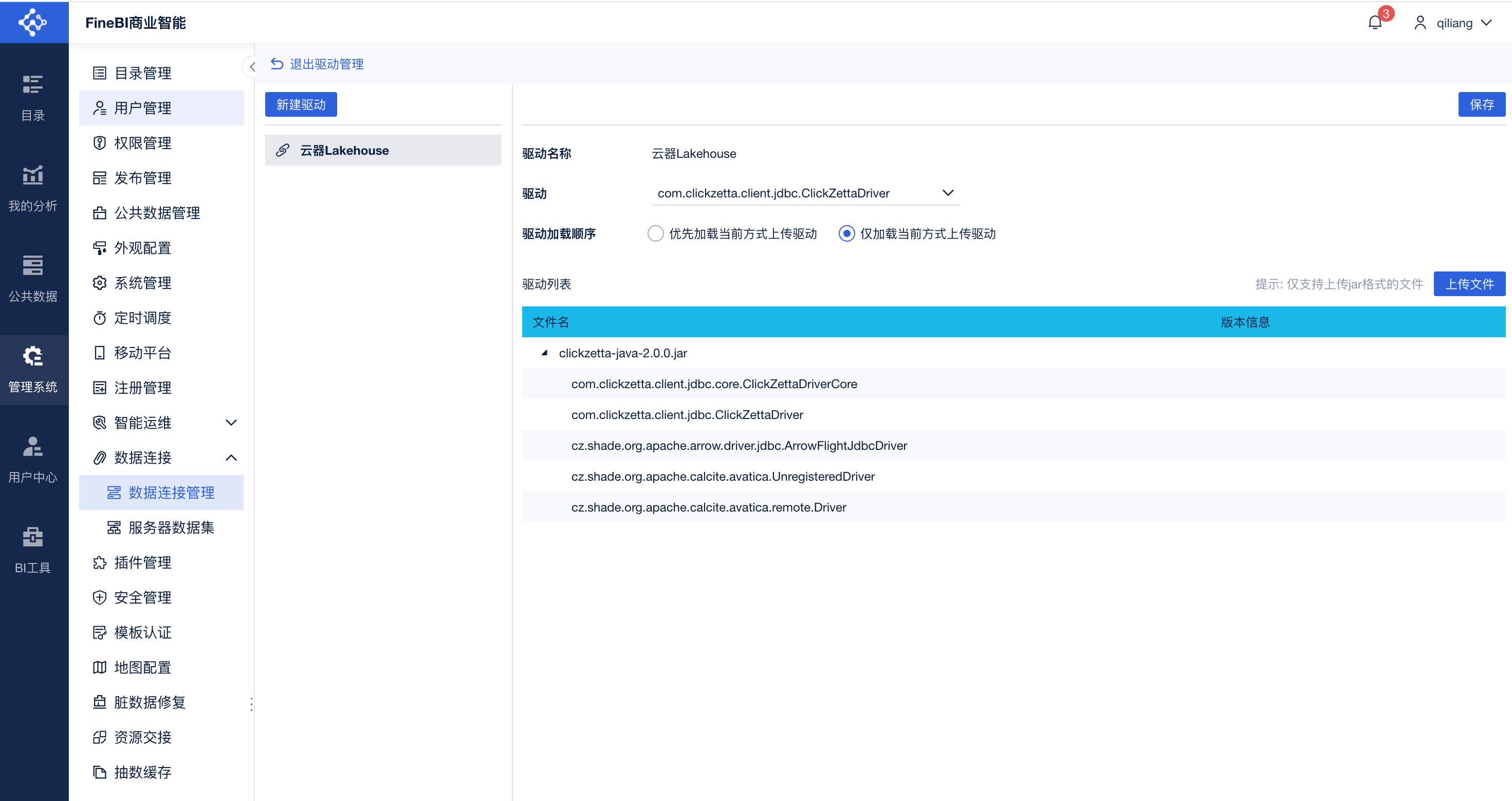
- Prioritize loading the currently uploaded driver: Load the jar from driver management first.
- Only load the currently uploaded driver: Only load the jar from driver management.
When installing the Singdata Lakehouse JDBC driver, please select "Only load the jar from driver management".
Please fill in the driver name as "Singdata Lakehouse". Select the driver as "com.clickzetta.client.jdbc.ClickZettaDriver".
Using the Driver
- In the "Data Connection Management" interface, click "New Data Connection" to create a new Singdata Lakehouse data connection. First, select the data connection type as Other -> Other JDBC:
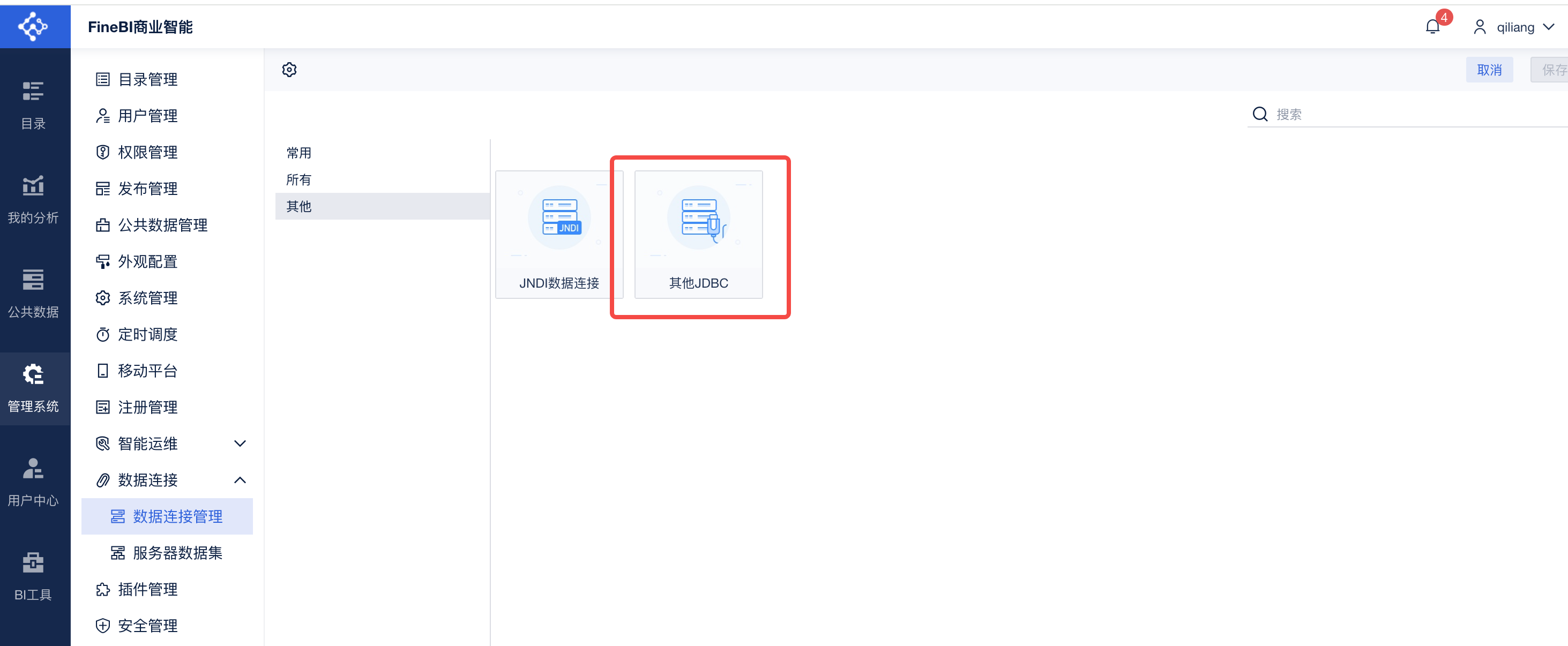
- Select "Custom" for the driver, choose the Singdata Lakehouse driver you just uploaded from the dropdown, and fill in the connection information as shown below:
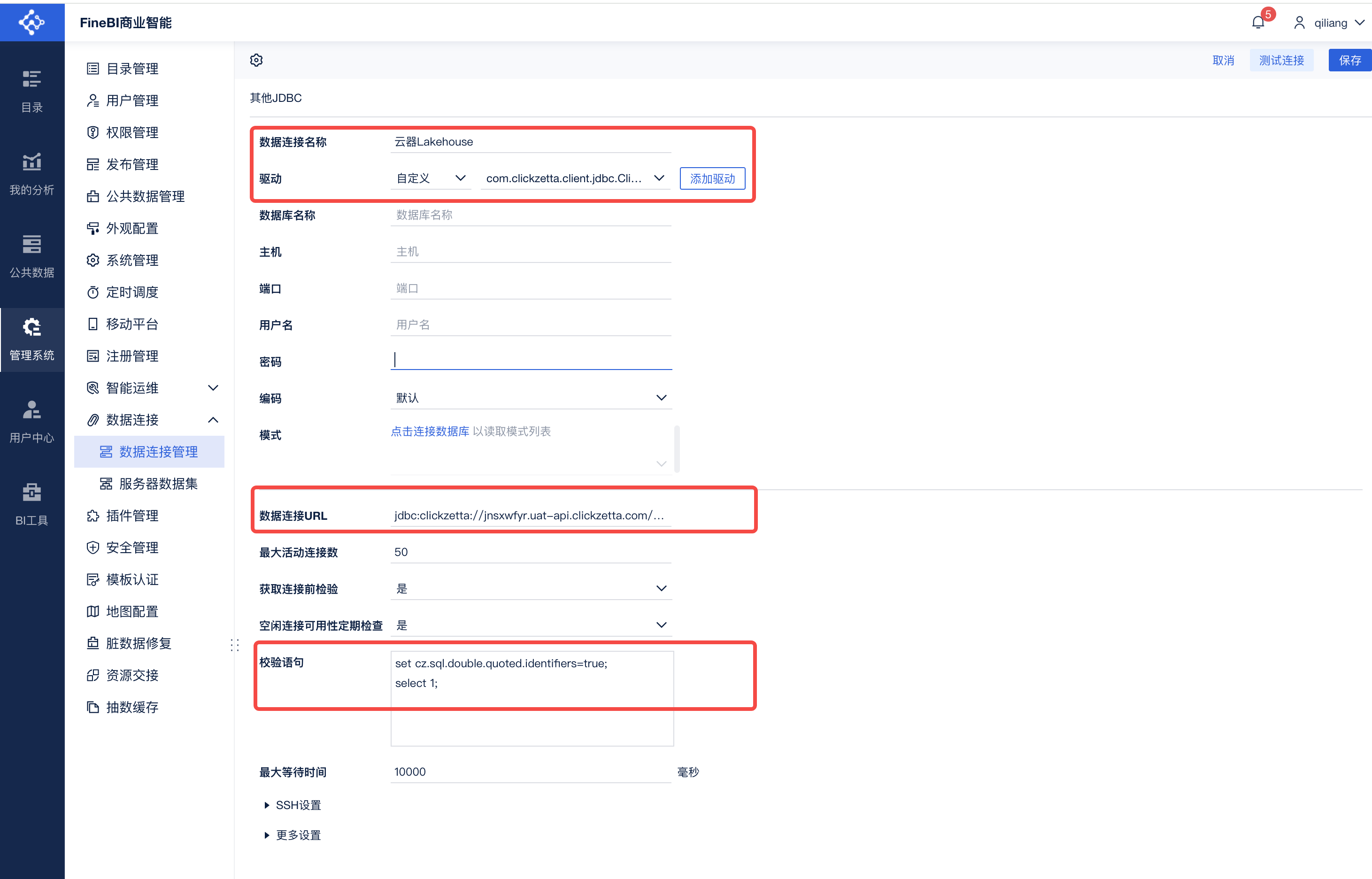
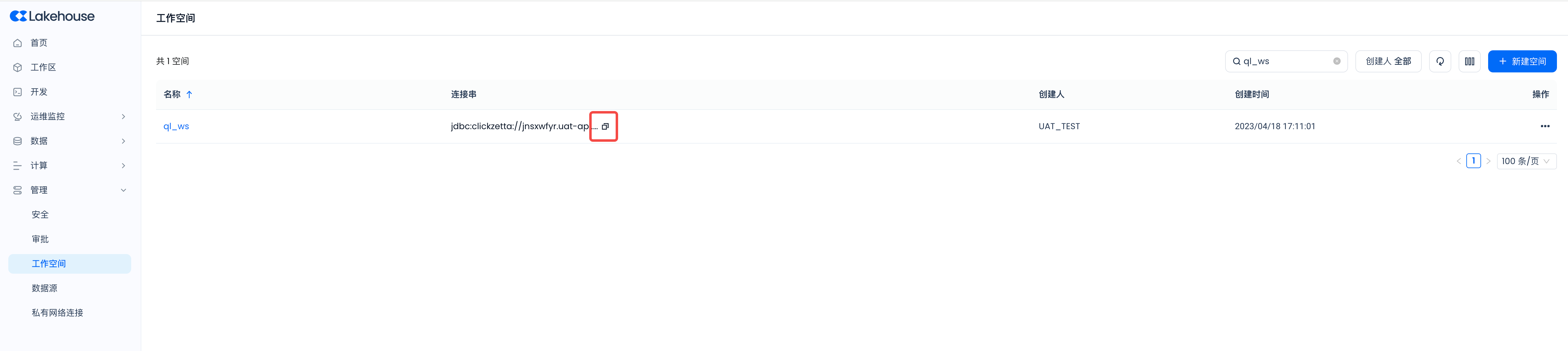
- Data Connection URL: jdbc:clickzetta://your-instance-ID.api.singdata.com/your-workspace-name?virtualCluster=your-cluster-name&schema=your-database-schema-name&username=username&password=password
In Singdata Lakehouse, navigate to the workspace, find the workspace you need to access, and click copy to copy the JDBC URL connection string. Then add the username and password to the string in the format above.
- Please enter the validation statement: set cz.sql.double.quoted.identifiers=true; select 1;
- Please keep other parameters unchanged.
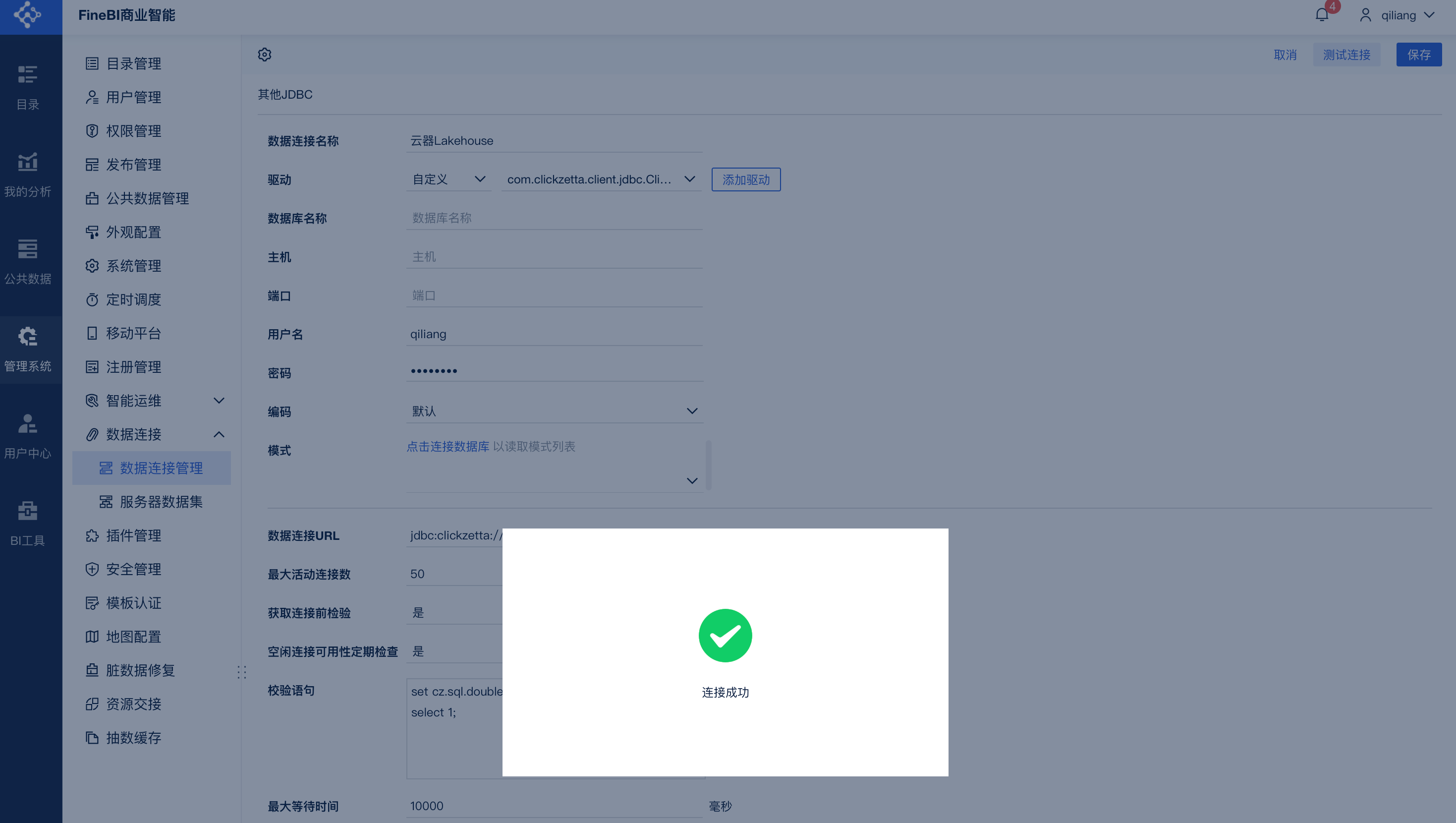
- Click Test Connection, and you can see that the database is successfully connected, as shown below:
Verify Connection
By Creating a Server Dataset
Navigate to Data Connection -> Server Dataset, and create a new SQL dataset.
Dataset Name: Singdata Lakehouse-TPCH-Q01
SQL Statement: