
Data Catalog
Overview
Data Catalog, also known as the data asset map, provides powerful data search and display capabilities, designed to help users more easily find, understand, and use data. It supports two modes: Data Search mode and Data Management mode. Data Search mode allows users to search data directly, while Data Management mode allows users to browse and manage data tables through a directory structure. With Data Catalog, you can manage and utilize data resources more efficiently.
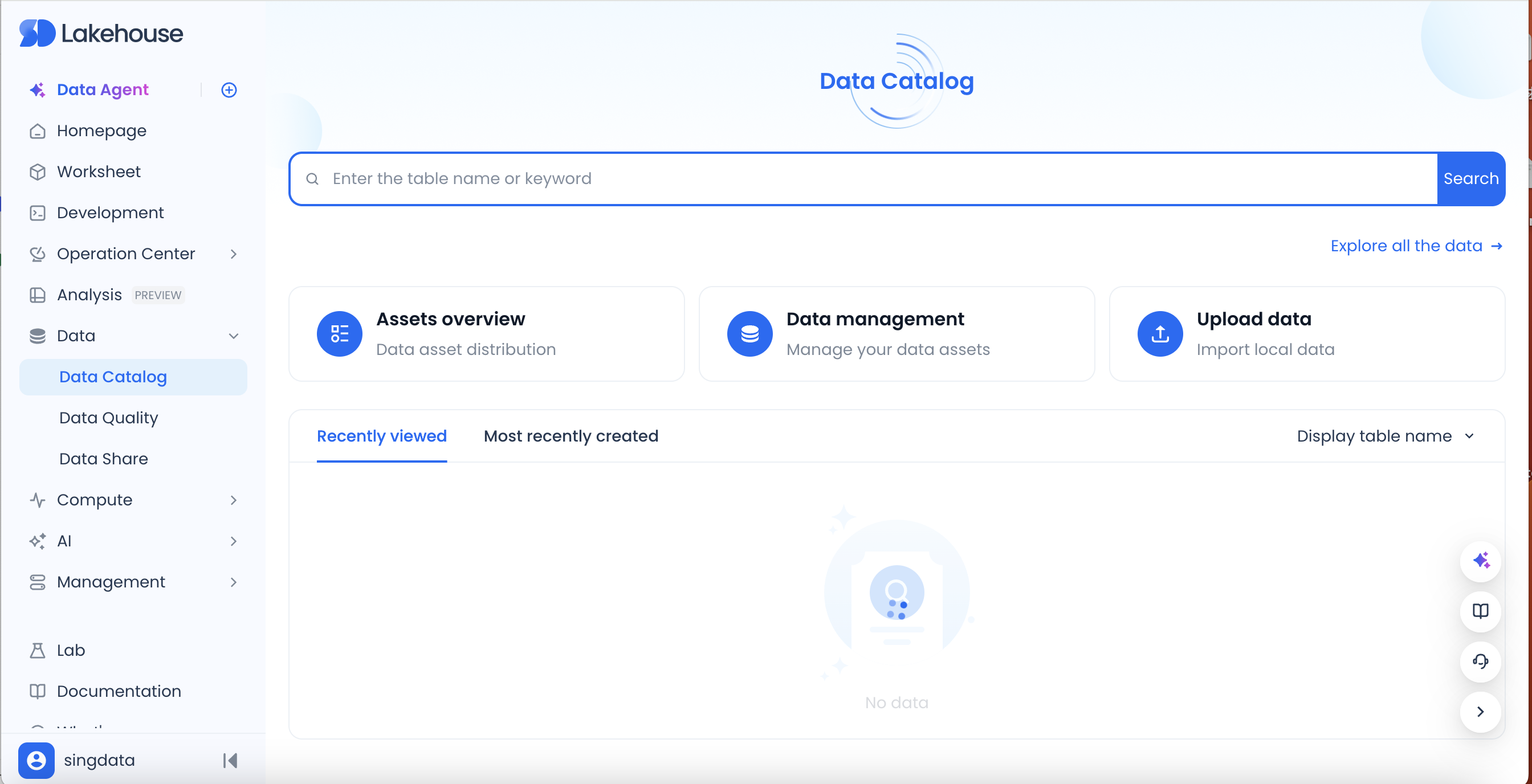
- Asset Details: Displays the total data assets of the current tenant.
- Search Box: Click to enter the data search results page.
- Data Management: Click to enter the data management page.
- Upload Data: Lightweight local file upload entry.
- Recently Viewed / Recently Created: Top 5 data table information recently viewed/created under the current tenant. Click to go directly to the table details page.
Data Search
Enter keywords in the search box on the Data Catalog homepage to enter the search results page. The search function supports searching by the name and description of object types (Table, View, Materialized View). The search results page provides various filtering options, including object type, workspace/Schema, creation time, owner, etc., as well as sorting options by name, creation time, update time, etc.

On the search results filtering: supports filtering by object type, workspace/schema, creation time, and owner; also supports filtering by name, creation time, and update time.
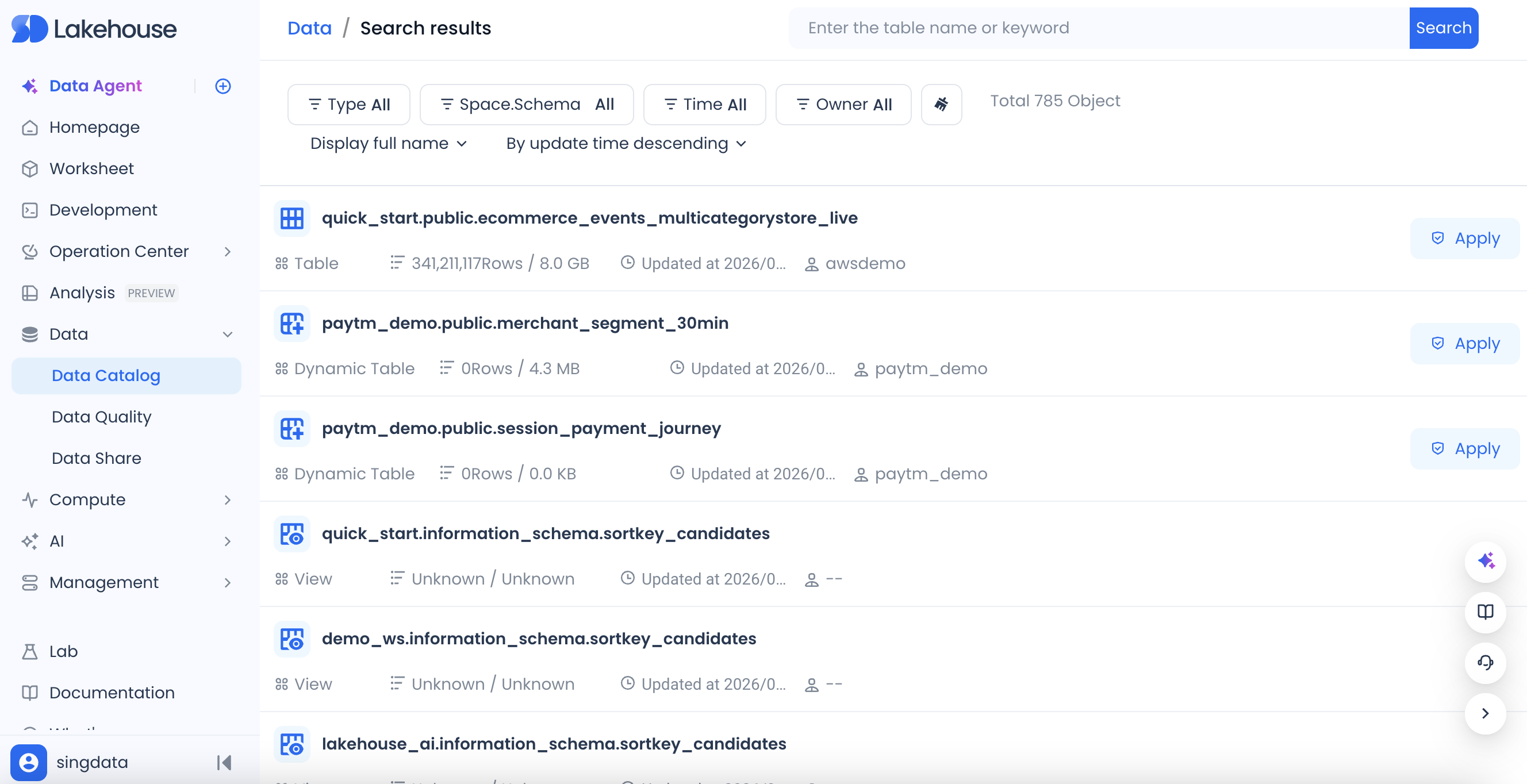
Click the table name on the search results page to navigate to the corresponding table details page.
Data Management
The Data Management page displays all data assets that the current user has permission to manage under the service instance in a directory format. Click Data Management from the homepage to enter the Data Management page, which displays the list of workspaces that the current user has permissions to under the service.
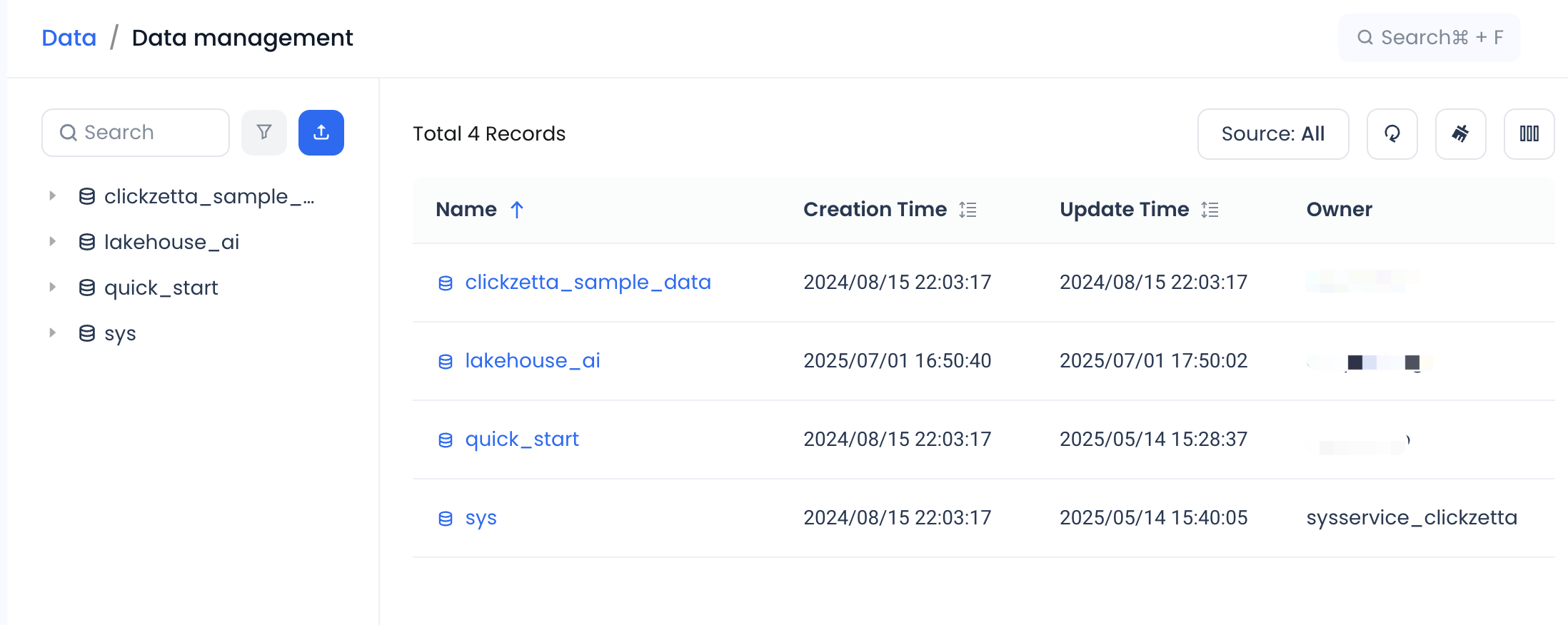
Workspace Level
At the workspace level, you can see the list of all Schemas under that workspace. Click the directory tree on the left to expand and view the hierarchy. The top area displays basic workspace information, such as source, creation time/modification time, owner, etc. The information area presents specific Schema information, including name, creation time, update time, owner, etc.
Each workspace has a default information_schema.
Schemas under a workspace include two categories: internally created and externally created.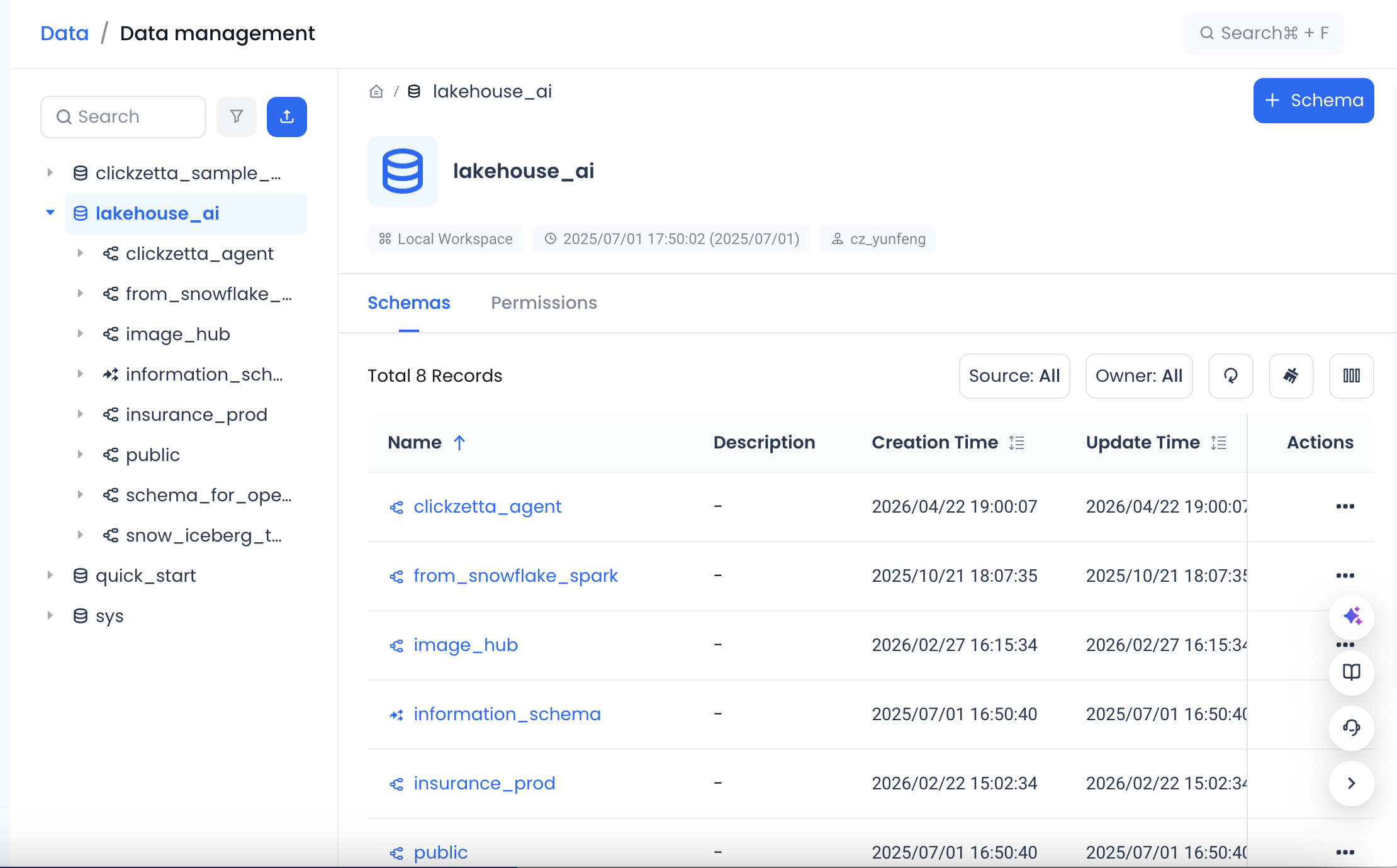
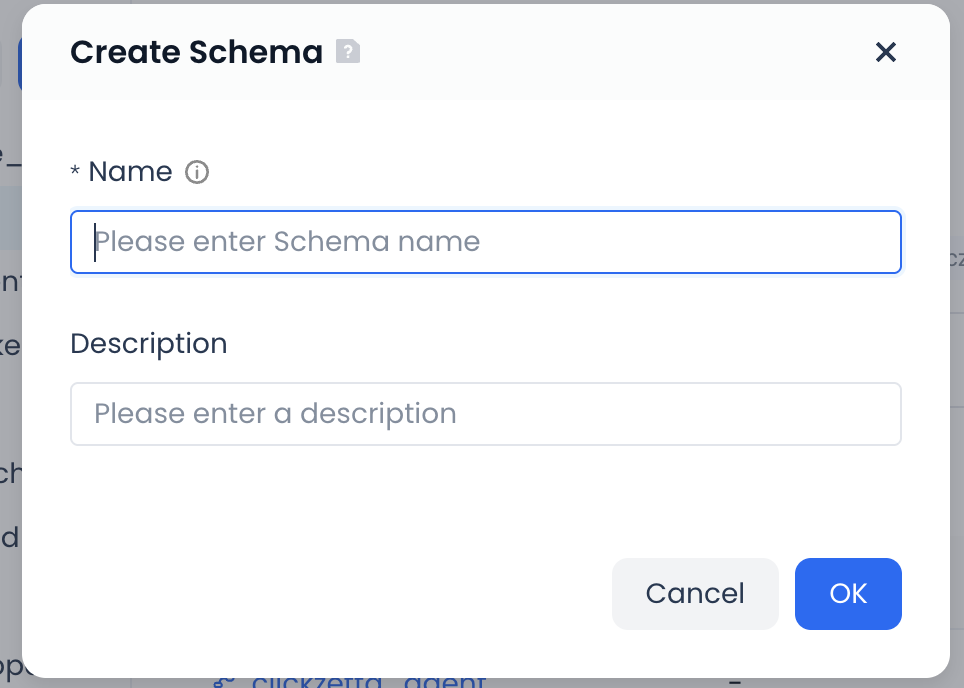
Users can create schema information under a workspace through a visual interface. Click the question mark next to the title to view help documentation for creating objects.
Schema Level
After clicking a specific Schema, you can drill down to the Schema's details page. At the Schema level, you can view all object information managed under the Schema, with specific objects organized by object type. The system currently supports three object types: Table, View, and Materialized View.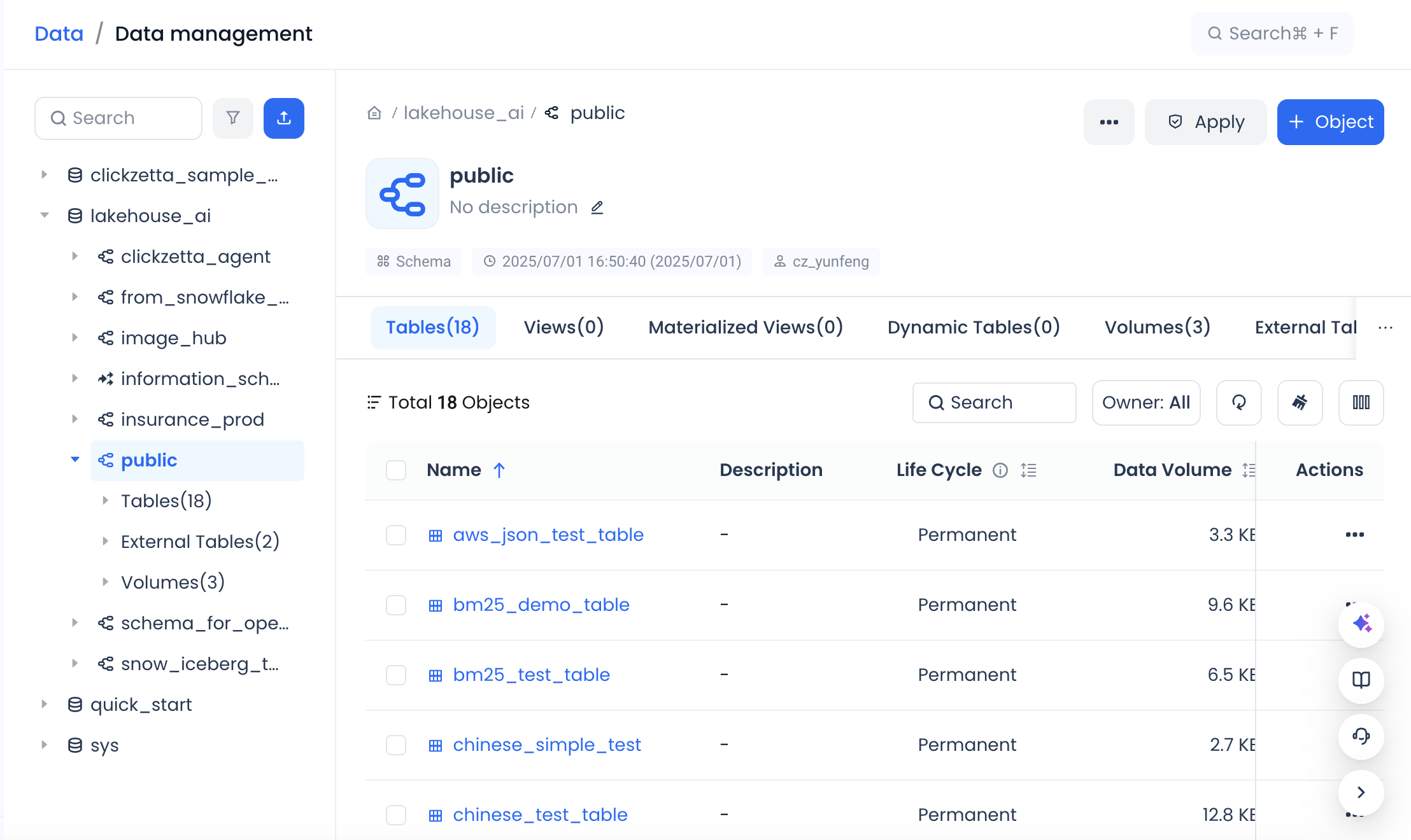
Objects can be created directly under a Schema, supporting both script-based creation and visual creation. The system has built-in templates for different objects to help users better understand Lakehouse syntax.
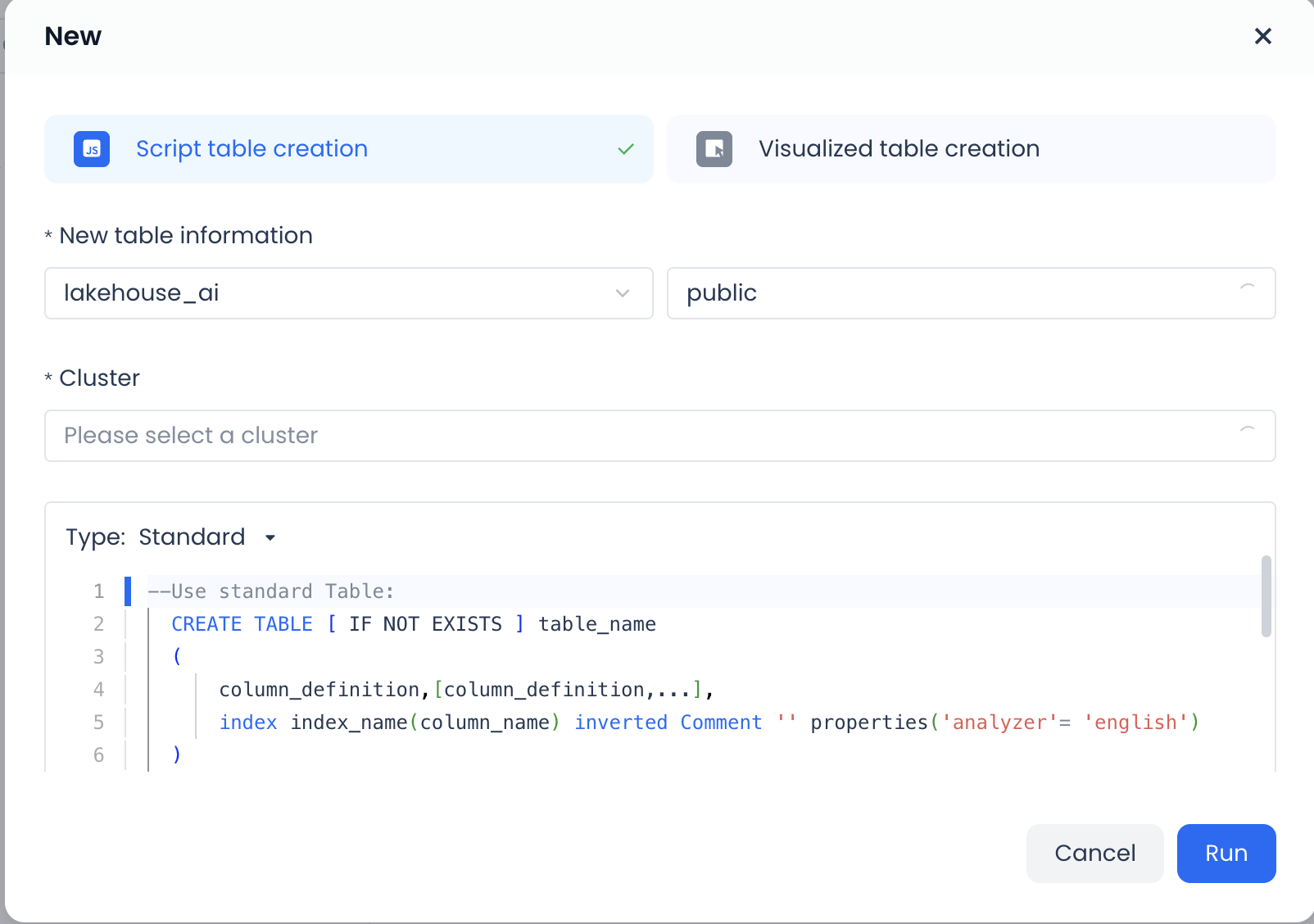
Table Details Page
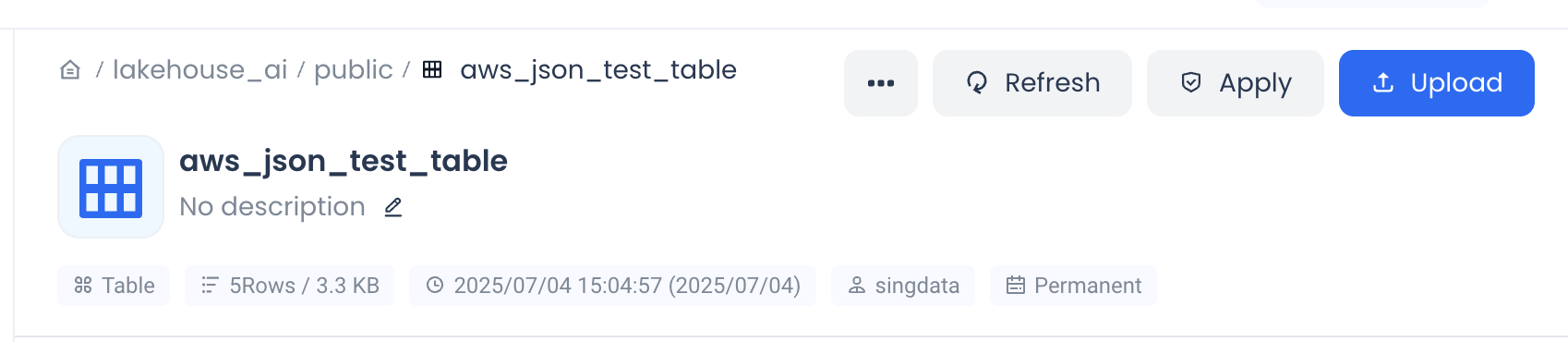
The table details page displays all detailed information for tables in the Singdata Lakehouse library, including field information, data preview, data lineage, job history, uploads, etc. The details page is divided into two parts: the top area displays the table name, owner, and some quick table operations; the information area contains six major sections: Details, Fields, Preview, Lineage, Jobs, and Uploads.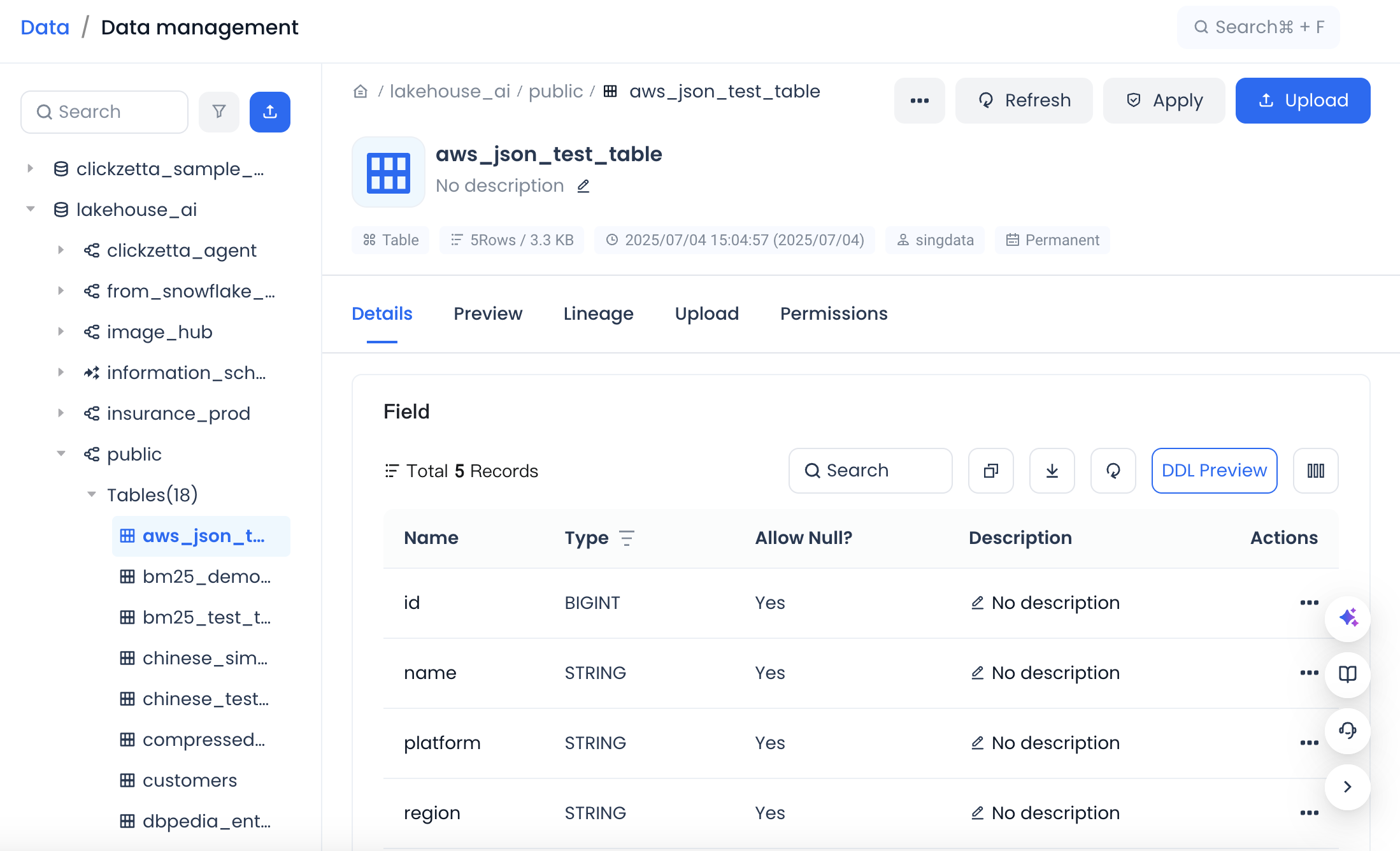
Top Functional Area
The top area displays the full structure of the current table (i.e., the corresponding workspace/schema/table name information), row count/storage size, creation time/update time, owner, and other basic information. The top area also provides an Upload function, supporting the uploading of local files to the Singdata Lakehouse platform.
DDL preview:
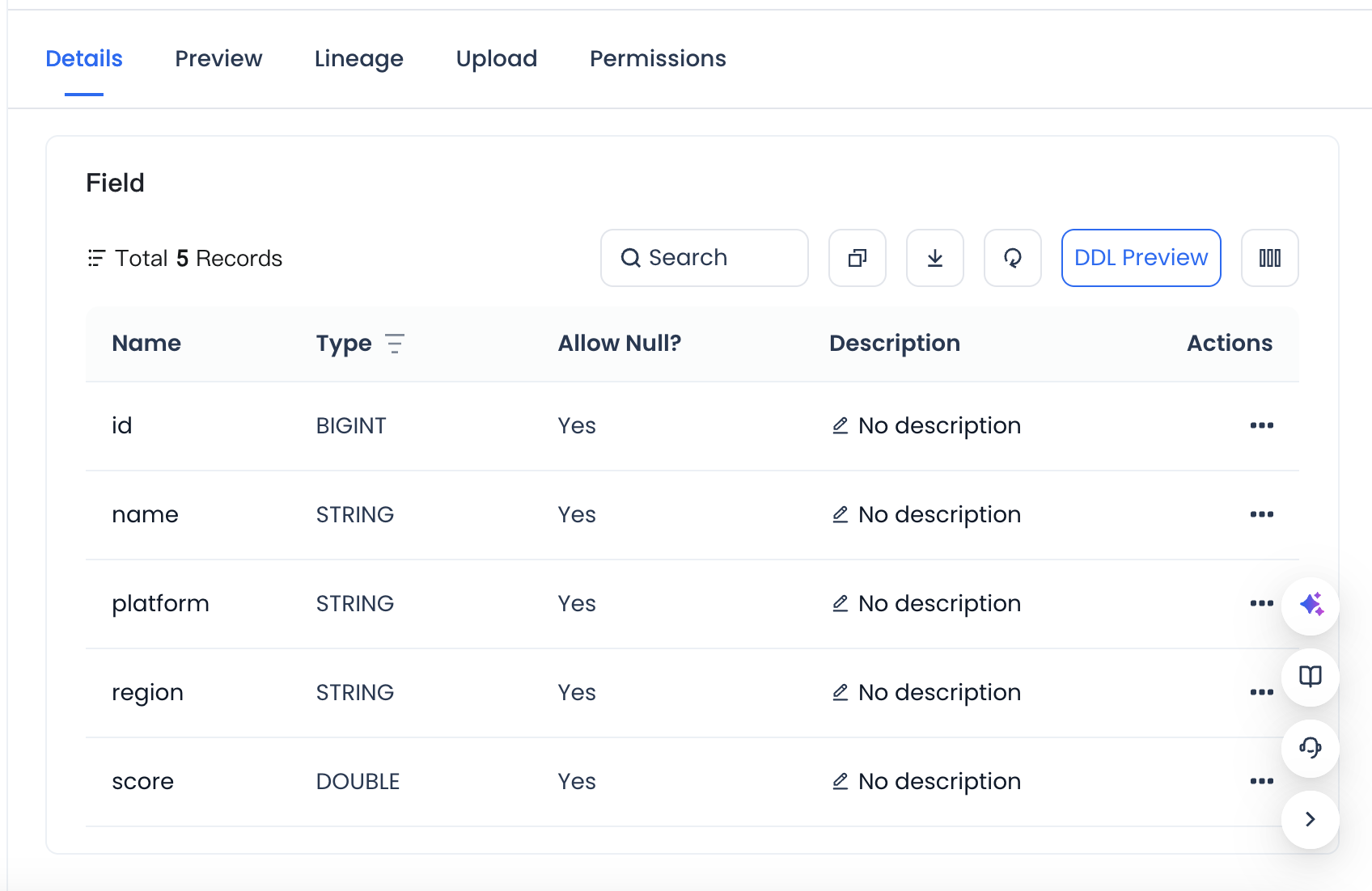
The Details tab displays the DDL statement of the current table, supporting one-click copy. It also supports one-click navigation to the permission management page for permission authorization.
Fields
The Fields tab displays the field names, types, descriptions, and other information for the current table. If there is primary key information, it can also display the primary key and standardized labels for the fields.
Preview
In the Data Preview tab, you can preview the first 100 rows of data in the current table. Note that there are data permission restrictions here: the currently logged-in user must have Select permission on this table to preview.
Data preview requires the user to manually select a compute cluster participating in the query to display the preview data.
Lineage
In the Data Lineage tab, you can view the upstream and downstream dependencies of the current table. The lineage relationships here are generated based on code parsing of the corresponding task that produces this table, and belong to relationships from the "definition perspective."
Click on a specific upstream or downstream table node to view more detailed information:
Jobs
Under the Jobs tab, you can view the SQL jobs of the tasks that produce the table. By clicking on the job ID, you can further view the job details.
Uploads
Under the Uploads tab, all historical records uploaded to the current table via the Upload function are displayed.