
Data Quality Management
In the era of big data, data quality management is a critical step to ensure data correctness, validity, and consistency. Through data quality management, we can clean, process, and optimize massive datasets, thereby enhancing data value density to better serve business needs. The data quality module provides you with comprehensive monitoring and evaluation of data quality across six dimensions: completeness, uniqueness, consistency, accuracy, validity, and timeliness. With the data quality module, you can achieve continuous improvement and optimization of data quality.
Overview
The data quality overview page provides an intuitive data quality monitoring dashboard, making it easy to view the overall status of quality rules and validation runs. Below are detailed explanations of some indicators:
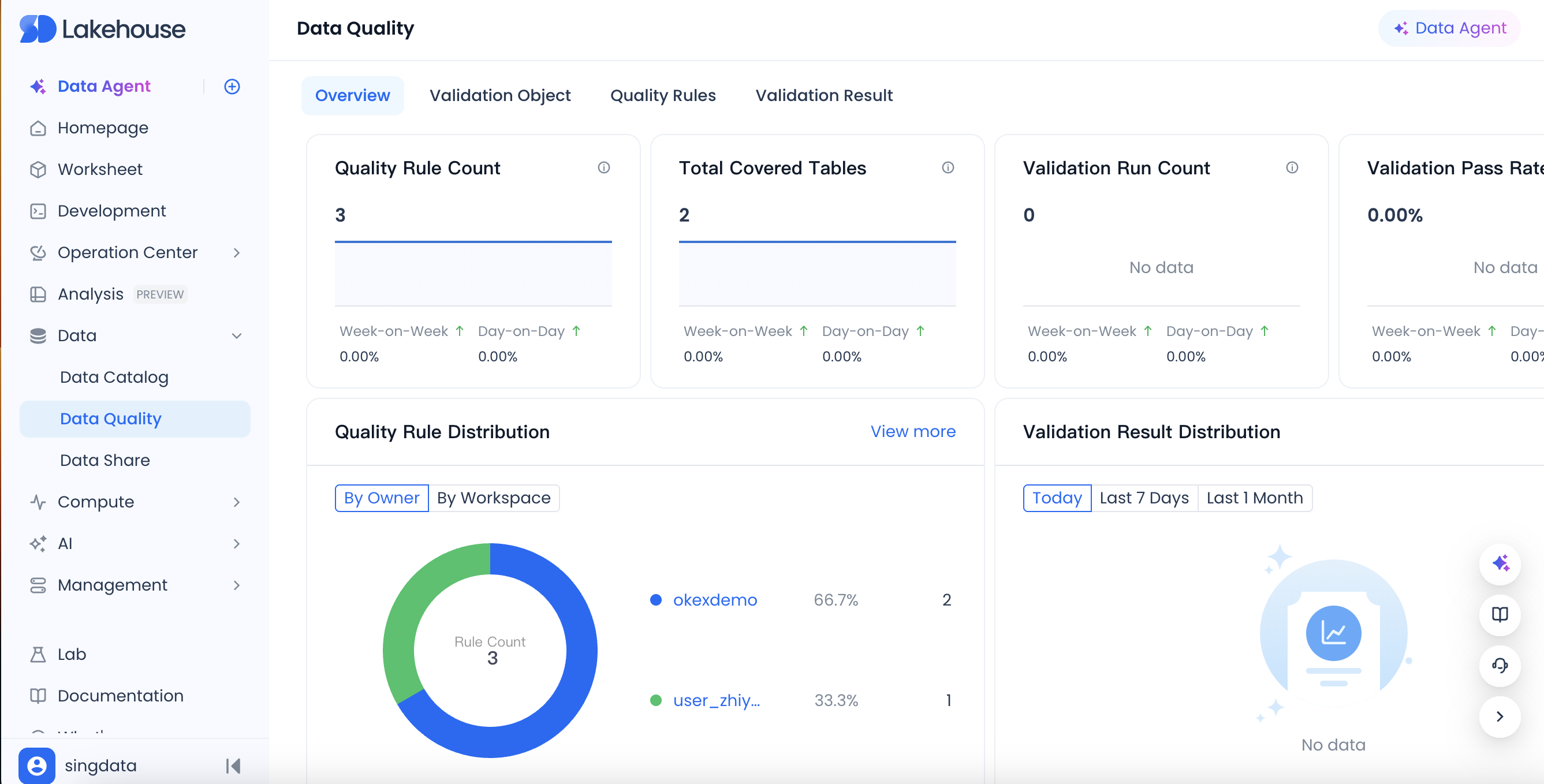
The definitions of some indicators are as follows:
- Quality rule count: The total number of quality rules configured across all workspaces of the service instance, including disabled rules.
- Total covered tables: The number of tables with quality rules configured across all workspaces of the service instance.
- Detection run count: The number of quality rule runs in the past month.
- Validation pass rate: Number of passes / total number of validations in the past month.
- Quality rule distribution: The distribution of quality rules across all workspaces of the service instance, grouped by owner or workspace.
- Validation result distribution: The distribution of validation result statuses for quality rules across all workspaces.
- High-quality tables: Tables with quality rules configured that have passed validation for the past 7 consecutive days.
- Results needing attention today: Quality rules that failed validation.
Quality Rules
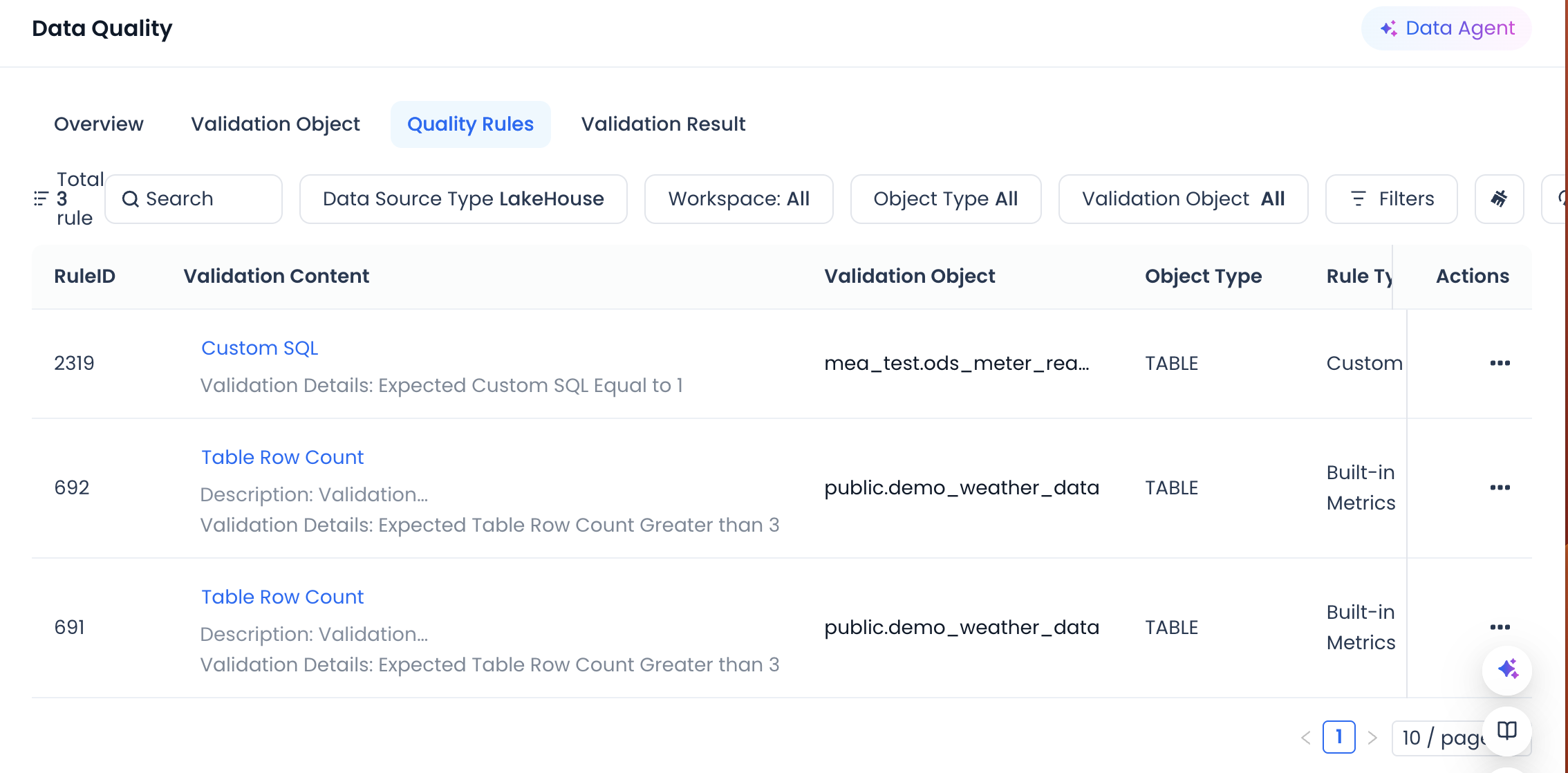
The quality rules page displays all your configured quality rules in a list format. Use the filter area at the top to quickly find the rules you need.
Use the top filter area to perform detailed searches.
Create a New Quality Rule
- In the quality rules list, or in the rule list of a validation object, click the "Create Rule" button to enter the new quality rule page.
- Fill in the required configuration items, such as data source, workspace, validation object, owner, description, parameter configuration, value filtering, validation method, expected result, trigger method, execution cluster, and timeout duration.
| Configuration Item | Configuration Description |
|---|---|
| Data Source | The type of data source. Currently only Lakehouse data sources are supported. |
| Workspace | The workspace to which the validation object belongs. |
| Validation Object | When the validation object is a Lakehouse table, select its Schema and name (table name, view name, etc.). |
| Owner | The person responsible for the quality rule, affecting who receives alerts. |
| Description | A description defined for the quality rule. |
| Parameter Configuration | In the quality rule, when using value filtering and custom SQL to compute metric values, you can reference predefined dynamic parameter values. For example, define a parameter: partition = $[yyyyMMdd]. |
| Value Filtering | Used to filter the range of objects to validate, such as filtering by partition. Supports parameter references: dt = ${partition}. |
| Validation Method - Built-in Metrics | System built-in validation metrics. Select as needed. |
| Validation Method - Custom SQL | If the built-in metrics do not meet your needs, you can compute metric values using custom SQL. Important: The result of custom SQL must be a single numeric value to enable comparison. |
| Expected Result | Define the expected result for the metric value. |
| Trigger Method | Configures how the quality rule is triggered to run. 1. Scheduled trigger: The system triggers a single validation run at the specified time. 2. Periodic task trigger: Triggered by an associated periodic task instance after the instance runs successfully. For periodic scheduling triggers, there are two scheduling blocking options: A. Strong blocking: If validation fails, the associated task instance is marked as failed, blocking downstream instances. B. Non-blocking: The quality rule runs as a bypass and does not affect the task instance's run status. 3. Manual trigger: Manually triggered as needed. |
| Execution Cluster | Specifies the compute cluster within the workspace for running the quality rule. |
| Timeout Duration | If the quality rule validation does not complete within the set timeout, it will be automatically canceled by the system. |
After filling in the required configuration items, click the "Confirm" button to create the rule.
- Example: If you want to check whether the record count of a table meets expectations, you can select "Record Count" as the built-in metric, set value filtering to a specific partition, set the expected result to a specific numeric value, trigger method to scheduled trigger, and execution cluster to your workspace's compute cluster.
Test Run a Quality Rule
After creating a quality rule, it is recommended to use the "Test Run" feature to verify the correctness of the configuration. After a successful test run, you can view the results to adjust the rule.
View Test Run Results
After clicking "Test Run", follow the prompts to click "View Results" to see the test run validation results.
Configure Monitoring Alerts
To ensure data quality issues are addressed promptly, you can configure monitoring alerts for quality rules. There are two ways:
-
Enable global quality monitoring alerts: In the monitoring and alerting module, search for "Data Quality Check Failed" and enable the system's built-in global quality validation monitoring rule.
-
Configure custom quality monitoring alerts: Create custom monitoring rules, select "Quality Rule Validation Failed" as the monitoring message, and set filter conditions such as workspace or specific validation object.
Validation Objects
On the validation objects page, you can manage all quality rules by the validation object (table) dimension. Use the search filter area to quickly locate specific rules.
Validation Results
Validation Results List
On the validation results list page, you can view the run status of all quality rules. Use the search and filter area to precisely find the required validation results.
Operations on Validation Results
For each validation result, you can perform the following operations:
- Terminate: Cancel the current validation run.
- Set Success/Set Failure: Manually set the validation result to success or failure.
- Revalidate: Trigger the quality validation to run again. Note: If a rule that previously failed validation passes upon revalidation, no new monitoring alert will be sent.
With the above features, you can effectively manage and monitor data quality, ensuring that the value of data in business applications is fully realized.