
Dashboard Version Management
Dashboard version management records stable dashboard versions, saves unpublished changes as drafts, and uses an edit lock to prevent users from overwriting each other's changes.
After the upgrade, a published version is created only when you click Publish Dashboard. You can try different layouts and analysis approaches, then publish once you are satisfied with the result.
What Problems Does It Solve?
| Problem | How Dashboard Version Management Helps |
|---|---|
| Each Ask AI modification used to create a version, producing too many versions that were difficult to manage. | Changes are first autosaved as a draft. A confirmed version is created only after you publish the dashboard. |
| You want to return to an earlier result after several rounds of changes. | Preview a historical version and continue editing from that version. |
| Multiple people's edits interfere with one another. | Only one person can hold the edit lock for a dashboard at a time. |
| You leave halfway through editing and cannot find your progress when you return. | Unpublished changes are saved in the draft so that you can continue editing later. |
Three Key Concepts
| Concept | What It Means for You |
|---|---|
| Published version | Stable content visible to other people. Viewers always see the most recently published version. |
| Draft | The working copy currently being edited. Unpublished changes are saved here and do not immediately affect what other people see. |
| Edit lock | Permission to edit a dashboard. Only one person at a time can update the draft, edit the dashboard, or publish a version. |
A complete workflow looks like this:
Step 1: Check the Current Status
When you open a dashboard, the available actions depend on your permissions and the current lock status:
| Scenario | What You See |
|---|---|
| You have view-only permission. | View the latest published content, version history, and historical version previews. The editing option is not displayed. |
| You have editing permission, and no one is editing. | Click Edit Dashboard to acquire the edit lock. |
| You have editing permission, but another person is editing. | The lock holder's name and start time are displayed, for example, "Alex is editing." |
| You already hold the edit lock. | The dashboard enters edit mode and displays Publish Dashboard and Exit Edit. |
Step 2: Enter Edit Mode and Modify the Dashboard
Acquire the Edit Lock
- Click Edit Dashboard in the upper-right corner of the dashboard.

- The system checks whether you have editing permission and attempts to acquire the edit lock.
- Once the lock is acquired, the current draft is loaded and the dashboard enters edit mode.
If another person already holds the lock, the system displays the lock holder's name. Try again later or copy the dashboard. You cannot forcibly take over the lock, which prevents accidental actions from overwriting another person's changes.

Modify the Dashboard
In edit mode, you can manually edit the dashboard or use Ask AI to make changes, including:
- Dragging, resizing, or rearranging charts;
- Adding, modifying, or deleting charts and tables;
- Changing chart names, styles, or query logic;
- Adjusting the dashboard name or global parameters;
- Asking Ask AI to modify the dashboard using natural language.
When the dashboard changes, the page displays Current changes are not saved yet. The message disappears after the changes are saved. If you continue editing while a save request is in progress, the message remains until the latest changes have been saved.

Edit Lock Timeout
The edit lock remains valid for 30 minutes. Whenever changes are successfully saved to the draft, whether manually or automatically, the timer restarts. If the system receives no new draft-save request for 30 consecutive minutes—for example, because you closed the page or were inactive for an extended period—the edit lock is automatically released so that another person with editing permission can continue editing.
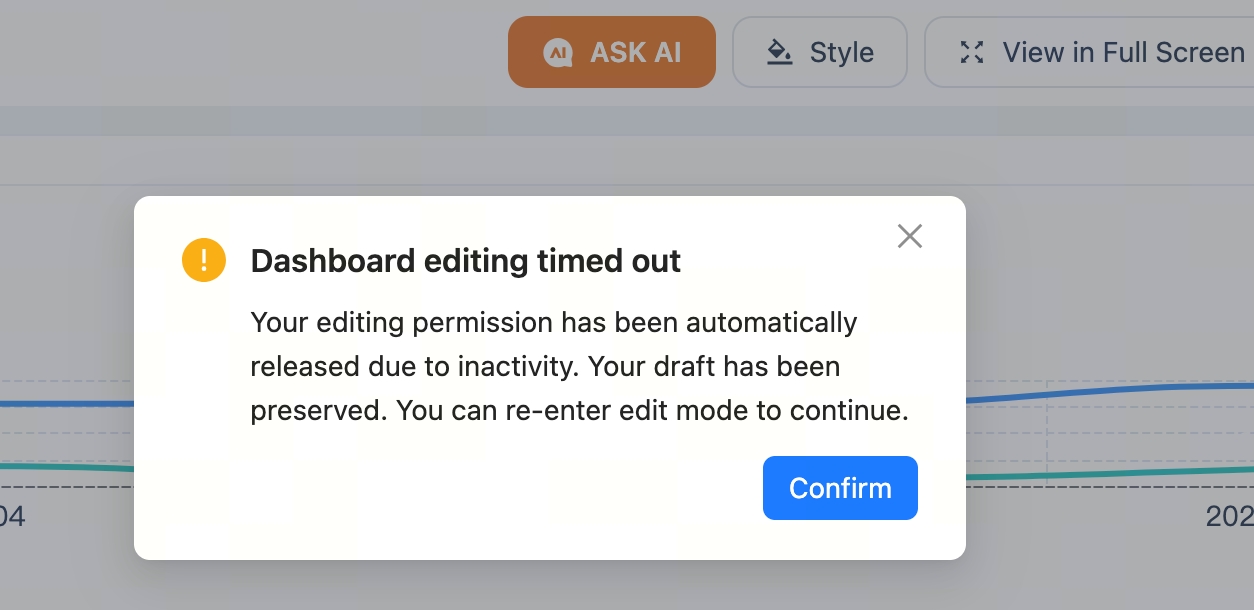
After the lock expires, the system displays Dashboard editing timed out. Your editing permission has been released, but your draft is preserved. Re-enter edit mode to continue working.
Save the Draft
Saving a draft does not create a version or make unpublished content visible to other people. You can:
- Click Save Draft or press
Ctrl+Sto save manually; - Wait for the system to autosave when there are unsaved changes.
Once saved, the draft remains available in the dashboard. Saved draft content is not deleted if you exit edit mode, close the page, or the edit lock expires after an extended period without saving.
Step 3: Publish and Create a New Version
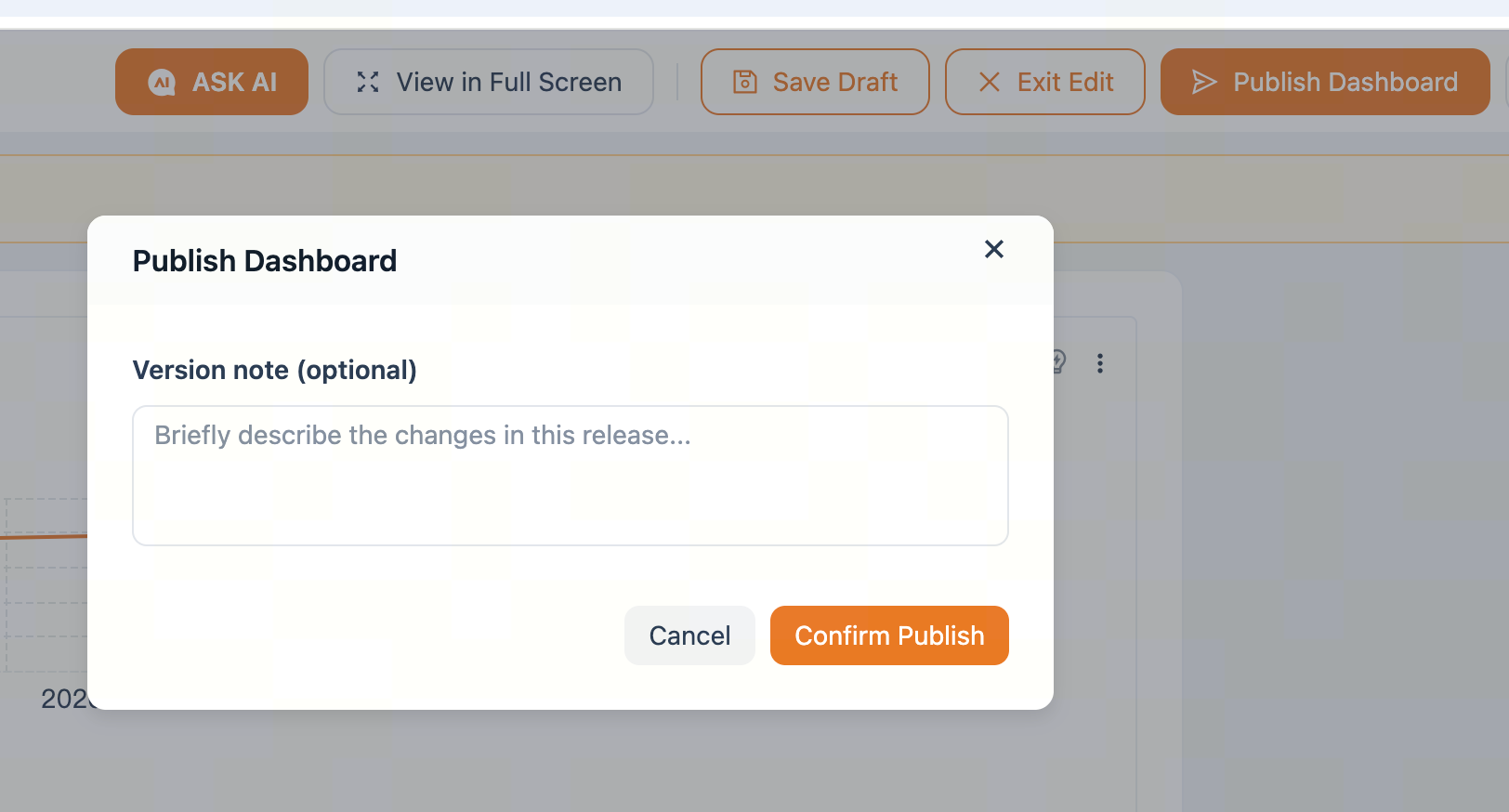
A new published version is created only after you click Publish Dashboard and confirm the action.
- Click Publish Dashboard in edit mode.
- Optionally enter a version note, such as
Added the East China sales trend chart. - Click Confirm Publish.
After publishing:
- The draft content becomes the new published version;
- The version note is saved with that version;
- The edit lock is released so that another person with editing permission can continue editing;
- Existing versions are not overwritten or deleted.
An initial version, V1, is created with every new dashboard. Version history is therefore available as soon as the dashboard is created.
Step 4: View Version History
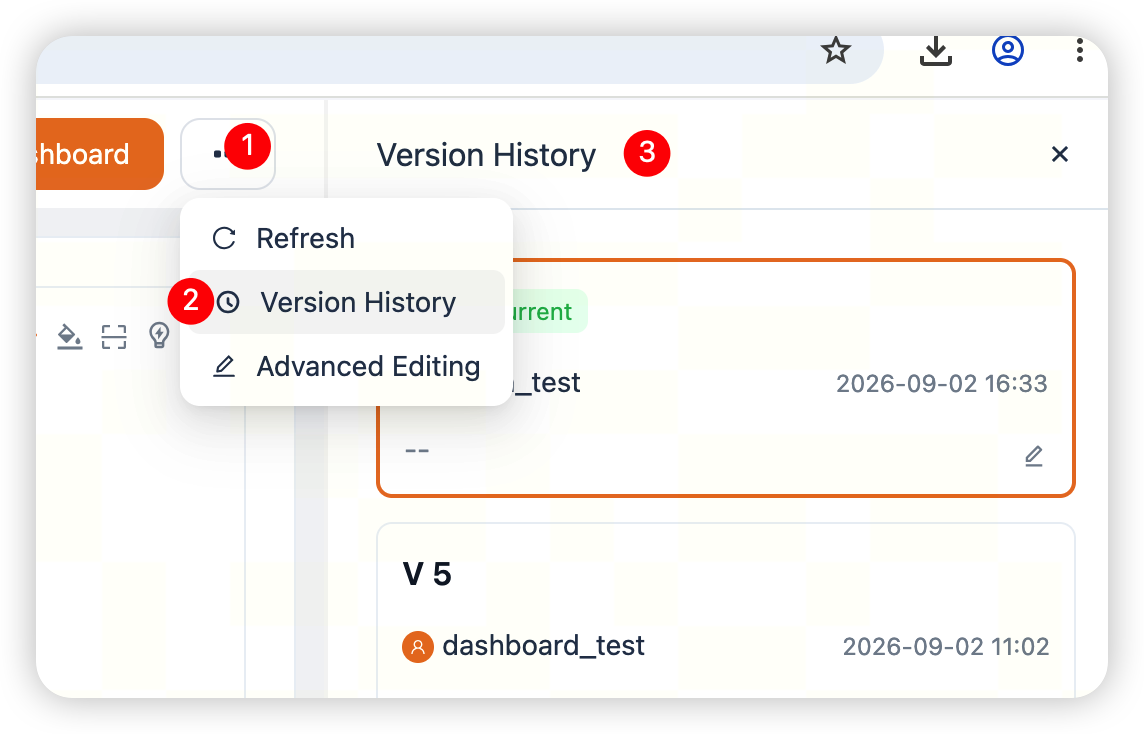
Click Version History on the dashboard page to view its publication history. Each version card typically includes:
- Version number, such as V1, V2, or V3;
- Publisher;
- Publication time;
- Version note entered by the person who published it, if any.
Step 5: Preview or Edit from a Historical Version
Preview a Historical Version
Click a version card to open a read-only snapshot of that version. The preview is for reviewing historical content only. It cannot be edited directly and does not change the current dashboard.
Start Editing from This Version
To continue editing from a historical version:
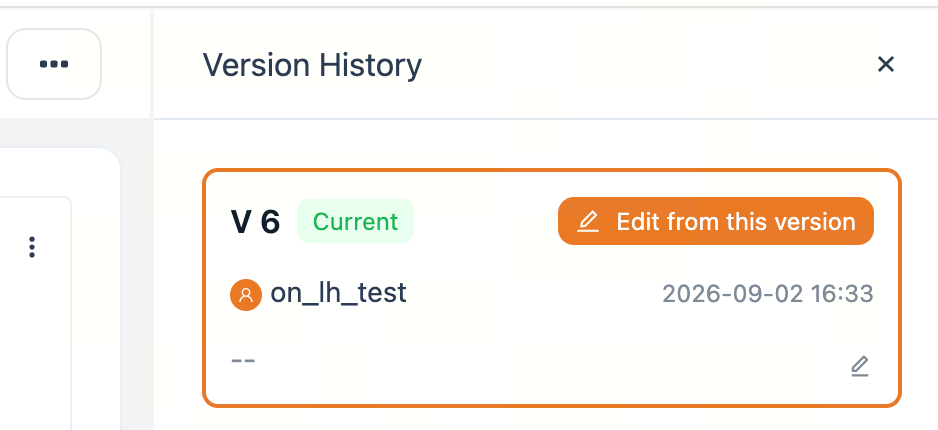
- Open the preview of the target version.
- Click Edit from this version.
- The system attempts to acquire the edit lock.
- Once the lock is acquired, the selected version is loaded into the current draft.
- Review and modify the draft, then click Publish Dashboard when you are ready.
Starting from a historical version does not create a new version immediately. A new version is created only when you publish the draft. All intermediate versions and the original selected version remain available.