
Private Storage (BYOS)
1. Feature Overview
The Private Storage BYOS (Bring Your Own Storage) feature allows you to use your own object storage service as the data storage location for the Singdata Lakehouse. With this feature, you can:
- Complete private storage configuration through the web interface without complex technical operations;
- Store workspace data in object storage managed under your own cloud platform account;
- Independently manage storage costs and storage policies.
2. Applicable Scenarios
The BYOS feature is suitable for the following scenarios:
- Data Compliance Requirements: Data needs to be stored in object storage under your own cloud account to meet compliance requirements;
- Data Sovereignty: Full control over data storage location and access permissions is required;
- Hybrid Deployment: Some workspaces use managed storage, while workspaces with high compliance requirements use private storage.
3. Prerequisites
3.1 Create a Storage Bucket
Before configuring BYOS, you need to create a bucket that meets the following requirements:
Required Conditions:
| Item | Requirement | Description |
|---|---|---|
| Region | Same cloud provider and same Region as the Lakehouse instance | Avoid cross-region transfer costs |
| Storage Class | Standard | Do not use Infrequent Access or Archive storage to avoid additional access costs |
| Read/Write Access | Private (private read/write) | Ensure data security |
| Exclusive Use | Dedicated to the Lakehouse | Do not share with other business systems to avoid data conflicts |
Recommended Bucket Configuration:
| Item | Recommended Value | Description |
|---|---|---|
| Storage Redundancy | As needed | Local redundant storage meets basic needs; for high availability, choose same-city redundancy. |
| Versioning | Disabled | The Lakehouse manages data versions on its own; enabling versioning may incur additional costs. |
| Server-Side Encryption | Disabled | The Lakehouse enables encryption for some data based on workspace configuration. Global encryption may affect read/write performance. |
| Lifecycle Rules | Not configured | The Lakehouse manages file lifecycles on its own. |
3.2 Create an Access Policy
You need to authorize the Singdata Lakehouse sub-account to access your bucket. For detailed authorization policies, see —
4. Configuration Steps
Step 1: Access Private Storage Management
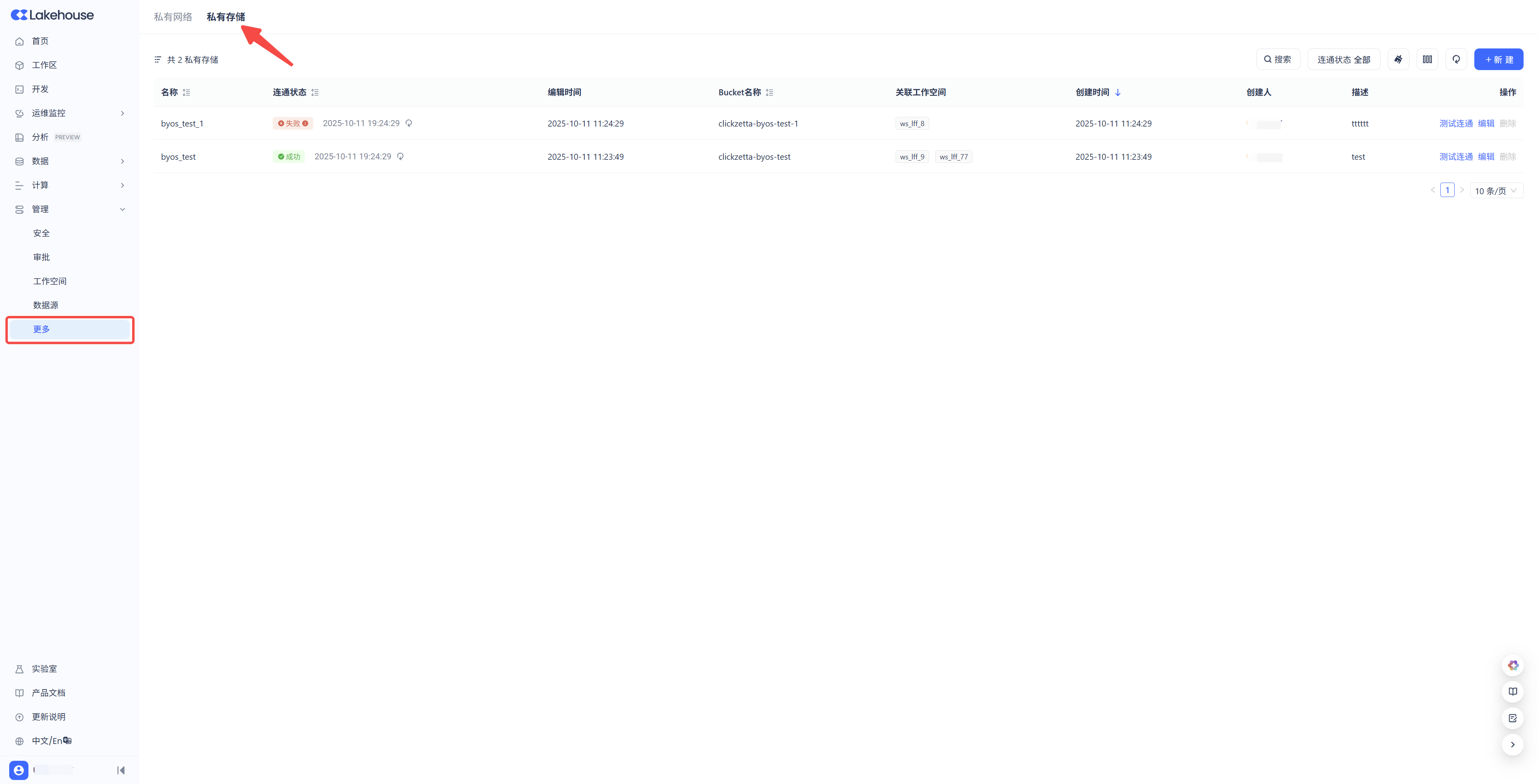
- Log in to the Singdata Lakehouse console
- Go to Management -> More -> Private Storage page
- Click the + New button
Step 2: Fill in Storage Information
Fill in the following in the configuration window that pops up:
-
Name [Required]: Must start with a letter (A-Z, a-z) or underscore ("_"), with a length of 3~28 characters. Must be unique within your service instance. Cannot be changed after saving.
-
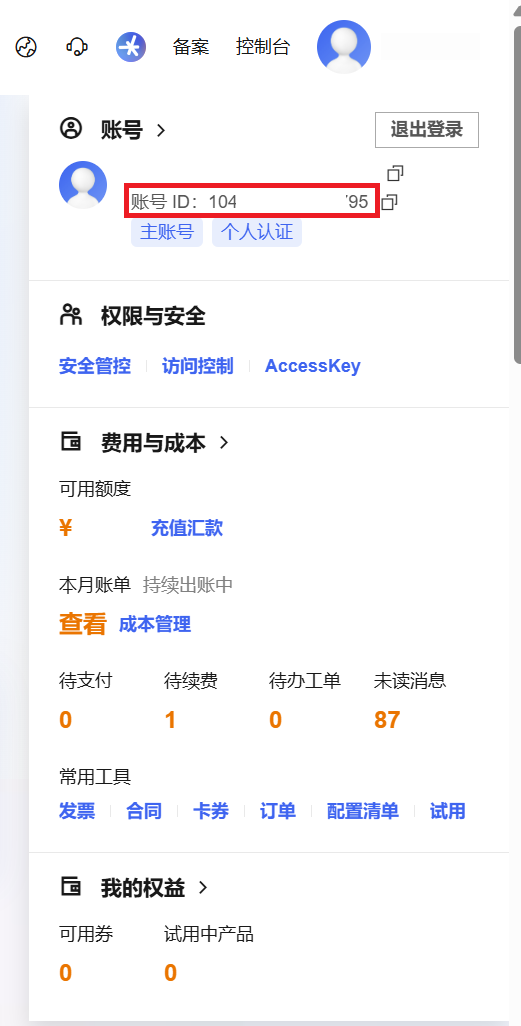
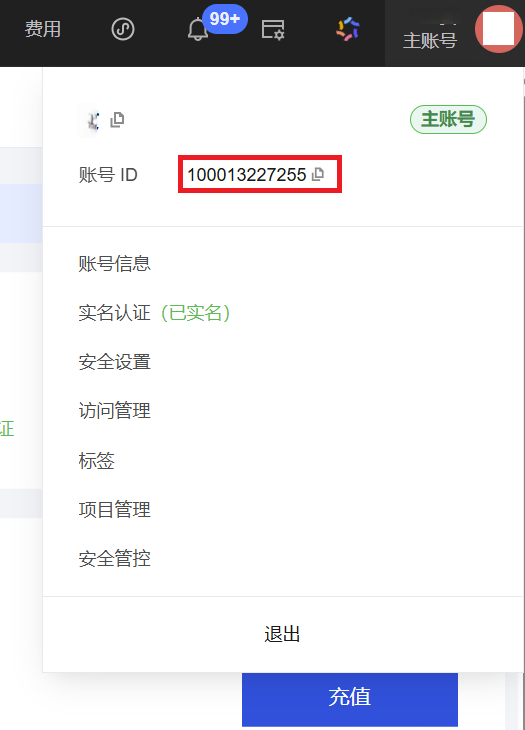
Root Account [Required]: Enter your cloud platform account ID so the authorized role and bucket can be used when calling cloud platform APIs. You can find and copy it after logging in to your cloud platform account.
Alibaba Cloud:
Tencent Cloud:
- Bucket Name [Required]: Enter the bucket name you wish to use, or bucket name + path. An example of the bucket name + path format:
- Description [Optional]: A description of the private storage to help users understand the business purpose of this private storage and avoid misoperation.
After completing the above information, click the OK button to finish creating the private storage.
Multiple private storage configurations can be created under a single Lakehouse service instance.
Step 3: Verify Configuration
After creation, the default connectivity status of the private storage is "Failed". You need to click the "Test Connectivity" button on the right side of the private storage to test connectivity. During the connectivity test, the Lakehouse will use its cloud platform account to call APIs similar to HeadBucket/GetBucketInfo on the same cloud platform and region to confirm:
- Whether the storage bucket exists;
- Whether the region is correct;
- Whether the access permissions are configured correctly.
After the verification passes, the connectivity status of the private storage in the list will change to "Success".
Step 5: Associate a Workspace
When creating a new workspace, you can use an existing private storage as the storage location for that workspace.
- In the new workspace dialog, click to expand Advanced Settings;
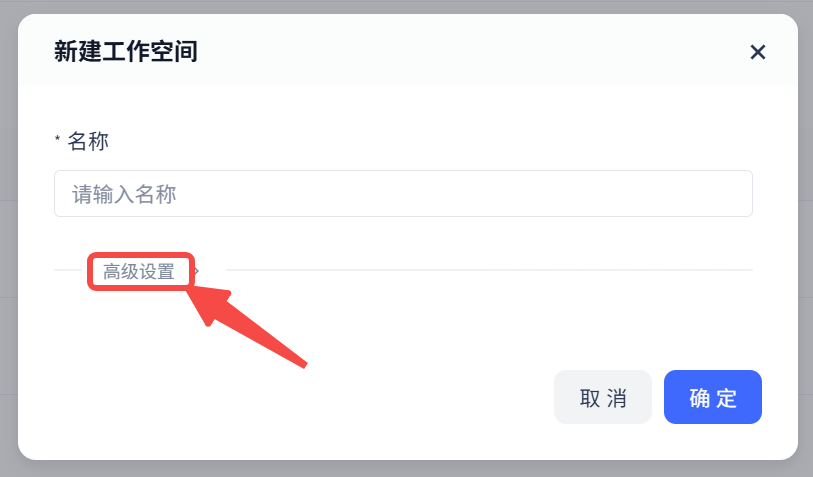
- Enable the private storage toggle and select an existing private storage location. One private storage location can be associated with multiple workspaces. Data from multiple workspaces will be separated under different subpaths within the bucket and will not affect each other.
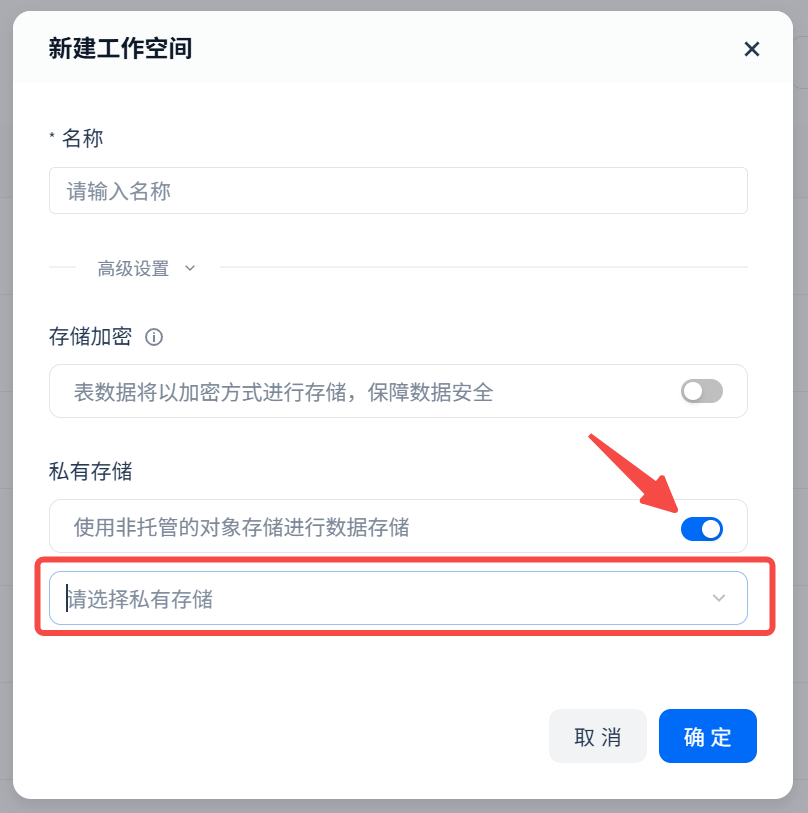
- Click OK to complete workspace creation.
5. Important Limitations
5.1 Functional Limitations
- Once a workspace is associated with a storage location, it cannot be changed;
- A private storage location associated with a workspace cannot be deleted; the workspace must be deleted first.
5.2 Regional Limitations
- Only buckets from the same cloud provider and the same Region are supported;
- In AWS environments, ensure the bucket is in the same Availability Zone to avoid cross-AZ traffic costs.
5.3 Responsibility Boundaries
- When using private storage, you are responsible for the availability and reliability of the bucket pointed to by the private storage;
- Data issues not caused by Singdata operations are your own responsibility.
5.4 Cost Description
After using BYOS:
- Singdata will no longer charge for storage capacity in private storage but will continue to charge for storage in other managed storage locations.
- You need to pay the cloud provider directly for:
- Storage capacity costs
- API access costs
- Public network traffic costs (if any)
- Logs and temporary files will occupy your storage space
5.5 Performance Notes
- Storage performance directly affects Lakehouse operational efficiency
- Ensure the storage service's QPS and bandwidth meet requirements
- Avoid resource contention with other business systems
6. FAQ
Q1: Can an existing workspace be migrated to BYOS?
A: No. Once a workspace's storage location is determined, it cannot be changed.
Q2: Can one bucket be used by multiple workspaces?
A: Yes. One BYOS configuration can be associated with multiple workspaces, but it is recommended to plan appropriately based on actual needs.
Q3: After using BYOS, what storage will Singdata still generate?
A: Query caches, temporary files, etc. will be stored in your bucket and will occupy a certain amount of capacity.