
Overview
Row-level permissions control the data range accessible to different users. By configuring permission rules, administrators can restrict users to only view data rows that meet specific conditions, ensuring data access security and isolation.
Entry Point
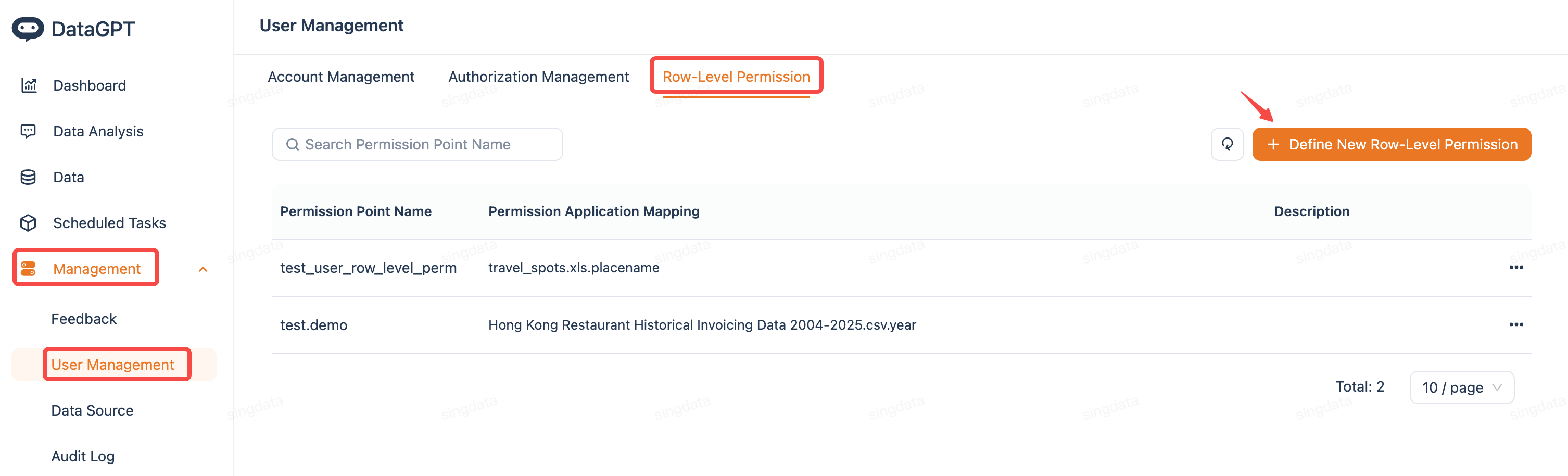
Configuration Steps
| Step | demo | 逻辑说明 |
|---|---|---|
| 1.Define Permission Rules | 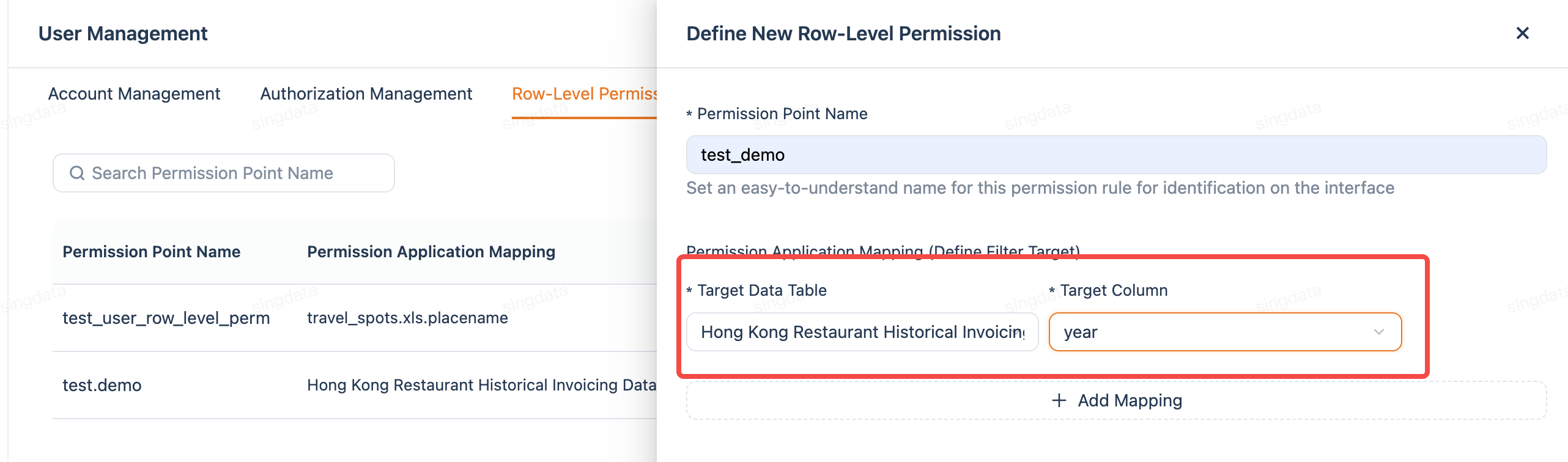 | Specify the data table and filter fields that the permission rule applies to 1. Go to the "Row-Level Permissions" page 2. Click the "+ Define New Row-Level Permission" button in the upper right corner 3. Enter the permission point name 4. Select the data table to be controlled 5. Select the field to be used for filtering (e.g., city, region, department, etc. 6.Save the rule |
| 2.Configure Permission Scope | 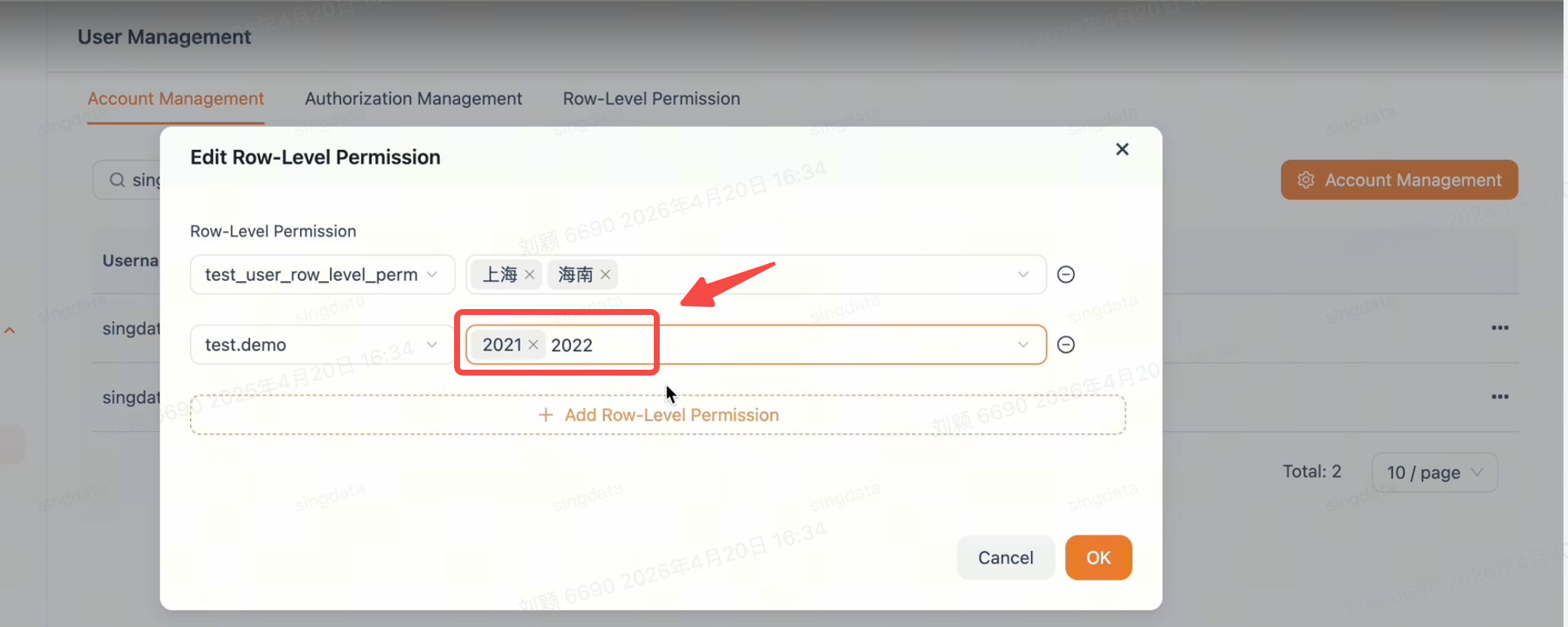 | Apply the permission rule to specific users and set their accessible data range. 1. In the permission rule list, select the rule you created 2. Add the users to whom this rule should apply 3. Set the accessible field values for each user 4.Save the configuration |
Permission Effects
| Scenario | Visible Data Range |
|---|---|
| No row-level permission configured | User can view all data in the table |
| Row-level permission configured | System automatically filters query results, user can only see data within their permission scope |
Example
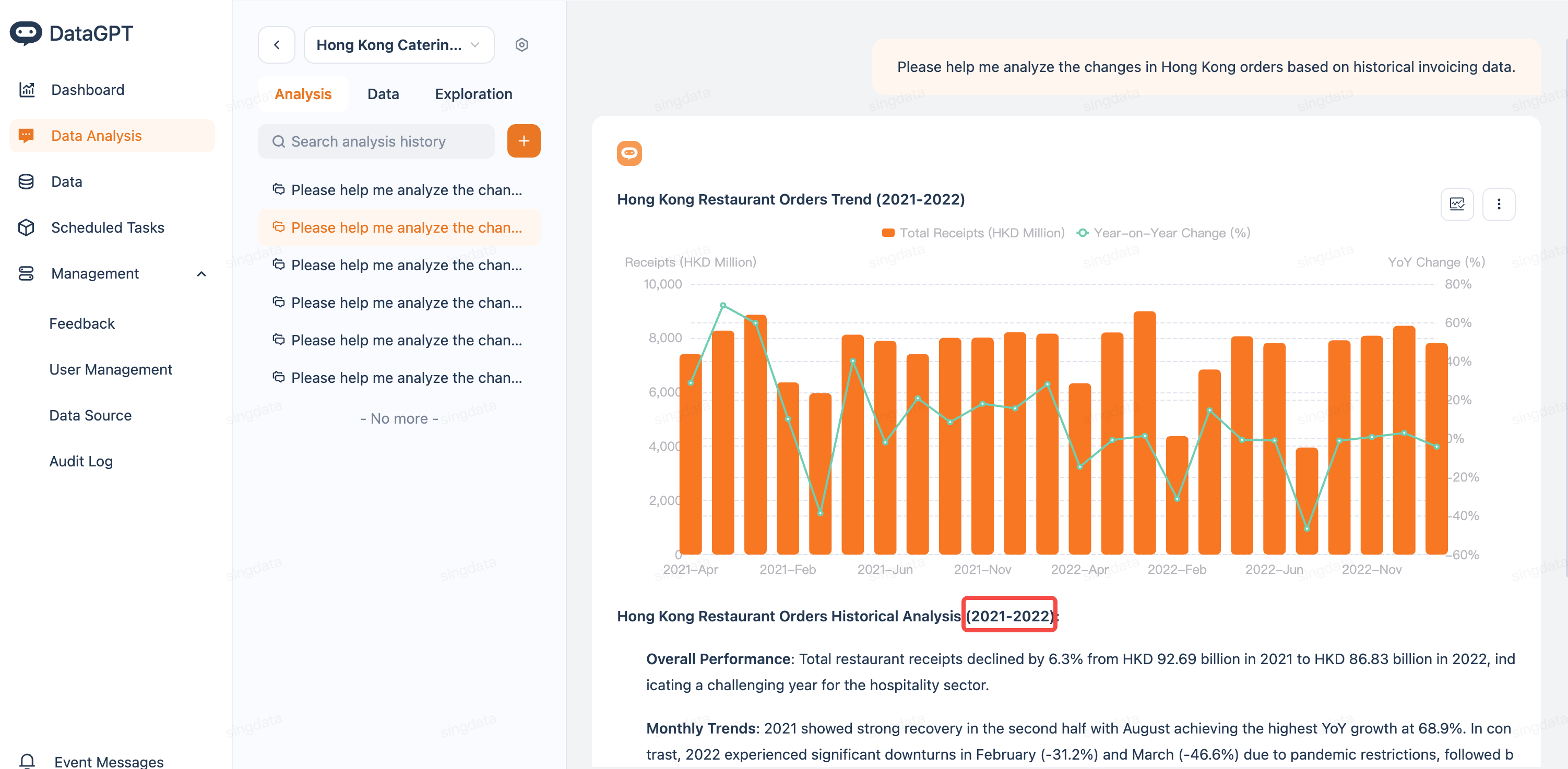
Using Hong Kong restaurant data as an example:
- Before configuration: User can view order data from 2018–2025 for all years
- After configuration (set accessible years to "2021, 2022"): User can only view order data from 2021 and 2022
Notes
1. Permission point names should use meaningful names (e.g., "North China Regional Data Permission") for easier management
2. Once row-level permissions take effect, queries generated by the Agent will also be automatically filtered based on the permission scope
3. A user may be covered by multiple permission rules. Please ensure the data ranges between rules meet your expectations
4. Permission changes take effect immediately, no restart or additional action required
5. It is recommended to periodically review permission configurations to ensure they remain consistent with business requirements