
Account Funds
Introduction
Account funds are the account used by tenants on the Singdata platform to settle fees incurred after using product services. All Regions use this account for settlement. At the same time, you can also view the income and expense details of funds through this feature.
Feature Permissions
For tenants with multiple users, the account funds feature is only accessible to users with the "Account Administrator" permission.
Categories
Account funds are currently divided into two categories: cash account and voucher account.
- Cash account: Funds can be pre-charged through corporate bank transfer, WeChat Pay, or Alipay online top-up.
- Voucher account: Vouchers issued by Singdata to tenants.
Navigation Path
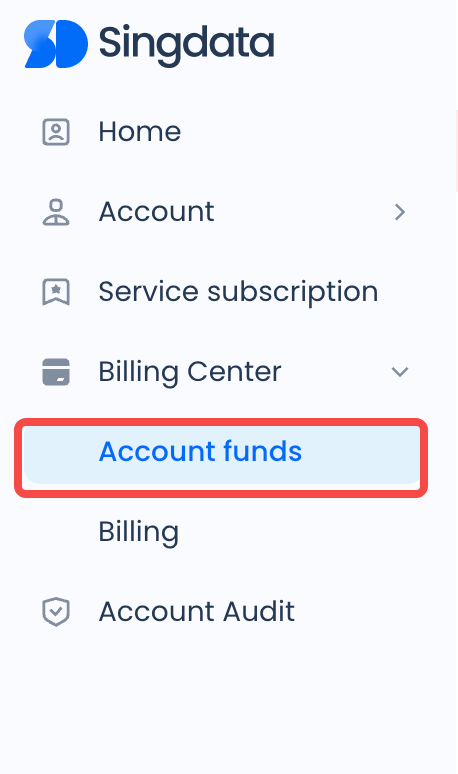
Log in to Lakehouse Studio -> Cost Center -> Account Funds, as shown below:
- Cash balance: The tenant's current available balance. Amounts topped up through corporate bank transfer, WeChat Pay, Alipay, etc., will be deducted in real time based on consumption.
- Unsettled amount: The tenant's current unsettled amount. When the cash balance is 0 and there are no available vouchers, continuing to use services will incur unsettled amounts. When unsettled amounts exist, prompt top-up is required to avoid affecting normal service operation.
- Vouchers: The number of vouchers currently available to the tenant.
Cash
Top-Up and Transfer
Supports WeChat Pay, Alipay online top-up, and offline corporate bank transfer. The differences between top-up methods are as follows:
| Top-Up Method | Description | Time to Account |
|---|---|---|
| Alipay Top-Up | Top up through an Alipay account, using Alipay balance, savings card bound to the account, credit card, family card, etc. | Real-time |
| WeChat Top-Up | Top up through a WeChat account, using WeChat balance or bound savings card. Credit card top-up is not supported. | Real-time |
| Corporate Bank Transfer | Requires using a bank account whose account name matches the real-name verification entity of the Singdata tenant for the transfer. Payment can be made through online banking, mobile banking app, or bank counter to Singdata's corporate account. After the transfer, contact your business representative to top up the amount to your Singdata cash account. | 3 business days |
Top-Up and Transfer Operation Guide:
On the cash account page, click the "Top-Up & Transfer" button to enter the top-up and transfer page, as shown below:
If choosing online top-up, the first top-up requires agreeing to the "Singdata Technology User Agreement". Click WeChat Pay or Alipay to select the top-up method, enter the top-up amount, and click "Top Up Now" to generate a payment QR code. Use the corresponding app on your mobile device to scan the QR code and complete payment, as shown below:
If choosing corporate bank transfer, enter the transfer page to view Singdata's receiving information. Transfer the required amount to Singdata's account according to the receiving information, and contact your business representative to complete the receipt. As shown below:
After completing the top-up, return to the cash account page to view the corresponding top-up transaction details. When there is an outstanding balance, the topped-up amount will be used in real time to offset the outstanding amount upon arrival.
Exception handling: If online top-up is selected but the payment is not completed within the timeout period, a top-up failure message will be displayed, as shown below. In this case, you need to refresh the page and re-initiate the top-up.
About Invoices: If you need to issue an invoice, please contact your business representative. Invoices will be issued based on your consumption records on the Singdata platform, not based on the actual top-up amount. Please be aware.
About Refunds: Online refund requests are not currently supported. If you need to initiate a refund due to account cancellation or other circumstances, please contact your business representative to complete the refund offline. Refunds can only be returned to the original payment account.
Transaction Details
Transaction details show the income and expense records of the cash account, allowing you to view the account balance change history, as shown below:
- Transaction ID: Unique credential for platform transactions
- Transaction Time: Time when the transaction occurred
- Type: Includes three types: consumption, top-up, and refund
- Account: Currently only the cash account
- Transaction Amount: The amount generated at the time of the transaction
- Available Balance: The remaining available cash amount after the transaction
- Channel: The channel through which the transaction occurred. For top-up type transactions, records the top-up source channel, such as: corporate bank transfer, WeChat Pay, Alipay
- Transaction Search: You can query transaction records for specific scenarios by setting conditions such as transaction time and transaction type.
Vouchers
Click "Vouchers" at the top of the account funds page to enter the vouchers page. By default, it displays the tenant's currently available vouchers. You can switch to "All" or "Unavailable" to view vouchers in corresponding states, as shown below:
- Available Vouchers: Vouchers that are within their validity period and have an available balance
- Unavailable Vouchers: Vouchers that have not yet reached their validity period, vouchers that have expired, or vouchers that are within their validity period but have exhausted their balance. Among these, vouchers that have not yet reached their validity period will automatically become available when the validity period begins; expired vouchers cannot be recovered. Note: All vouchers are issued by the Singdata platform and cannot be transferred or cashed out.
Voucher Details
Click the "View Details" button to view voucher consumption details, as shown below:
- Voucher Status: Active, Not Yet Active, Expired
- Voucher Face Value: The initial total amount of the issued voucher
- Balance: The remaining amount of the voucher
- Validity Period: The voucher is valid for offsetting bills within its validity period
- Region Scope: The Region range of instances that the voucher supports for offsetting
- Product Scope: The billing item range that the voucher supports for offsetting
- Transaction Details: Covers voucher consumption records, displaying offset records by billing item dimension, supporting filtering by transaction time